Understanding the Heat Maps Module.
Follow the steps to view Heat Maps.
Step 1:
Log into the site utilizing your credentials.
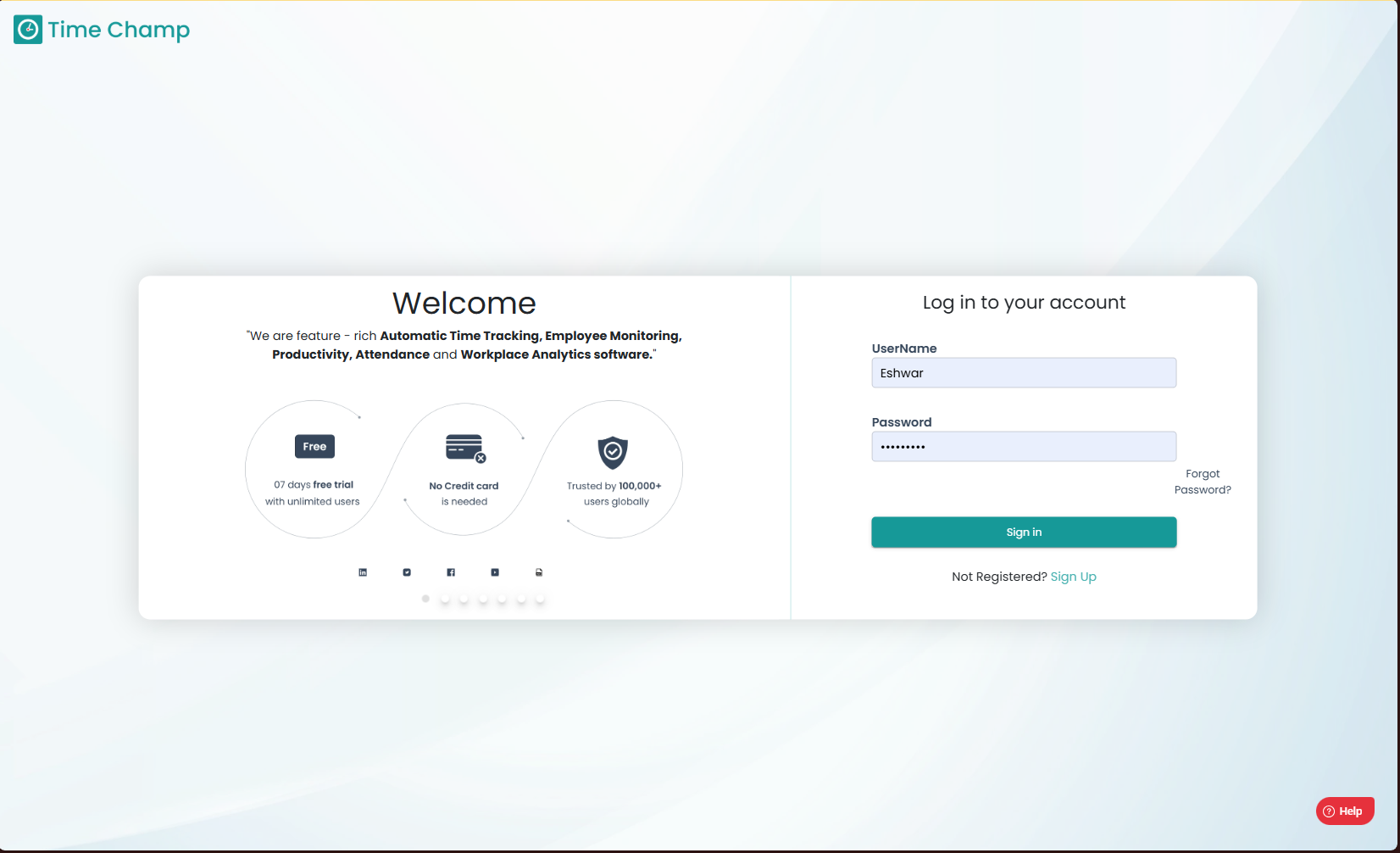
Log into the site utilizing your credentials.
Step 2:
Navigate to the Time Tracker Module and then to the Heat Maps section.
Navigate to the Time Tracker Module and then to the Heat Maps section.
Step 3:
Here, the working hours are displayed in a calendar-style view, where each day is shown in the same color but with varying intensity. A higher color intensity indicates more time spent in working hours i.e. productive time + non-productive time + neutral time on that day. This view helps track overall user performance through a graphical representation, allowing data to be analyzed at yearly, monthly, weekly, or daily levels, as shown in the highlighted area of the image below.
Here, the working hours are displayed in a calendar-style view, where each day is shown in the same color but with varying intensity. A higher color intensity indicates more time spent in working hours i.e. productive time + non-productive time + neutral time on that day. This view helps track overall user performance through a graphical representation, allowing data to be analyzed at yearly, monthly, weekly, or daily levels, as shown in the highlighted area of the image below.
Step 4:
Here, the productive hours are displayed in a calendar-style view, where each day is represented in the same color but with varying intensity. A higher color intensity indicates more productive hours worked on that day. This visualization helps monitor overall productivity trends across yearly, monthly, weekly, and daily levels, as shown in the highlighted area of the image below.
Here, the productive hours are displayed in a calendar-style view, where each day is represented in the same color but with varying intensity. A higher color intensity indicates more productive hours worked on that day. This visualization helps monitor overall productivity trends across yearly, monthly, weekly, and daily levels, as shown in the highlighted area of the image below.
Step 5:
Here, the away hours are shown in a calendar-style view, where each day is displayed in the same color but with varying intensity. A higher color intensity represents a greater duration of time spent away from the system on that day. This view helps track user availability patterns through a graphical format at yearly, monthly, weekly, and daily levels, as shown in the highlighted area of the image below.
Here, the away hours are shown in a calendar-style view, where each day is displayed in the same color but with varying intensity. A higher color intensity represents a greater duration of time spent away from the system on that day. This view helps track user availability patterns through a graphical format at yearly, monthly, weekly, and daily levels, as shown in the highlighted area of the image below.
Related Articles
Understanding Timeline
Understanding Timeline Step 1: As Show in the below image, we can navigate to Timeline by clicking Productivity Module and further clicking on Timeline Section. Step 2: In the highlighted area in the following image, we can view the monthly data of ...Understanding Trends
Understanding Trends Step 1: Navigation To Trends Click on the Productivity Module and select Trends Section as shown in the below image. Step 2: The highlighted area in the below image shows the metrics of productivity time which are as follows - ...Understanding the Attendance Module.
Follow the steps to view and Understand the Attendance Module. Step 1: Log into the site utilizing your credentials. Step 2: Navigate to the Time Tracker Module and then to the Attendance section. The Attendance module provides a complete overview of ...Understanding the Overview and the Data Download Options within it.
Follow the steps to view and Understanding the Dashboard and the Data Download Options within it. Step 1: Log into the site utilizing your credentials. Step 2: Navigate to the Time Tracker Module and then to the Dashboard section. The Dashboard ...How to Edit time in Attendance Module?
Follow the steps to edit time of a user in Attendance Module. Step 1: Log into the site utilizing your credentials. Step 2: Navigate to the Time Tracker Module and then to the Attendance section. Step 3: Here you can view the attendance data and to ...