Understanding the Overview and the Data Download Options within it.
Follow the steps to view and Understanding the Dashboard and the Data Download Options within it.
Step 1:
Log into the site utilizing your credentials.
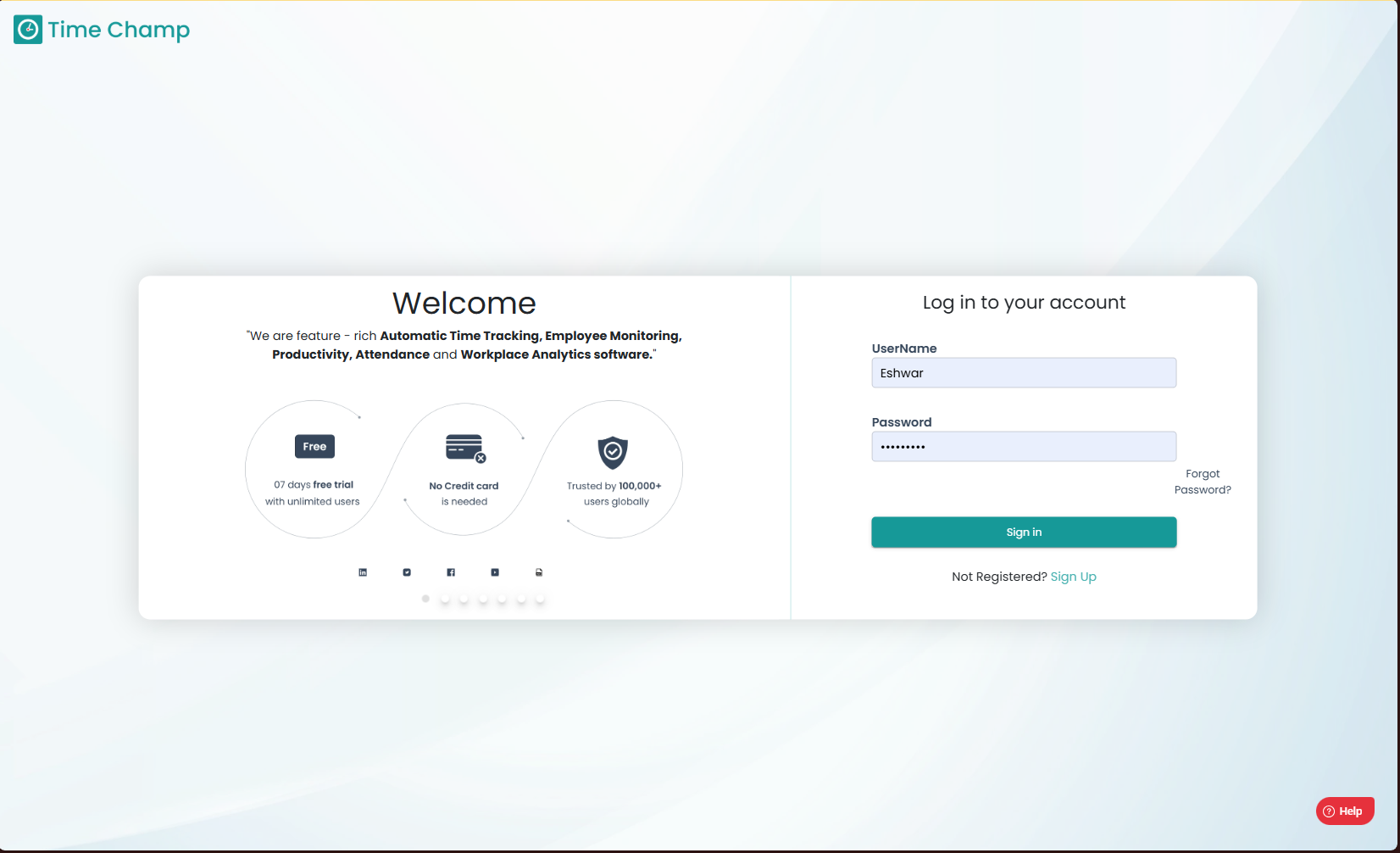
Log into the site utilizing your credentials.
Step 2:
Navigate to the Time Tracker Module and then to the Dashboard section.
Navigate to the Time Tracker Module and then to the Dashboard section.
The Dashboard provides a complete overview of employee activity and productivity.
- You can view data at different levels:User LevelManager LevelTeam LevelOrganization Level
- At the top-right corner, you can set the time frequency to:DayWeekMonthCustom Date Range
Step 3:
In the first section, we have the time related data which are defined below and shown in the highlighted area in the below image.
In the first section, we have the time related data which are defined below and shown in the highlighted area in the below image.
- Start Time:The time when the user started working as per the tracking hours.
- Working Hours:
Total working time (Productive Time + Non-Productive Time + Neutral Time).
- Last Seen:
The last activity noted for the employee.
- Productive Time:
Time spent on productive applications which are configured by the Organization.
- Non-Productive Time:Time spent on non-productive applications which are configured by the Organization.
- Neutral Time:
Time spent on uncategorized applications (neither productive nor non-productive).
- Away Time:
Completely non-working time (Idle + Offline + Break).
Step 4:
Here you can view the top 5 most used applications and websites as shown in the highlighted area of the below image.
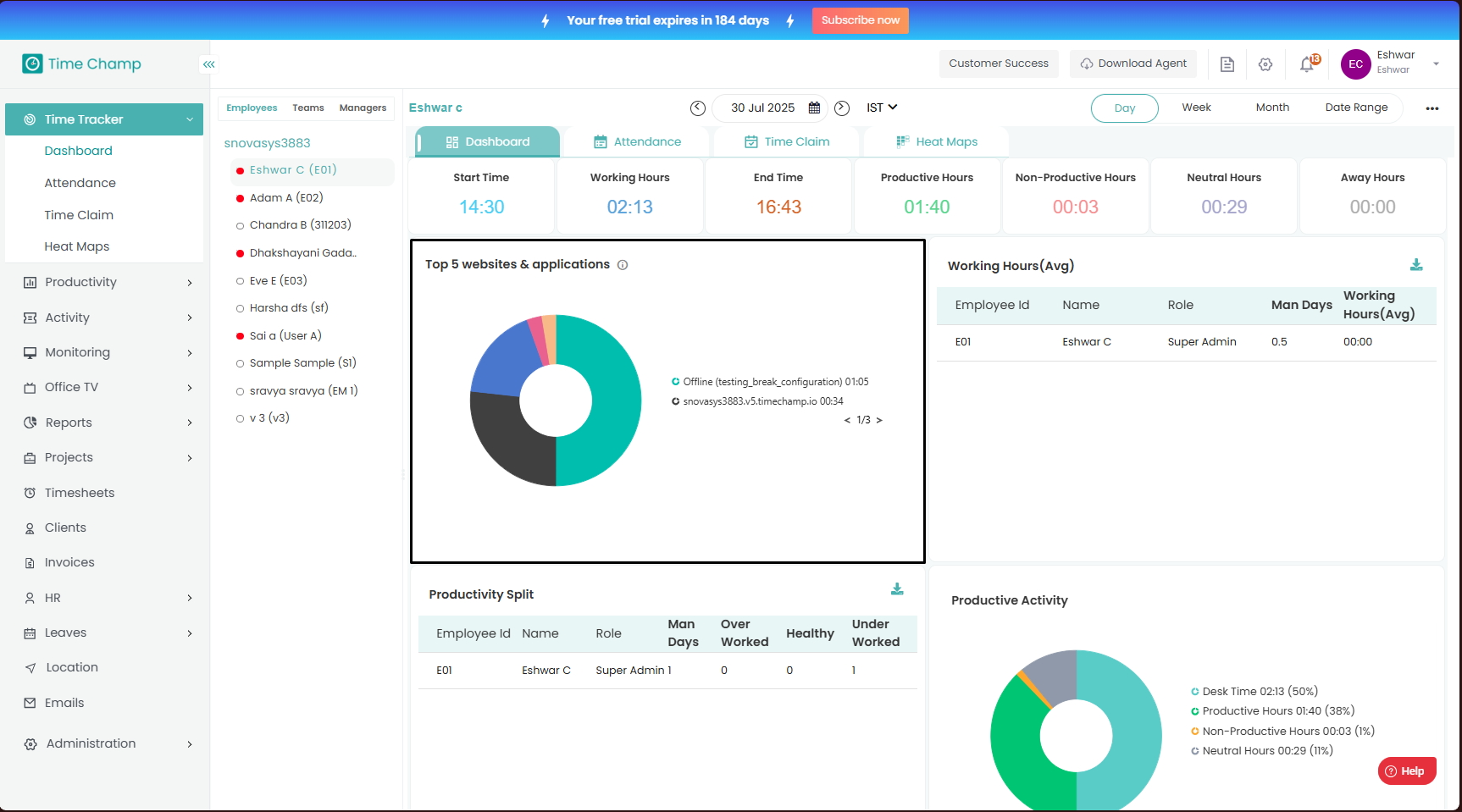
Here you can view the top 5 most used applications and websites as shown in the highlighted area of the below image.
Step 5:
Here you can view the average work hours and Man Days of the users over a day, week and month in the respective views. Click on download option as shown in the highlighted area of the below image to download the data.
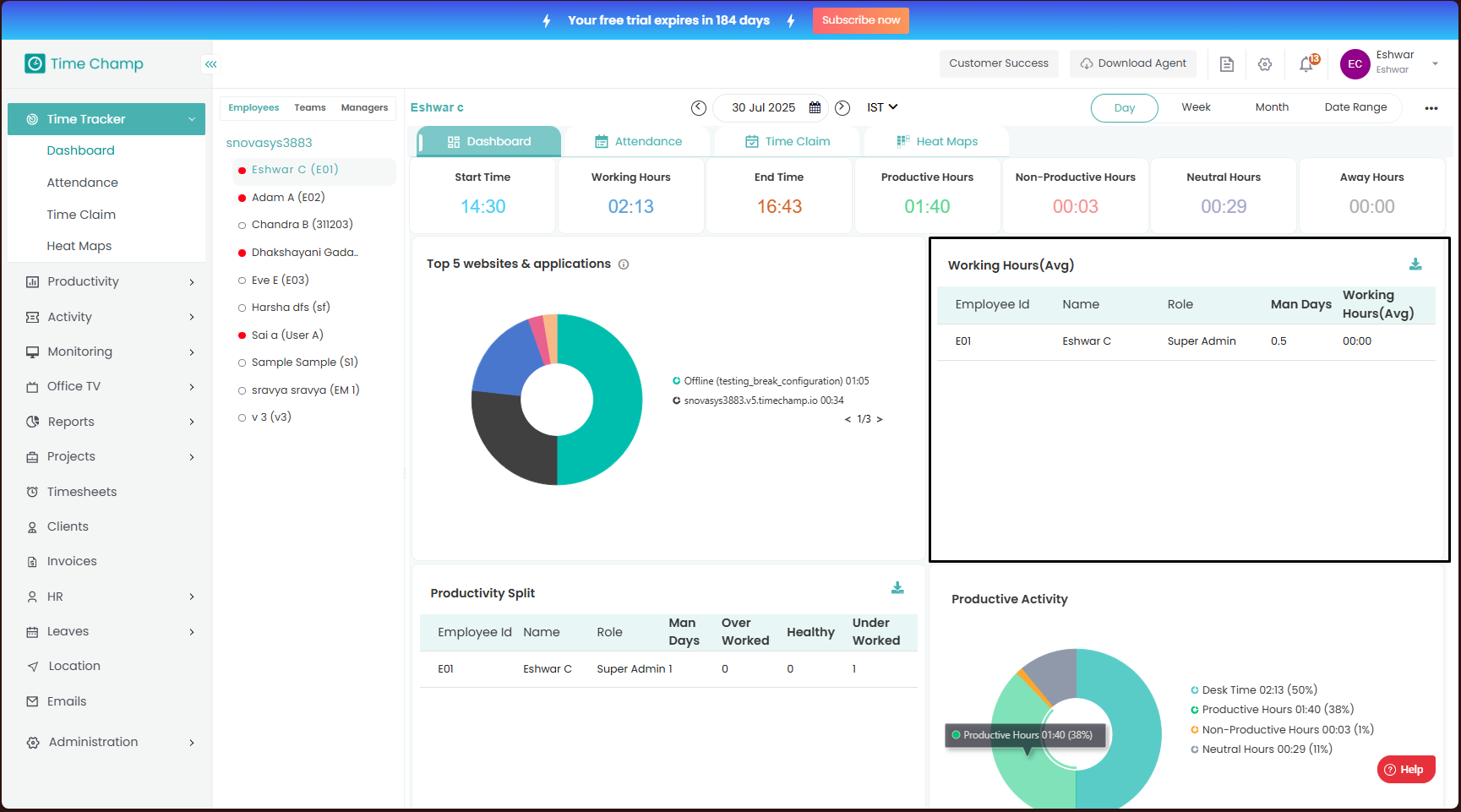
Here you can view the average work hours and Man Days of the users over a day, week and month in the respective views. Click on download option as shown in the highlighted area of the below image to download the data.
Step 6:
Here you can view the Underworked, Healthy and Overworked data of the user for which the minimum time for each status is configured by the organization as shown in the highlighted area of the below image and the download option will generate a sheet containing this data.
Here you can view the Underworked, Healthy and Overworked data of the user for which the minimum time for each status is configured by the organization as shown in the highlighted area of the below image and the download option will generate a sheet containing this data.
Step 7:
Here you can view the donut chart breakdown of the Productive Activity as shown in the highlighted area of the below image.
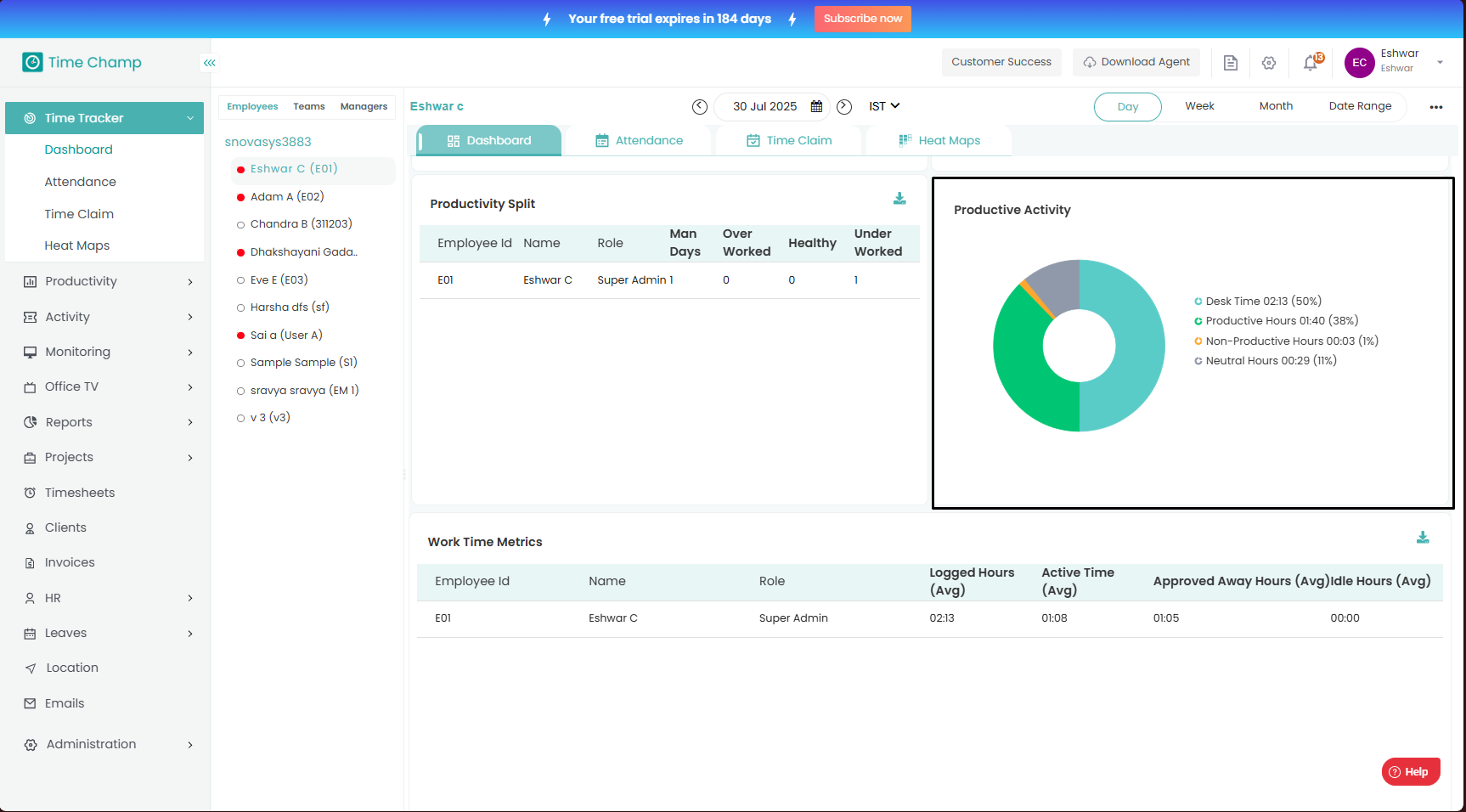
Here you can view the donut chart breakdown of the Productive Activity as shown in the highlighted area of the below image.
Step 8:
Here you can view the work time metrics of the employee which provide data on the logged hours, active time, approved away time and away hours as shown in the highlighted area of the below image and the download option will generate a sheet containing this data.
Step 9:
Here you can view the work Life Balance of the employee which is basically the number of hours the employee is expected to work highlighted by the orange bar which is configured by the organization and the number of hours the employee worked which is highlighted by the blue bar as shown in the highlighted area of the below image.
Step 10:
Here you can view the Time Away from System data breakdown as shown in the highlighted area of the below image and the download option will generate a sheet containing this data.
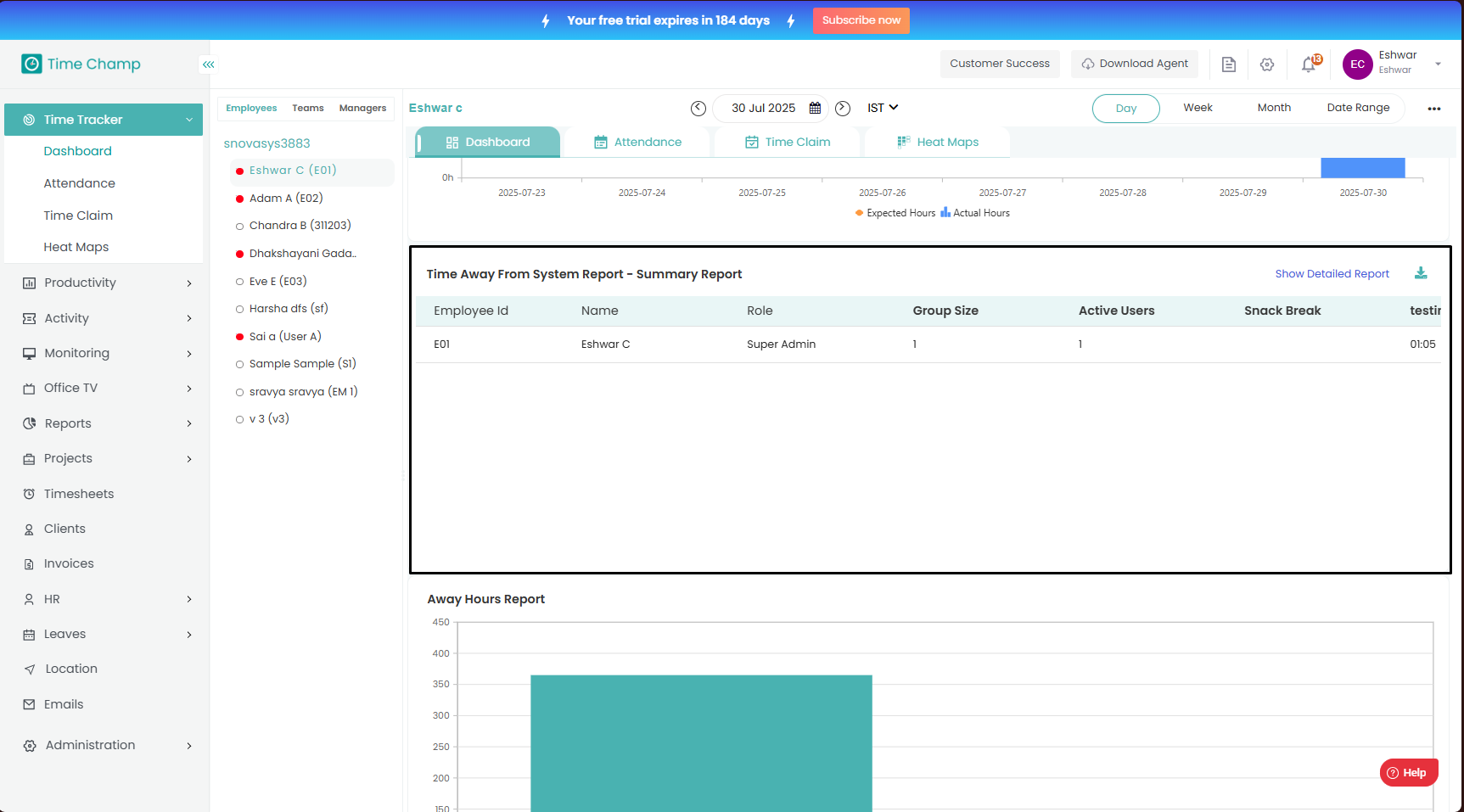
Here you can view the Time Away from System data breakdown as shown in the highlighted area of the below image and the download option will generate a sheet containing this data.
Step 11:
Here you can view the graphical breakdown of the away hours as shown in the highlighted area of the below image and select the download option.
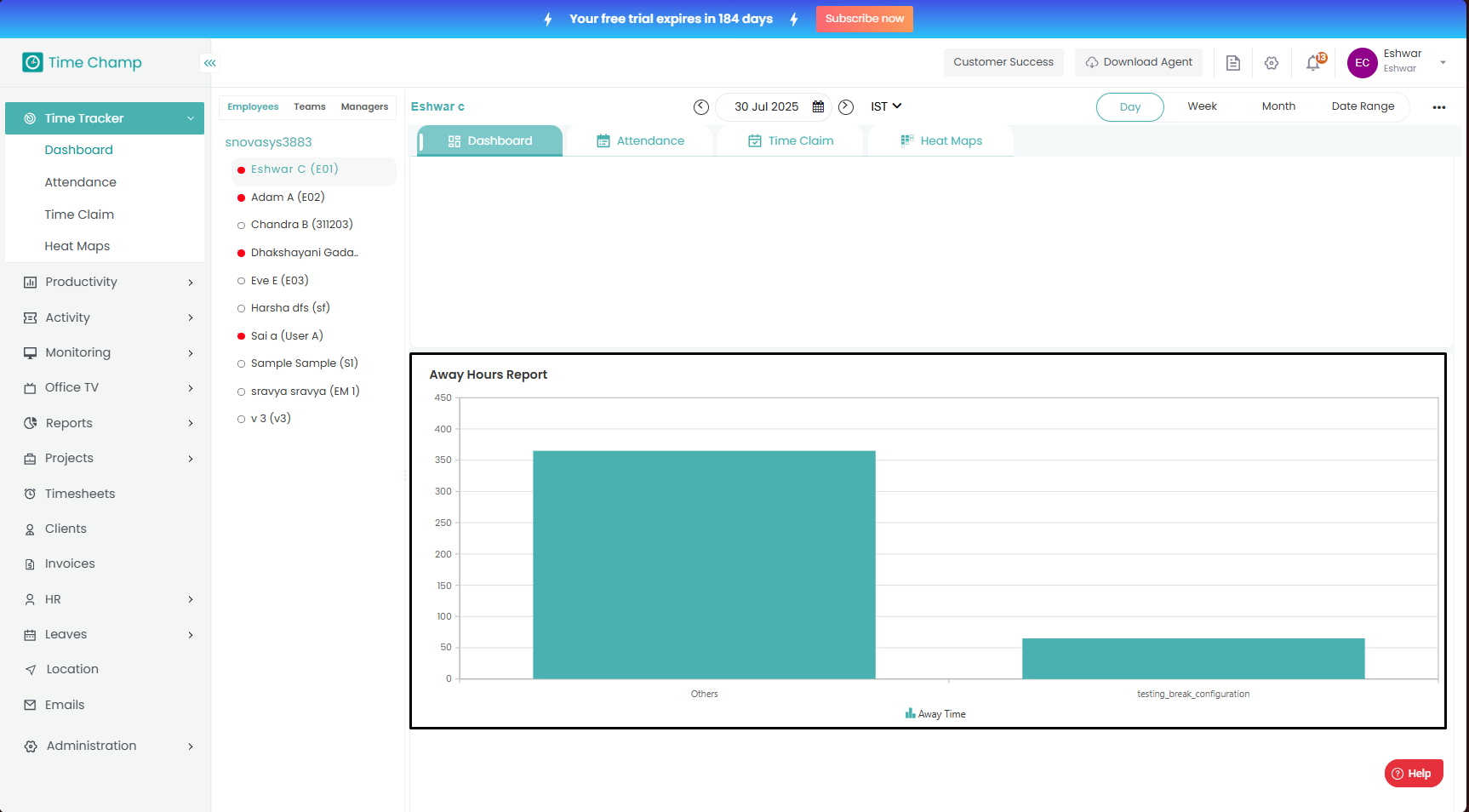
Here you can view the graphical breakdown of the away hours as shown in the highlighted area of the below image and select the download option.
Related Articles
Understanding Timeline
Understanding Timeline Step 1: As Show in the below image, we can navigate to Timeline by clicking Productivity Module and further clicking on Timeline Section. Step 2: In the highlighted area in the following image, we can view the monthly data of ...Understanding Trends
Understanding Trends Step 1: Navigation To Trends Click on the Productivity Module and select Trends Section as shown in the below image. Step 2: The highlighted area in the below image shows the metrics of productivity time which are as follows - ...How to view and download the keystrokes data of a user in Monitoring?
Follow the steps to view and download Keystrokes of a user in Monitoring Module. Step 1: Log into the site utilizing your credentials. Step 2: Navigate to the Monitoring Module and then to the Keystrokes section. Step 3: Here you can view the ...How to Navigate, View and Download Application Used related data in Activity Module?
Follow the steps to view and download the Applications Used data in Activity module. Step 1: Log into the site utilizing your credentials. Step 2: Navigate to the Activity Module and then to the Application Used section. Step 3: Here you can view the ...How to Navigate, View and Download Application groups related data in Activity Module?
Follow the steps to view and download the by Application Groups data in Activity module. Step 1: Log into the site utilizing your credentials. Step 2: Navigate to the Activity Module and then to the By Application Groups section. Step 3: Here you can ...