How to Edit time in Attendance Module?
Follow the steps to edit time of a user in Attendance Module.
Step 1:
Log into the site utilizing your credentials.
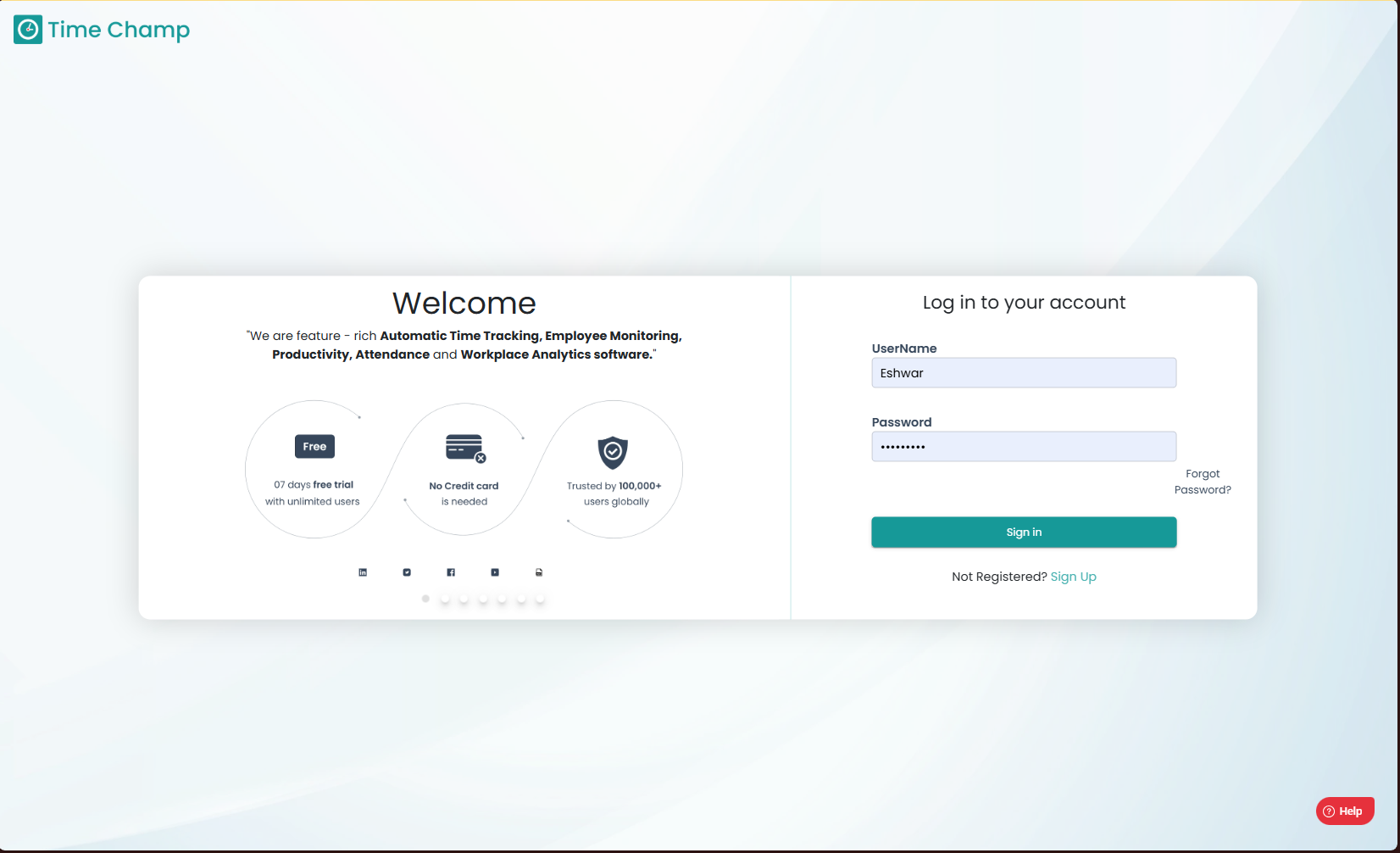
Log into the site utilizing your credentials.
Step 2:
Navigate to the Time Tracker Module and then to the Attendance section.
Navigate to the Time Tracker Module and then to the Attendance section.
Step 3:
Here you can view the attendance data and to edit the time, identify the time period you would like to modify and hover your cursor over it. As shown in the highlighted area in the image below, click on the edit symbol.
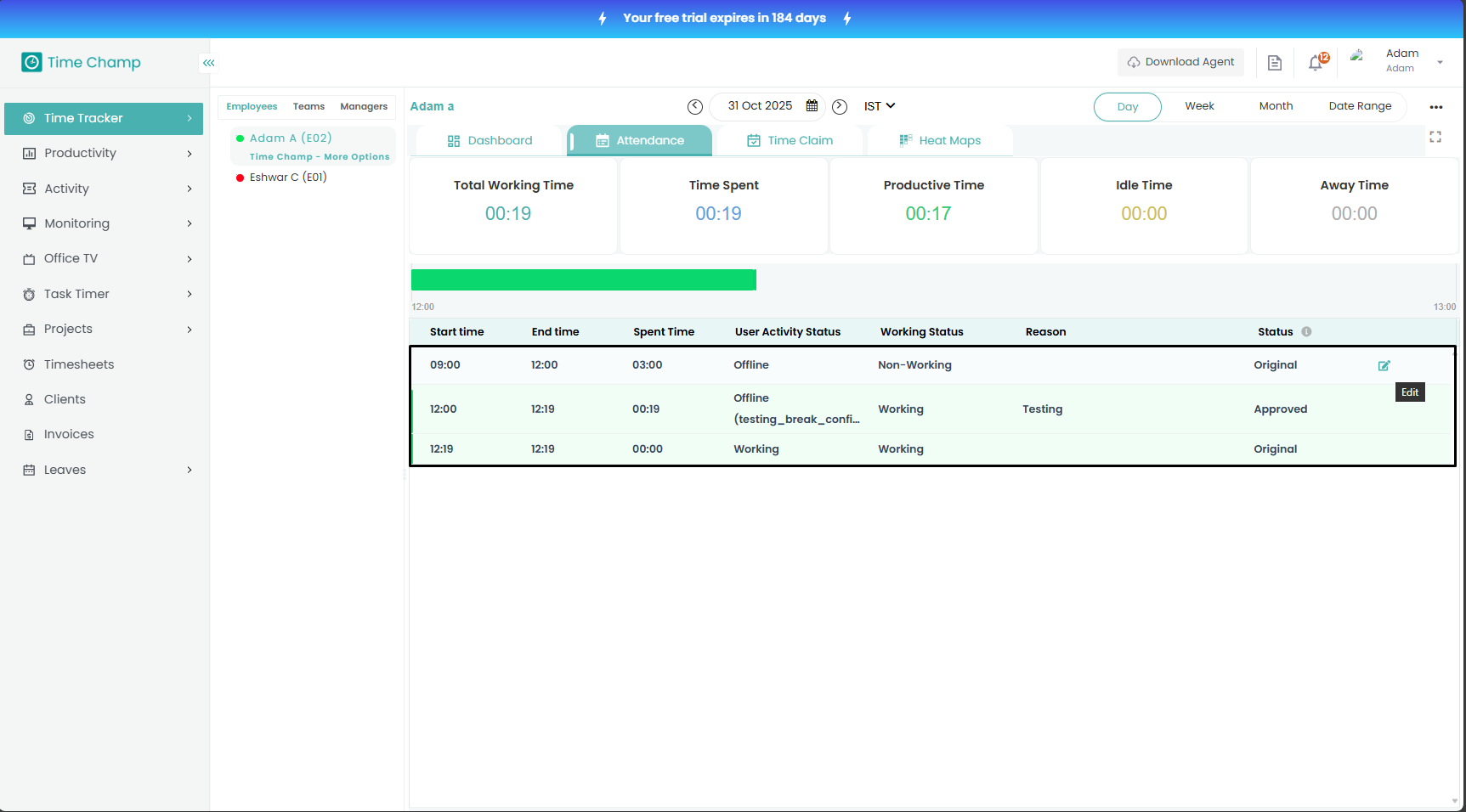
Here you can view the attendance data and to edit the time, identify the time period you would like to modify and hover your cursor over it. As shown in the highlighted area in the image below, click on the edit symbol.
Step 4:
Now, select the duration for which you want to make edits, either for the entire instance or a specific split from the instance in the drop-down menu. Then choose the working status (working or non-working), select a reason, provide a description, and click the check mark to edit the time.
Now, select the duration for which you want to make edits, either for the entire instance or a specific split from the instance in the drop-down menu. Then choose the working status (working or non-working), select a reason, provide a description, and click the check mark to edit the time.
Step 5:
Now, the edited time will reflect here once approved if it is considered as working and will automatically reflect without the need of approval if it is non-working.
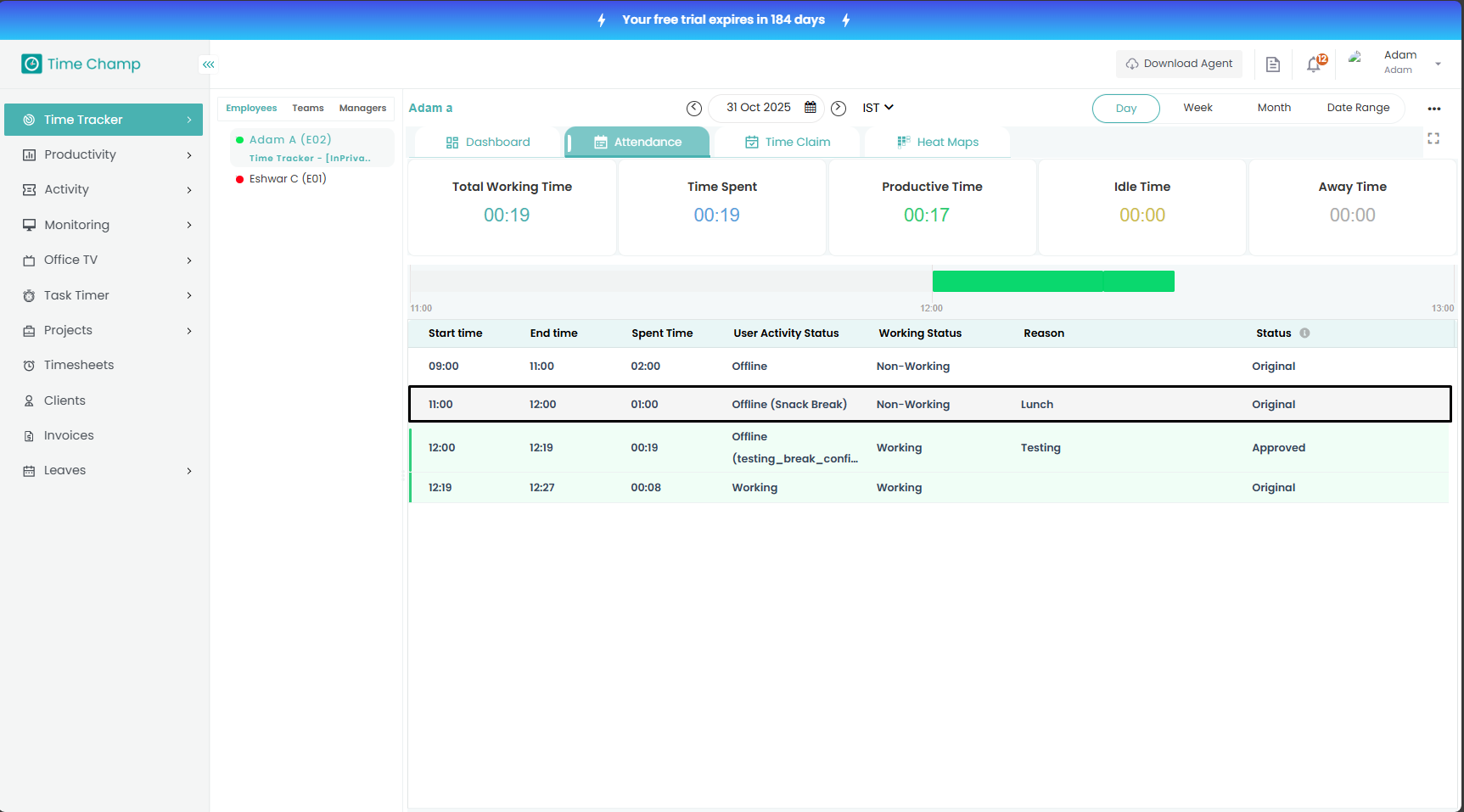
Now, the edited time will reflect here once approved if it is considered as working and will automatically reflect without the need of approval if it is non-working.
Related Articles
How to setup Full day and Half day present and Absent Attendance through Targets?
Follow the steps to configure Targets. Step 1: Log into the site utilizing your credentials. Step 2: Navigate to the Administration module and then to the Advanced section. Step 3: Navigate to the Targets sub section as shown in the image below. Step ...Understanding the Attendance Module.
Follow the steps to view and Understand the Attendance Module. Step 1: Log into the site utilizing your credentials. Step 2: Navigate to the Time Tracker Module and then to the Attendance section. The Attendance module provides a complete overview of ...How to access and download Attendance Chart?
Follow the steps to access and download the Attendance Chart. Step 1: Log into the site utilizing your credentials. Step 2: Navigate to the Reports Module and then to the Time and Attendance section. Step 3: After clicking on the Report, you can fill ...How to access and download Monthly Attendance report?
Follow the steps to access and download the Monthly Attendance report. Step 1: Log into the site utilizing your credentials. Step 2: Navigate to the Reports Module and then to the Time and Attendance section. Step 3: After clicking on the Report, you ...How to edit a Department?
Follow the steps to edit a department. Step 1: Log into the site utilizing your credentials. Step 2: Navigate to the Administration Module and then to the Departments section. Step 3: Now you can view the edit department option in the highlighted ...