Understanding the Attendance Module.
Follow the steps to view and Understand the Attendance Module.
Step 1:
Log into the site utilizing your credentials.
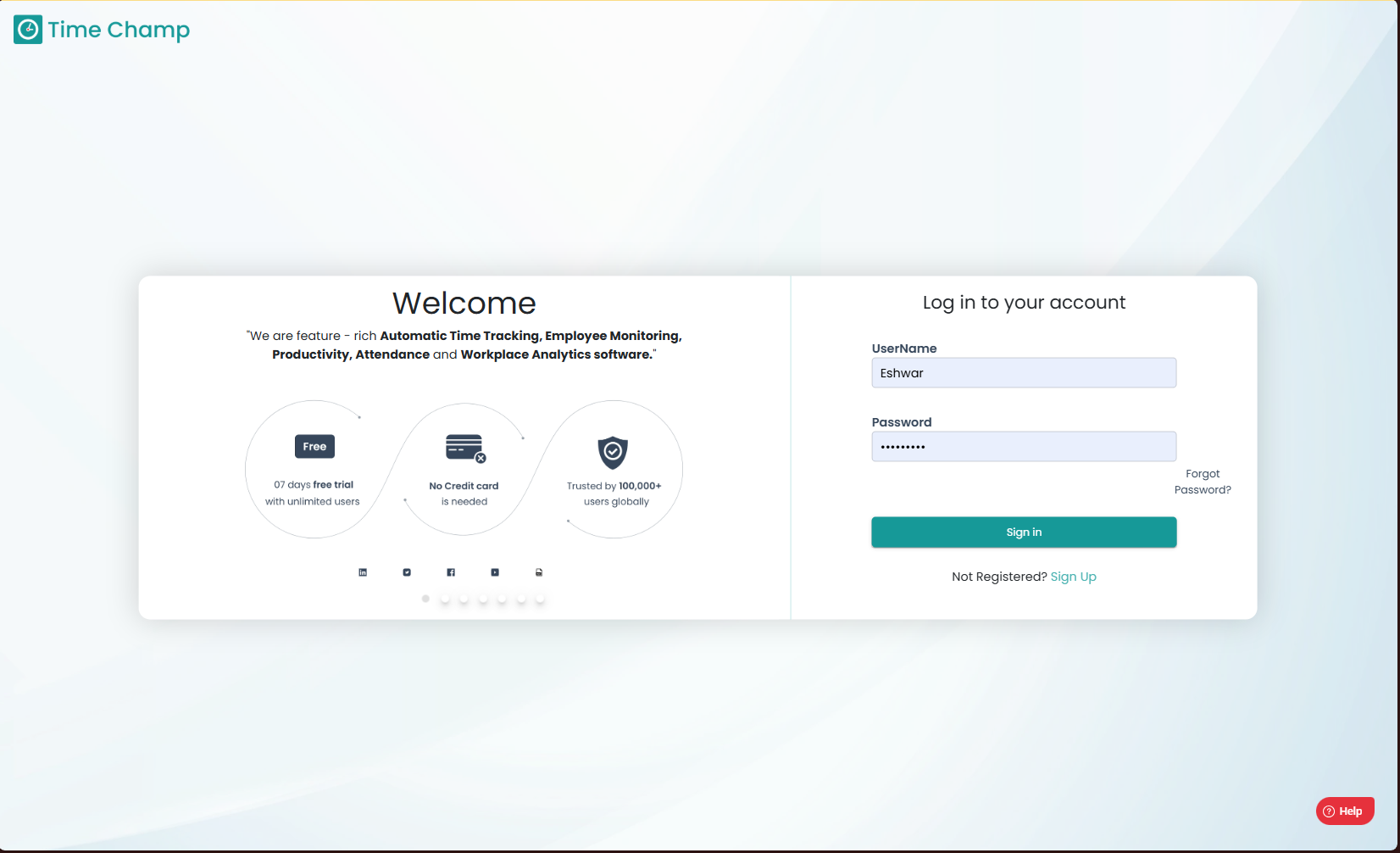
Log into the site utilizing your credentials.
Step 2:
Navigate to the Time Tracker Module and then to the Attendance section.
Navigate to the Time Tracker Module and then to the Attendance section.
The Attendance module provides a complete overview of employee time spent.
- You can view data at different levels:User LevelManager LevelTeam LevelOrganization Level
- At the top-right corner, you can set the time frequency to:DayWeekMonthCustom Date Range
Step 3:
In the first section, we have the time related data which are defined below and shown in the highlighted area in the below image.
In the first section, we have the time related data which are defined below and shown in the highlighted area in the below image.
- Working Hours:
Total working time (Productive Time + Non-Productive Time + Neutral Time).
- Time Spent:
Total time spent on system (Working Hours +Away Hours)
- Productive Time:
Time spent on productive applications which are configured by the Organization.
- Idle Time:
If a user has no activity on the system i.e. no keystrokes or mouse clicks for certain duration which is set as per the configurations, the user will be considered as idle and that period will be considered Idle Time.
- Away Time:
Completely non-working time (Idle + Offline + Break).
Step 4:
Here, we can view the detailed breakdown of attendance including,
Here, we can view the detailed breakdown of attendance including,
- The time periods during which the user was working.
- The time periods during which the user was non-working.
- The time periods during which the user was idle.
- The time periods during which the user was on break.
Including a bar showing different colors for each instance the user attendance state was changed along with the time and duration.
Related Articles
Understanding Timeline
Understanding Timeline Step 1: As Show in the below image, we can navigate to Timeline by clicking Productivity Module and further clicking on Timeline Section. Step 2: In the highlighted area in the following image, we can view the monthly data of ...Understanding Trends
Understanding Trends Step 1: Navigation To Trends Click on the Productivity Module and select Trends Section as shown in the below image. Step 2: The highlighted area in the below image shows the metrics of productivity time which are as follows - ...How to Edit time in Attendance Module?
Follow the steps to edit time of a user in Attendance Module. Step 1: Log into the site utilizing your credentials. Step 2: Navigate to the Time Tracker Module and then to the Attendance section. Step 3: Here you can view the attendance data and to ...Understanding the Heat Maps Module.
Follow the steps to view Heat Maps. Step 1: Log into the site utilizing your credentials. Step 2: Navigate to the Time Tracker Module and then to the Heat Maps section. Step 3: Here, the working hours are displayed in a calendar-style view, where ...Understanding the Overview and the Data Download Options within it.
Follow the steps to view and Understanding the Dashboard and the Data Download Options within it. Step 1: Log into the site utilizing your credentials. Step 2: Navigate to the Time Tracker Module and then to the Dashboard section. The Dashboard ...