How to Download the Time & Attendance Reports
Follow the steps below to navigate and manually download reports from the Reports section:
Step 1:
Log in to your Time Champ account.
Step 1:
Log in to your Time Champ account.
From the left-hand menu, click on Reports.
Step 2:
Under Reports, click on Time & Attendance.
Under Reports, click on Time & Attendance.
In this section, you can manually download three types of reports:
Monthly Attendance
Track employee attendance with a summary of days present, absent, and a daily breakdown showing full-day, half-day, or absence status for accurate attendance monitoring.
Track employee attendance with a summary of days present, absent, and a daily breakdown showing full-day, half-day, or absence status for accurate attendance monitoring.
Late Report
Identify late logins by viewing employee in-times, out-times, and the duration of lateness.
Identify late logins by viewing employee in-times, out-times, and the duration of lateness.
Custom Report
Generate tailored reports by selecting specific metrics and filters, providing flexible insights into employee productivity and software usage.
Generate tailored reports by selecting specific metrics and filters, providing flexible insights into employee productivity and software usage.
Step 3:
Generate and Export a Report
Click on the report type you wish to download.
Generate and Export a Report
Click on the report type you wish to download.
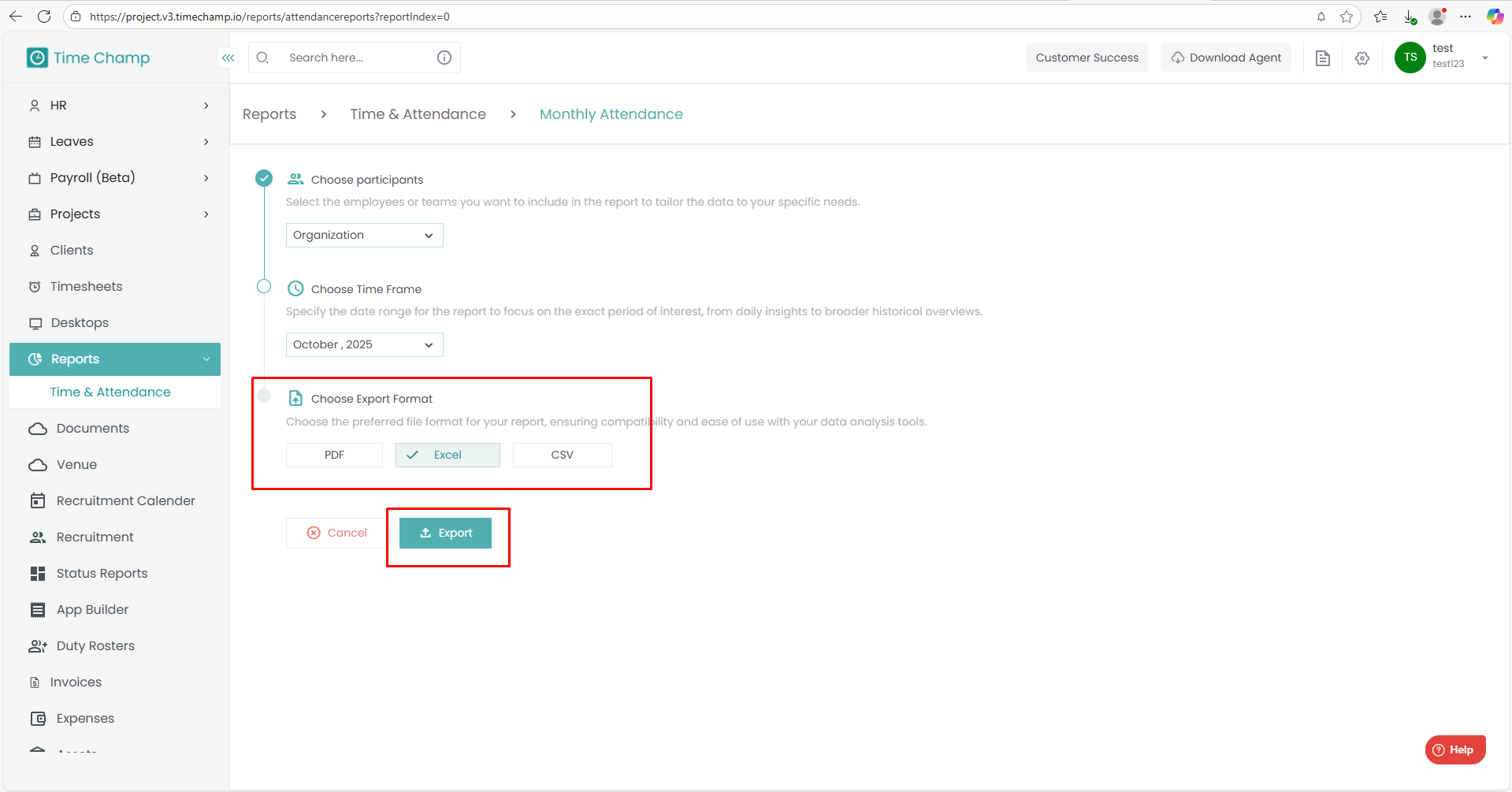
Choose Participants — select from Organization, Users, Teams, or Managers.
Select the desired Time Frame.
Choose the preferred Export Format.
Click on Export — the report will be generated and queued for download.
Step 4:
Download the Exported Report
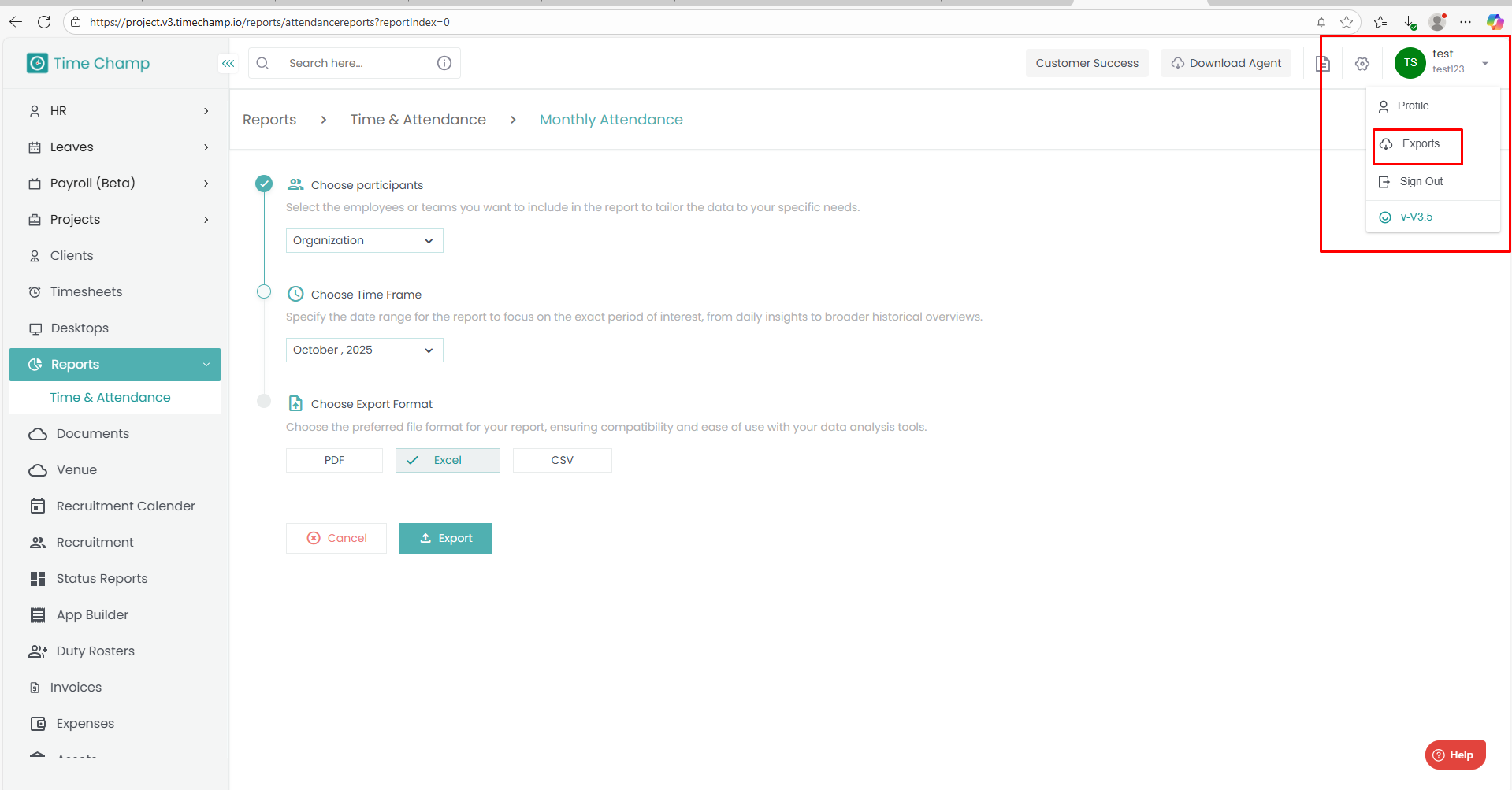
Click on your Profile icon at the top-right corner.
Select Exports
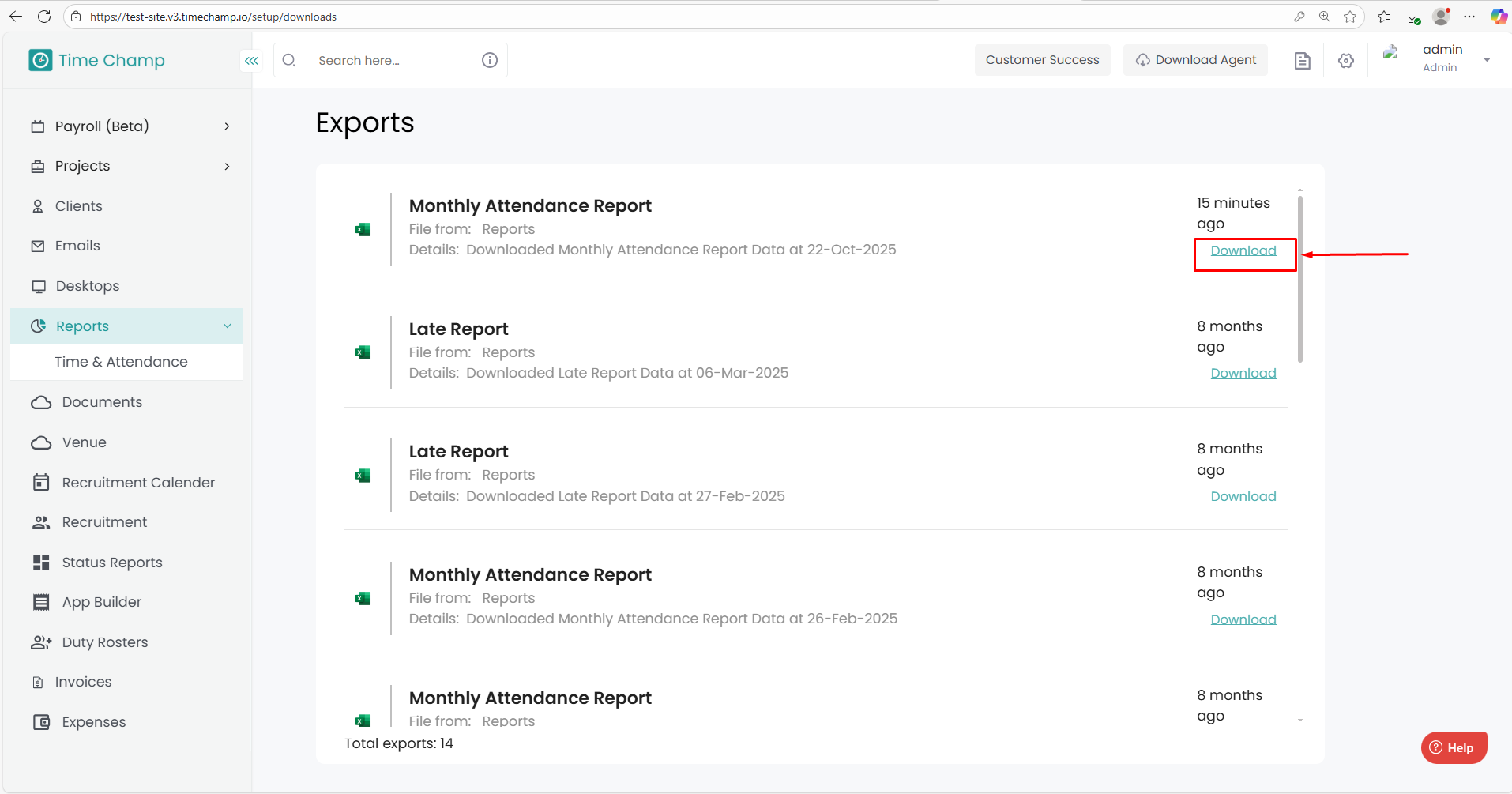
Click on Download to save the generated report to your system.
Click on Export — the report will be generated and queued for download.
Step 4:
Download the Exported Report
Click on your Profile icon at the top-right corner.
Select Exports
Click on Download to save the generated report to your system.
Related Articles
How to Edit time in Attendance
Follow the steps below to edit the time of a user in the Attendance section of the Time Champ application. Step 1: Log in to your Time Champ account using your credentials. Step 2: Go to the Time Tracker Module, then click on the Attendance section. ...How to view the Attendance in V3
Follow the steps below to navigate and understand the Attendance section in the Time Tracker module of Time Champ.: Step 1: Log in to your Time Champ account. Under the Time Tracker section, click on Attendance. The Attendance Dashboard will appear, ...How to edit Existing users and Enable Attendance tracking
Follow the steps below to edit user details and enable attendance tracking under the Administration module: Step 1: Log in to your Time Champ account. From the left-hand menu, click on the Administration module. Step 2: Under the Administration ...How To Configure Idle Time
Follow the steps below to configure Idle Time settings under the Administration module: Step 1: Log in to your Time Champ account. From the left-hand menu, click on the Administration module. Step 2: Under the Administration module, navigate to ...How to View Time Claims in V3
Follow the steps below to navigate and understand the Time Claim section in the Time Tracker module of Time Champ: Step 1: Log in to your Time Champ account. Under the Time Tracker section, click on Time Claim The Time Claim Dashboard will appear, ...