How to view the Attendance in V3
Follow the steps below to navigate and understand the Attendance section in the Time Tracker module of Time Champ.:
Step 1:
Log in to your Time Champ account.
Log in to your Time Champ account.
Under the Time Tracker section, click on Attendance.
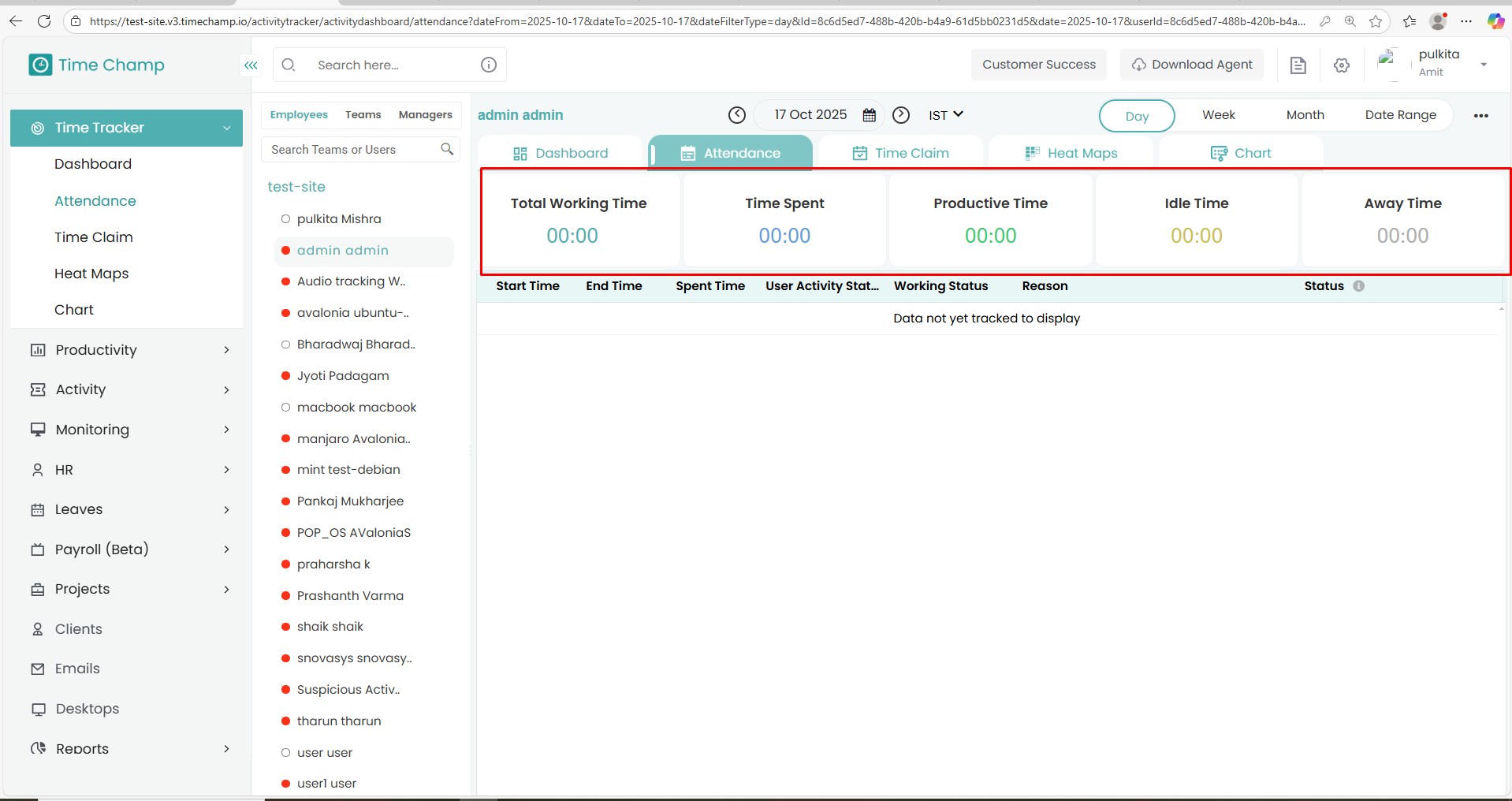
The Attendance Dashboard will appear, displaying an overview of each user’s attendance details.
Step 2:
The Attendance section provides a comprehensive view of users’ daily activity and attendance data.
It includes the following categories:
Total Working Time: The total duration the user has been logged in and active.
Time Spent: The overall time the user spent on the system during the day.
Productive Time: The amount of time spent on productive or work-related tasks.
Idle Time: The duration the user was logged in but inactive.
Away Time: The time the user was away from the system.
Step 3:
In the Team View, you can see detailed team-level attendance information, including:
In the Team View, you can see detailed team-level attendance information, including:
Team Count:
Displays the total number of team members along with their working time details.
Displays the total number of team members along with their working time details.
On Leave:
Shows users who are on leave for the selected day, along with their names and other details.
Shows users who are on leave for the selected day, along with their names and other details.
Present:
Lists all users who are present and actively working, along with their attendance details.
Lists all users who are present and actively working, along with their attendance details.
Absent:
Displays users who are absent from work for the day, with their corresponding details.
Displays users who are absent from work for the day, with their corresponding details.
Attention Needed:
Highlights users who are facing issues with the tracker. for example, when tracking data is missing or not updating properly.
Step 4:
You can view the Attendance Data based on different levels:
Employees
Teams
Managers
This allows for better visibility and management of attendance records across the organization.
Related Articles
How to Edit time in Attendance
Follow the steps below to edit the time of a user in the Attendance section of the Time Champ application. Step 1: Log in to your Time Champ account using your credentials. Step 2: Go to the Time Tracker Module, then click on the Attendance section. ...How to View Key Strokes
Follow the steps below to navigate and view Keystrokes under the Monitoring section: Step 1: Log in to your Time Champ account. From the left-hand menu, click on Monitoring. Step 2: Under Monitoring, click on Keystrokes. In this section, you can view ...How to View Activity Levels
Follow the steps below to navigate and view Activity Levels under the Monitoring section: Step 1: Log in to your Time Champ account. From the left-hand menu, click on Monitoring. Step 2: Under Monitoring, click on Activity Levels. In this section, ...How to View Live Screens
Follow the steps below to view employee live screens under the Office TV module in Time Champ: Step 1: Before viewing live screens, ensure that Live Streaming is enabled under Configurations in the Administration module. Step 2: From the left-hand ...How to View Screen Recordings
Follow the steps below to navigate Screen Recordings under the Monitoring section: Step 1: Log in to your Time Champ account. From the left-hand menu, click on Monitoring. Step 2: Under Monitoring, click on Screen Recording. Here, you can view the ...