How To Configure Idle Time
Follow the steps below to configure Idle Time settings under the Administration module:
Step 1:
Log in to your Time Champ account.
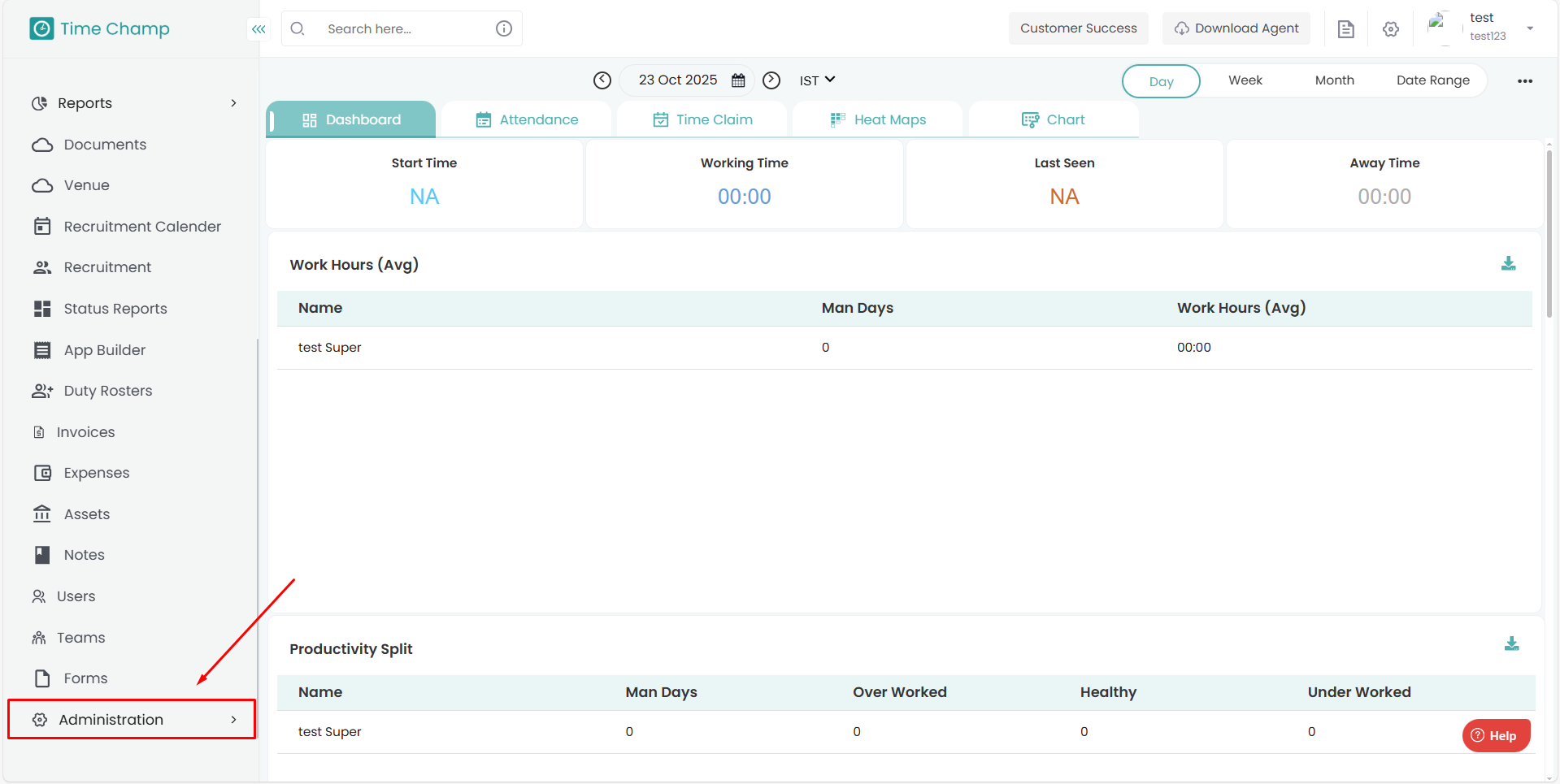
From the left-hand menu, click on the Administration module.
Step 2:
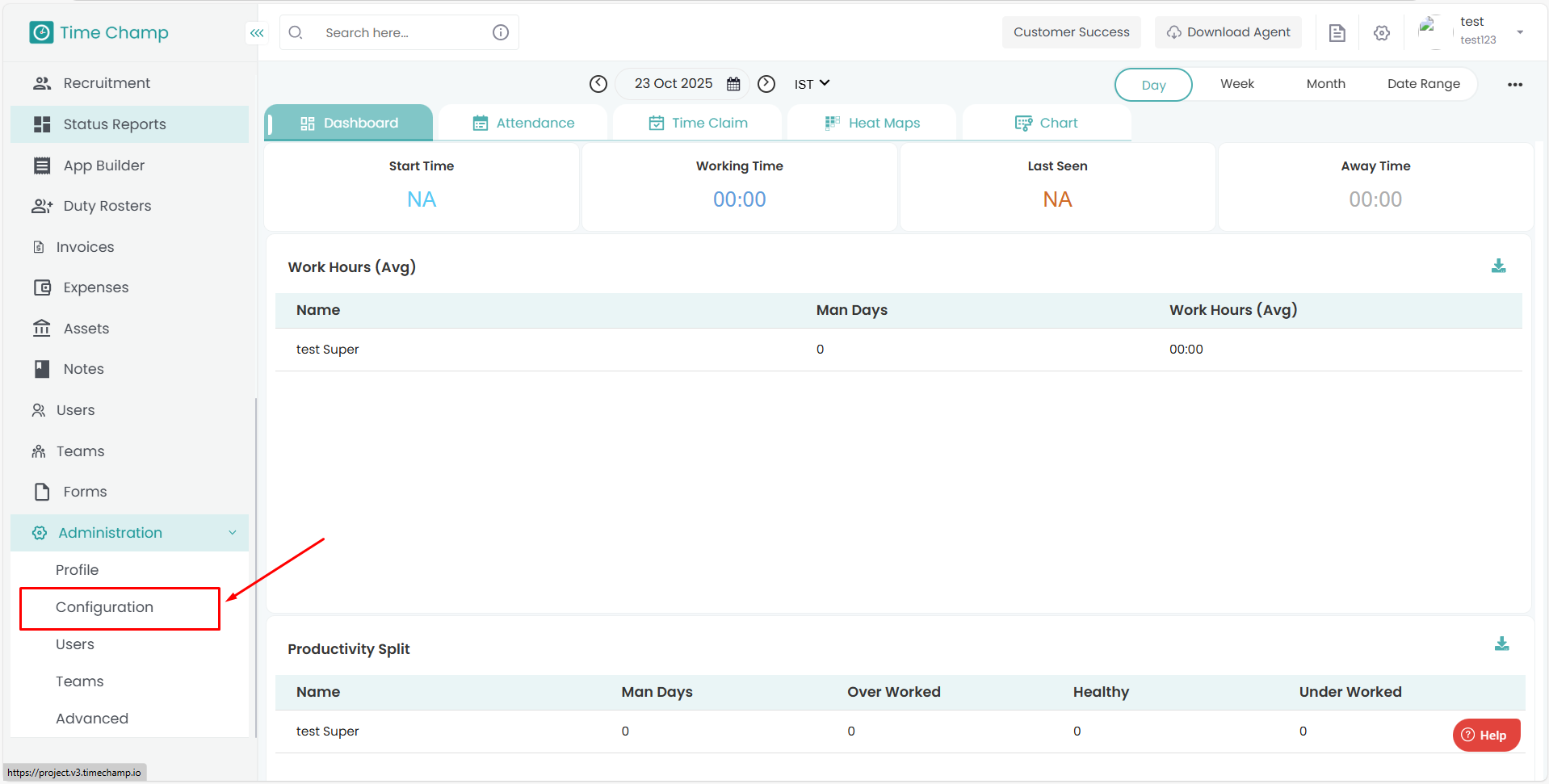
Under the Administration module, navigate to Configurations.
Step 3:
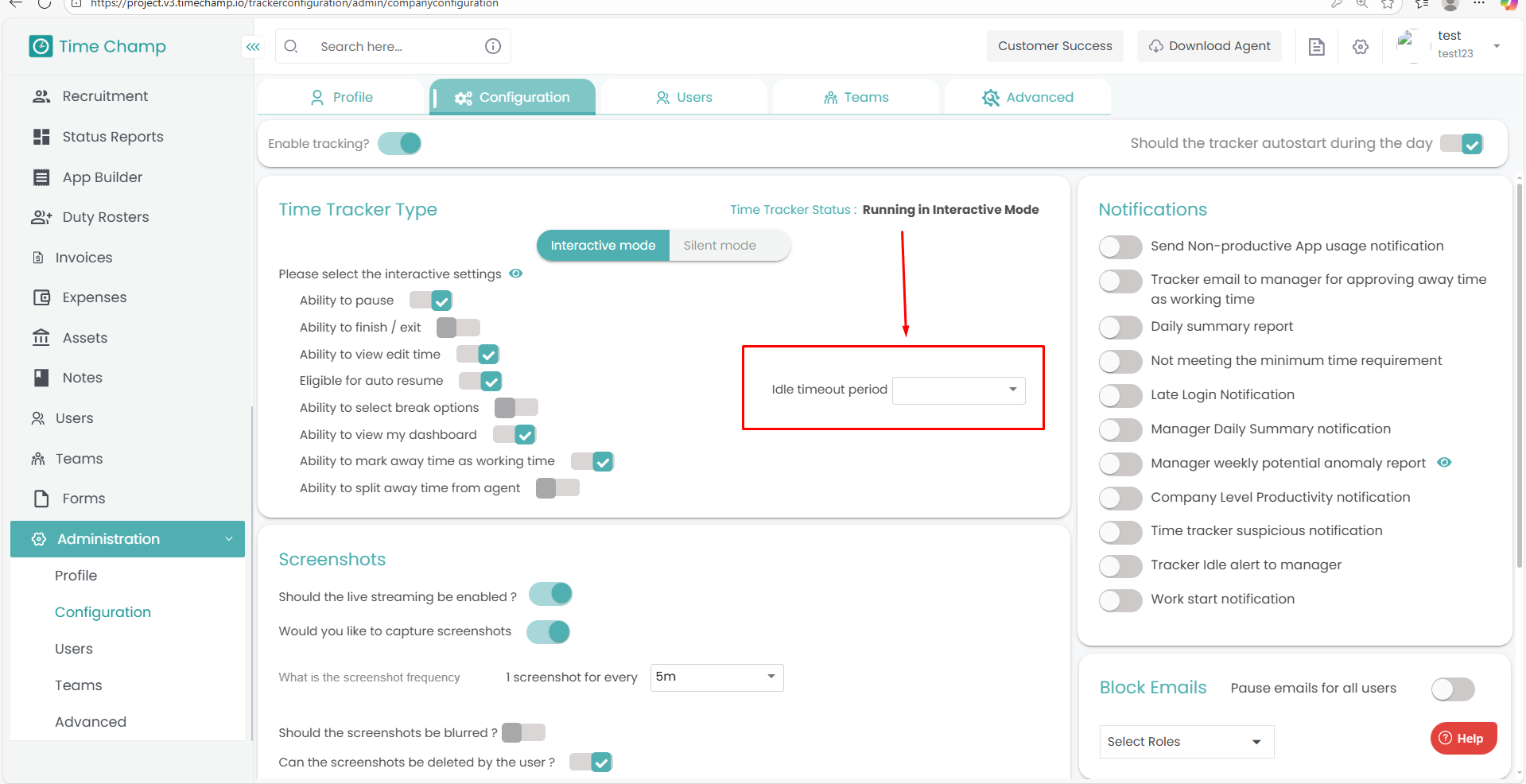
In the Configurations section, you can set the Idle Time duration.
Step 4:
You can configure idle time for any duration between 1 minute and 30 minutes.
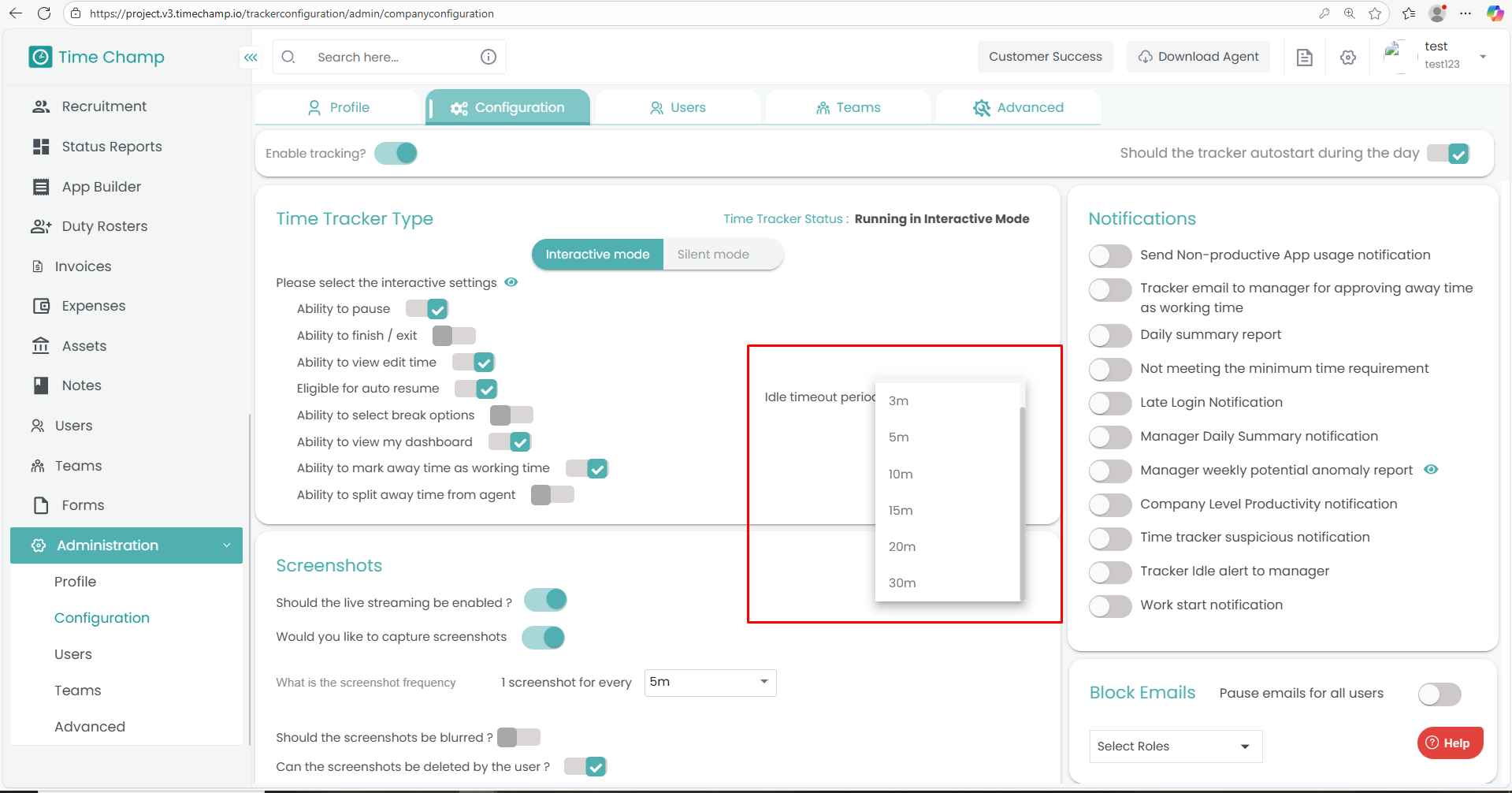
Once a user remains inactive for the set duration, the system will automatically count the time from when the inactivity began as idle time.
Step 1:
Log in to your Time Champ account.
From the left-hand menu, click on the Administration module.
Step 2:
Under the Administration module, navigate to Configurations.
Step 3:
In the Configurations section, you can set the Idle Time duration.
Step 4:
You can configure idle time for any duration between 1 minute and 30 minutes.
Once a user remains inactive for the set duration, the system will automatically count the time from when the inactivity began as idle time.
Related Articles
How to Configure Notifications
Follow the steps below to enable or disable Notifications under the Administration module: Step 1: Log in to your Time Champ account. From the left-hand menu, click on the Administration module. Step 2: Under the Administration module, navigate to ...How to Configure Time Zone for a User
Follow the steps below to configure the Time Zone for an employee under the Administration module: Step 1: Log in to your Time Champ account. From the left-hand menu, click on the Administration module. Step 2: Under Administration, click on Users. ...How to View Time Claims in V3
Follow the steps below to navigate and understand the Time Claim section in the Time Tracker module of Time Champ: Step 1: Log in to your Time Champ account. Under the Time Tracker section, click on Time Claim The Time Claim Dashboard will appear, ...Interactive Configuration Settings
Follow the steps below to navigate and configure Interactive tracking options under the Administration module: Step 1: Log in to your Time Champ account. From the left-hand menu, click on Administration. Step 2: Under the Administration module, ...How to Configure the Screenshots
Follow the steps below to configure Screenshots in the Time Champ portal: Step 1: Open the Time Champ site and log in using your Username and Password. Once logged in, navigate to the bottom-left corner of the dashboard. Click on Administration. ...