How to Configure the Live Screens
Follow the steps below to configure the Live Stream feature:
Step 1:
Open the Time Champ site and log in using your Username and Password.
Once logged in, navigate to the bottom-left corner of the dashboard.
Click on Administration.
Under Administration, Select Configuration.
Step 2:
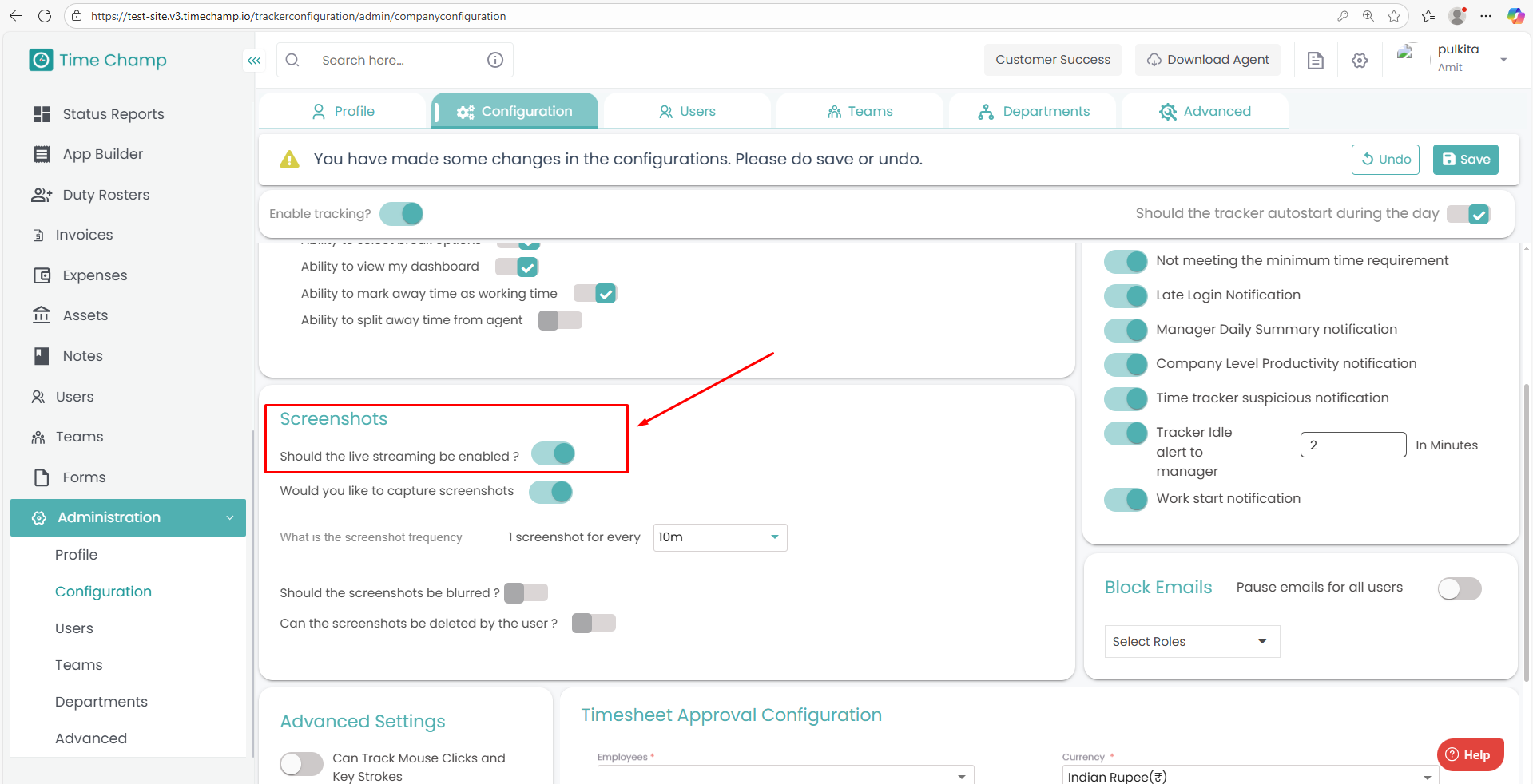
In the Configuration section, scroll down to find the Screenshots settings.
Within the Screenshots section, locate the option to Enable Live Streaming.
Turn on the Live Streaming option to activate it.
After making the changes, click the Save button located at the top-right corner of the page to apply the configuration.
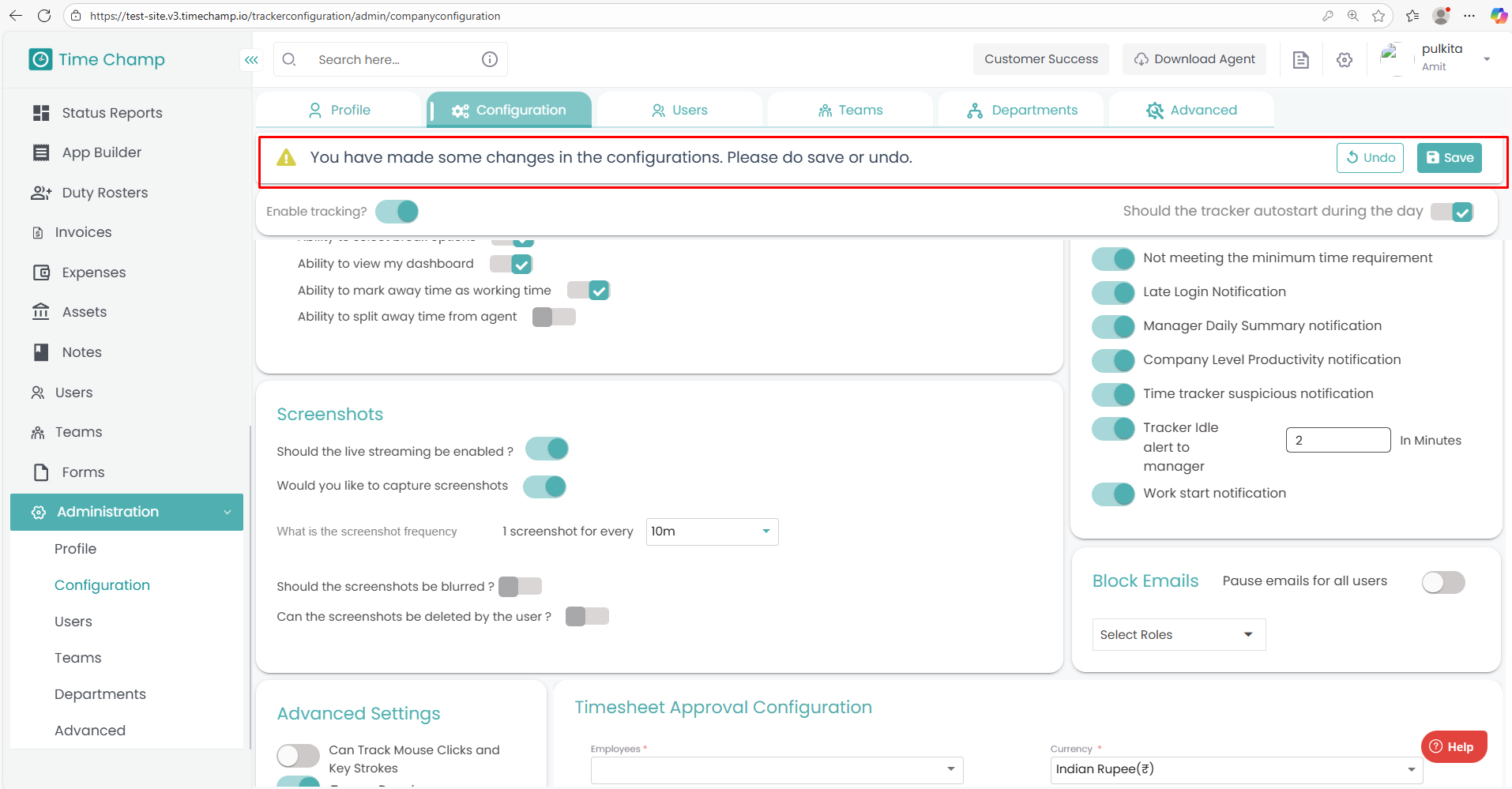
After making the changes, click the Save button located at the top-right corner of the page to apply the configuration.
Related Articles
How to View Live Screens
Follow the steps below to view employee live screens under the Office TV module in Time Champ: Step 1: Before viewing live screens, ensure that Live Streaming is enabled under Configurations in the Administration module. Step 2: From the left-hand ...How To Configure Idle Time
Follow the steps below to configure Idle Time settings under the Administration module: Step 1: Log in to your Time Champ account. From the left-hand menu, click on the Administration module. Step 2: Under the Administration module, navigate to ...How to Configure the Screenshots
Follow the steps below to configure Screenshots in the Time Champ portal: Step 1: Open the Time Champ site and log in using your Username and Password. Once logged in, navigate to the bottom-left corner of the dashboard. Click on Administration. ...How to Configure the Screen Recordings
Follow the steps below to configure and schedule screen recordings: Step 1: Open the Time Champ site and log in using your Username and Password. Once logged in, go to the bottom-left corner of the dashboard Click on Administration. Under ...How to Configure Apps in Productivity
Follow the steps below to navigate and configure applications under the Configure Apps section in the Productivity module of Time Champ: Step 1: Log in to your Time Champ account. Under the Productivity section, click on Configure Apps. The Configure ...