How to Configure the Screen Recordings
Follow the steps below to configure and schedule screen recordings:
Step 1:
Open the Time Champ site and log in using your Username and Password.
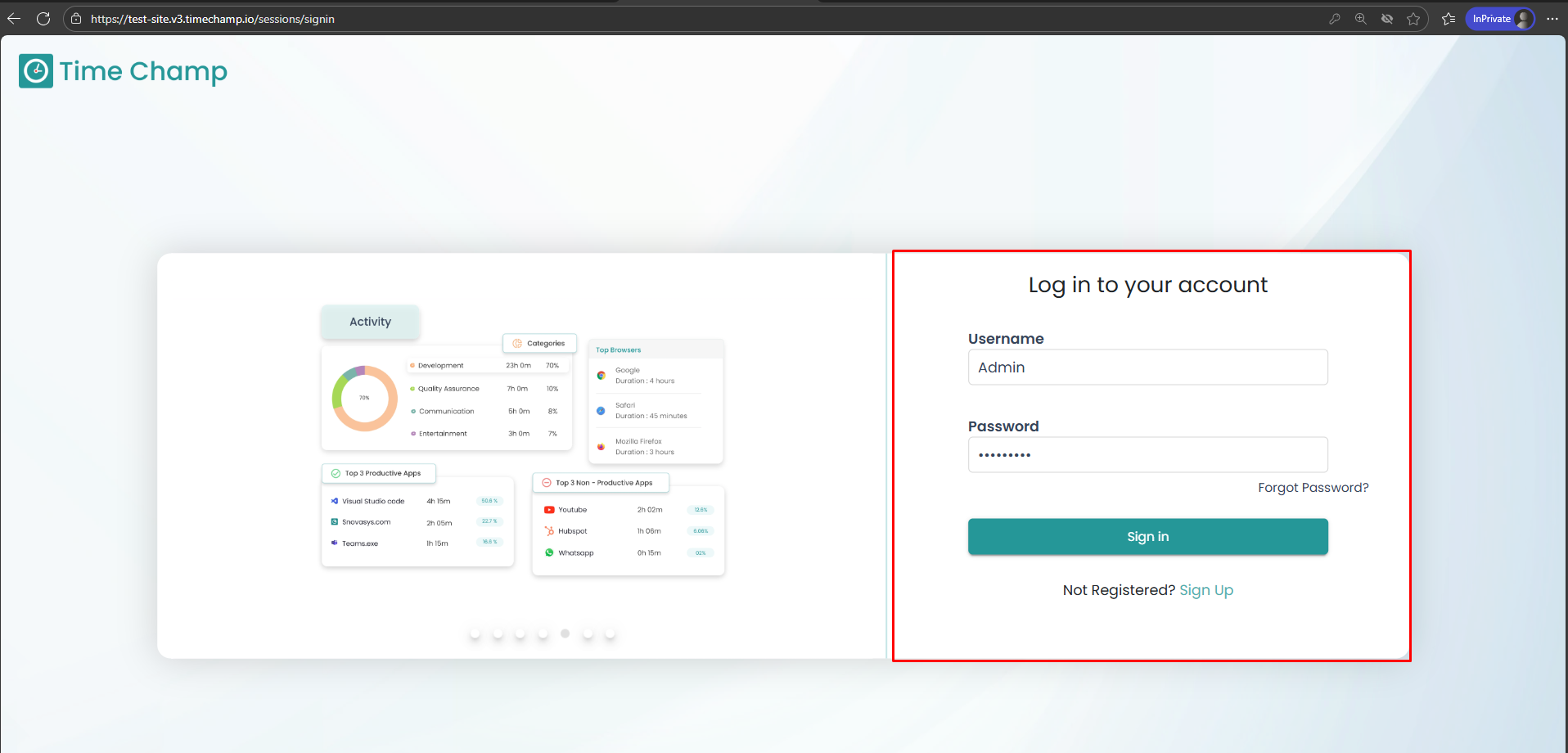
Once logged in, go to the bottom-left corner of the dashboard
Step 1:
Open the Time Champ site and log in using your Username and Password.
Once logged in, go to the bottom-left corner of the dashboard
Click on Administration.
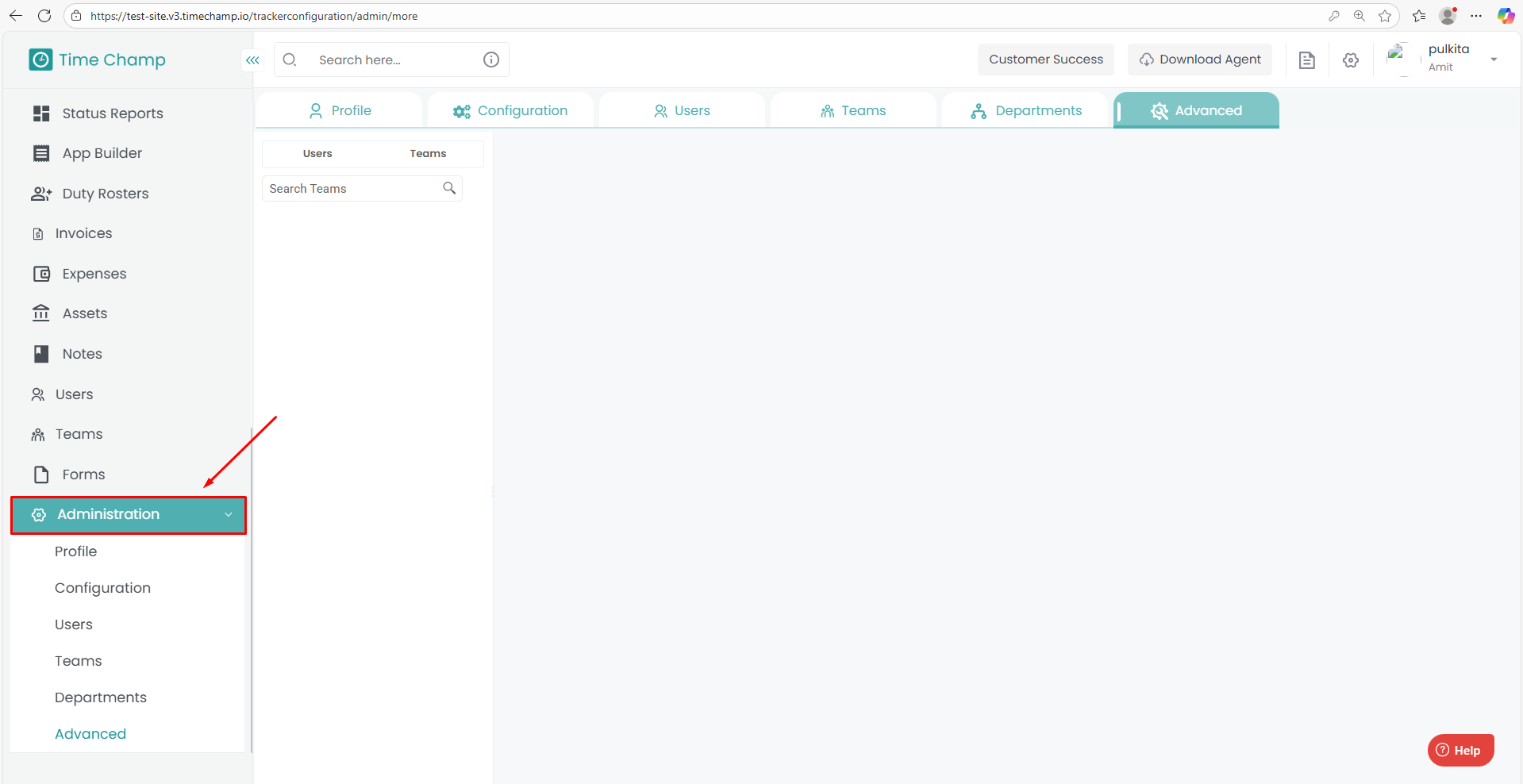
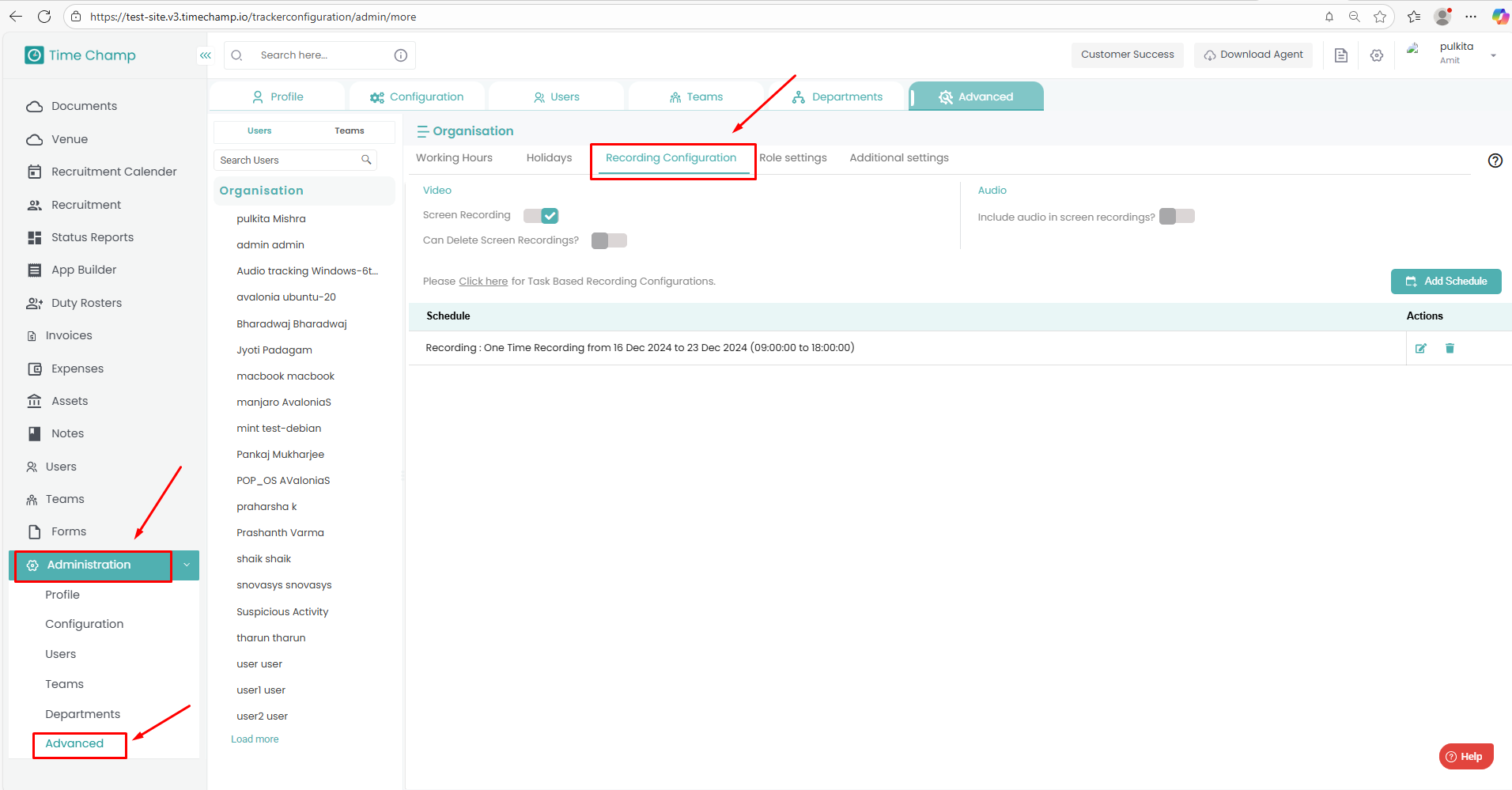
Under Administration, select Advanced.
In the Advanced section, select Recording Configuration.
Step 2:
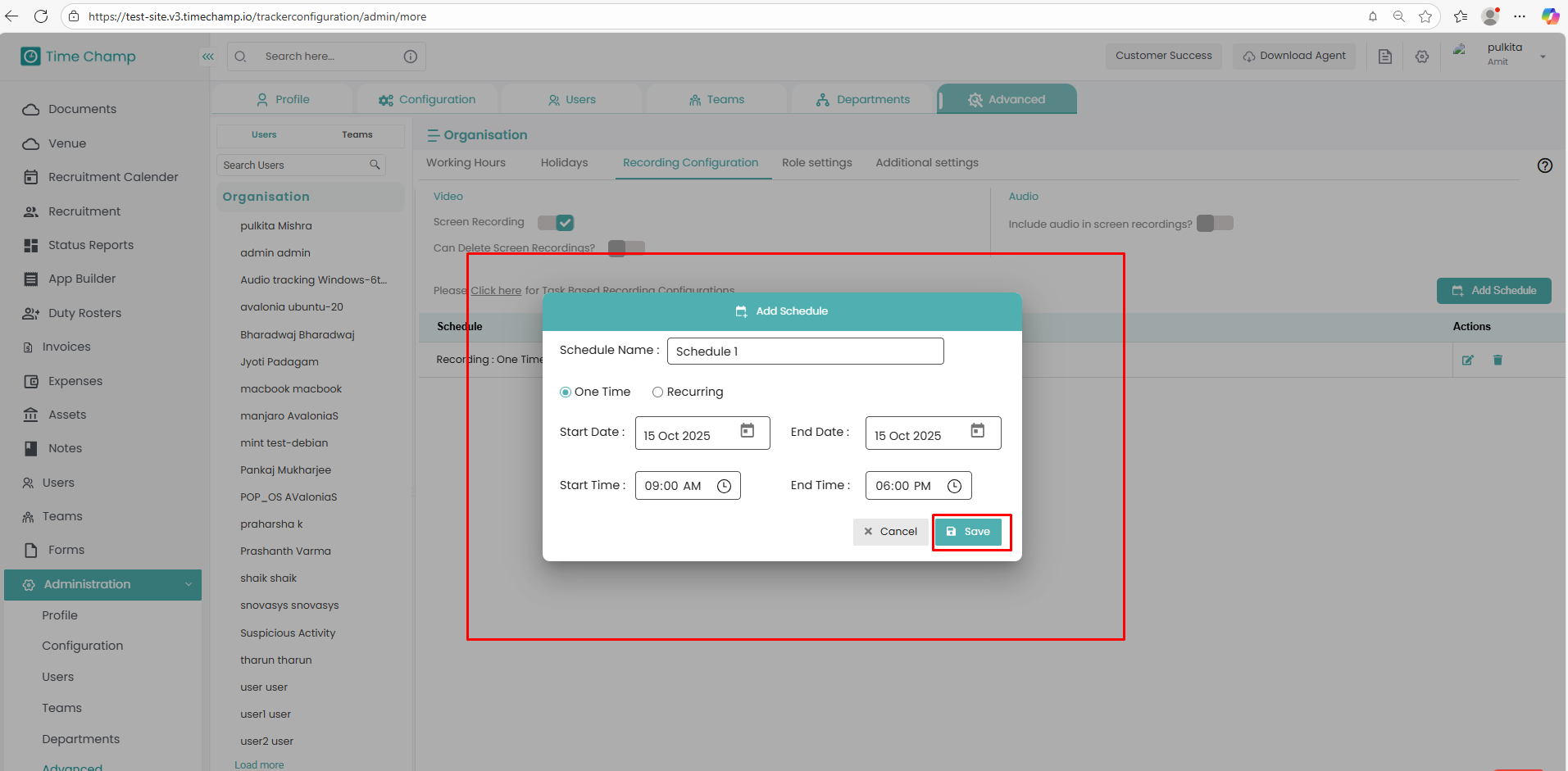
Enable the Screen Recording option.
Click on Add Schedule to set up a new recording schedule.
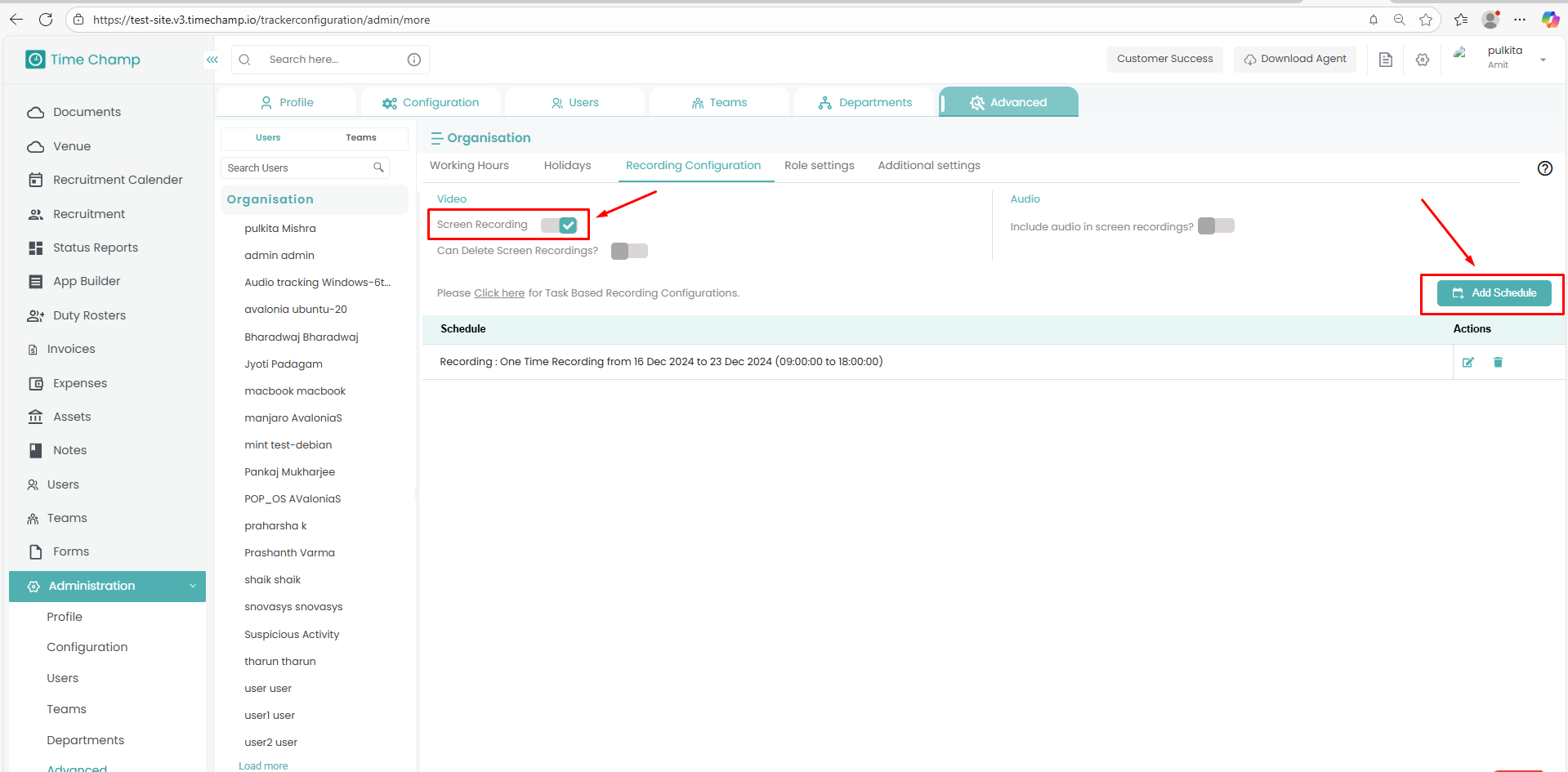
Configure the recording timings and other preferences as per your requirements.
Once done, click Save to apply the settings.
Step 3: (OPTIONAL)
To capture audio along with screen recordings, enable the Audio option.
Under Administration, select Advanced.
In the Advanced section, select Recording Configuration.
Step 2:
Enable the Screen Recording option.
Click on Add Schedule to set up a new recording schedule.
Configure the recording timings and other preferences as per your requirements.
Once done, click Save to apply the settings.
Step 3: (OPTIONAL)
To capture audio along with screen recordings, enable the Audio option.
Related Articles
How to View Screen Recordings
Follow the steps below to navigate Screen Recordings under the Monitoring section: Step 1: Log in to your Time Champ account. From the left-hand menu, click on Monitoring. Step 2: Under Monitoring, click on Screen Recording. Here, you can view the ...How To Configure Idle Time
Follow the steps below to configure Idle Time settings under the Administration module: Step 1: Log in to your Time Champ account. From the left-hand menu, click on the Administration module. Step 2: Under the Administration module, navigate to ...How to Configure the Screenshots
Follow the steps below to configure Screenshots in the Time Champ portal: Step 1: Open the Time Champ site and log in using your Username and Password. Once logged in, navigate to the bottom-left corner of the dashboard. Click on Administration. ...How to Configure Apps in Productivity
Follow the steps below to navigate and configure applications under the Configure Apps section in the Productivity module of Time Champ: Step 1: Log in to your Time Champ account. Under the Productivity section, click on Configure Apps. The Configure ...How to configure the working hours
Follow the steps below to configure the working hours: Step 1: Login to the Portal Open the Time Champ site and log in using your Username and Password. Once logged in, navigate to the left bottom corner of the dashboard. Click on Administration. ...