How to View Activity Levels
Follow the steps below to navigate and view Activity Levels under the Monitoring section:
Step 1:
Log in to your Time Champ account.
From the left-hand menu, click on Monitoring.
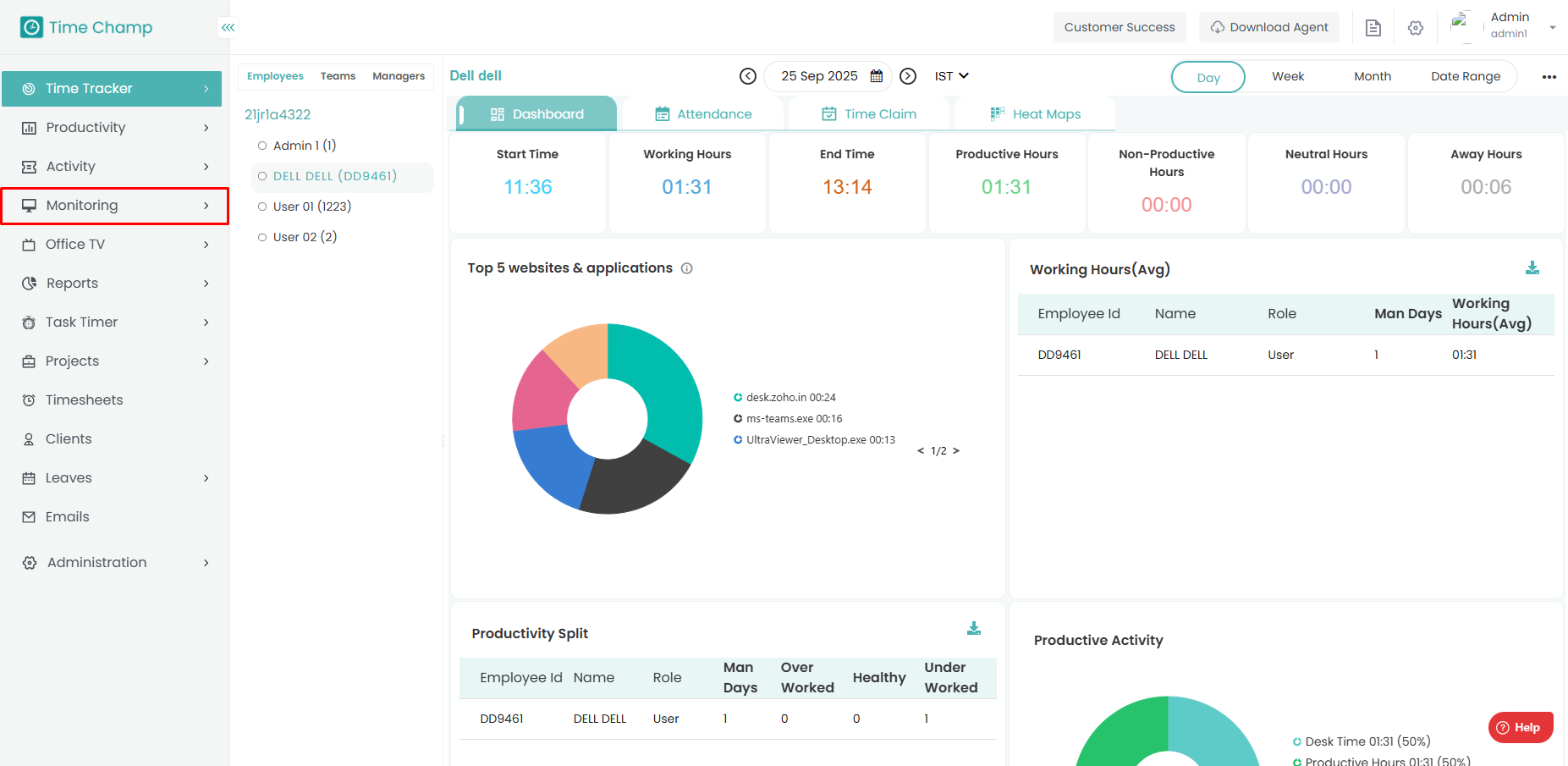
Step 1:
Log in to your Time Champ account.
From the left-hand menu, click on Monitoring.
Step 2:
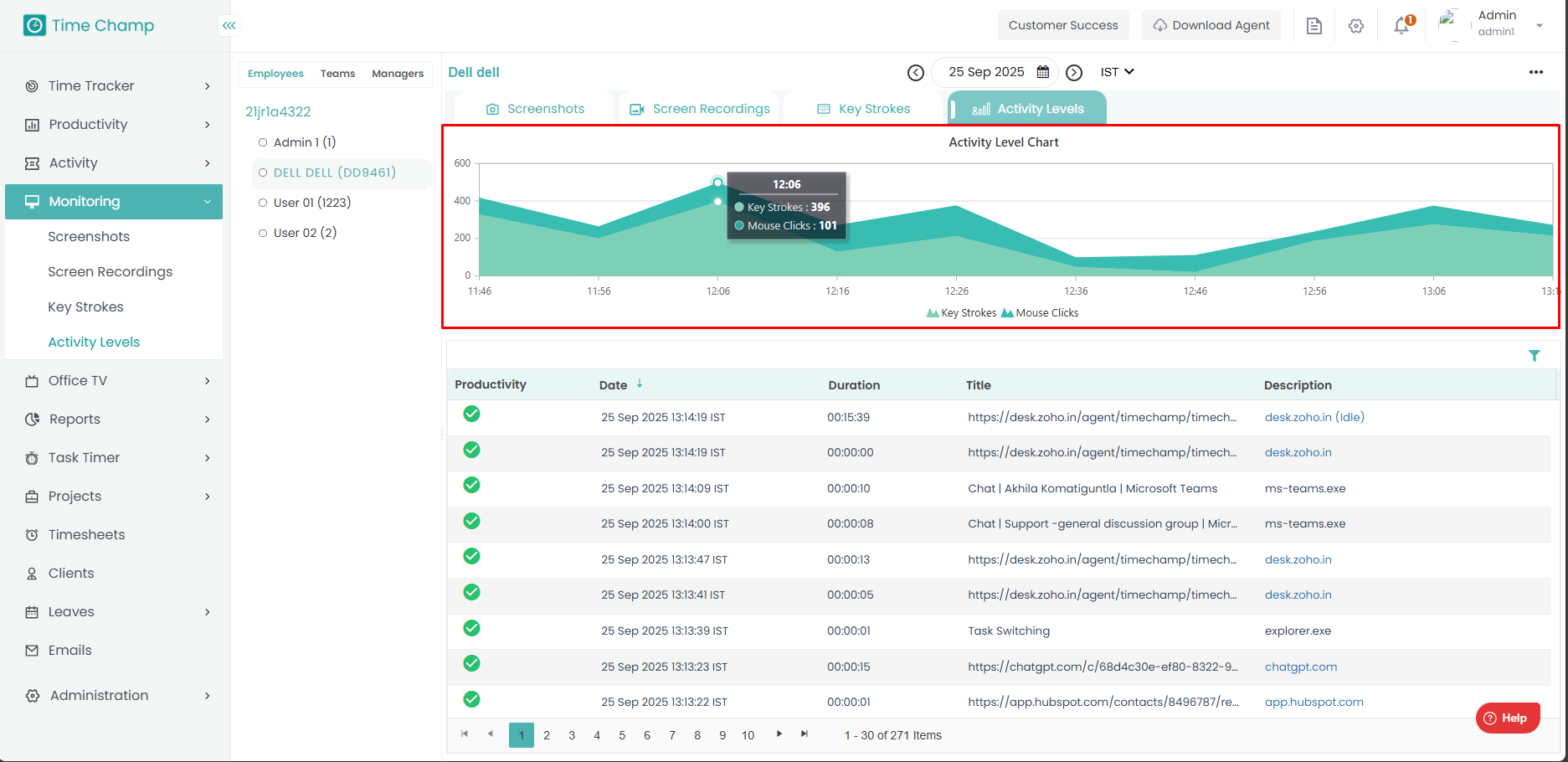
Under Monitoring, click on Activity Levels.
Under Monitoring, click on Activity Levels.
In this section, you can see the Activity Level chart and detailed information for each employee.
Step 3:
Hover your mouse pointer over the chart to view the number of keystrokes and mouse clicks made by the employee at a specific time.
Step 4:
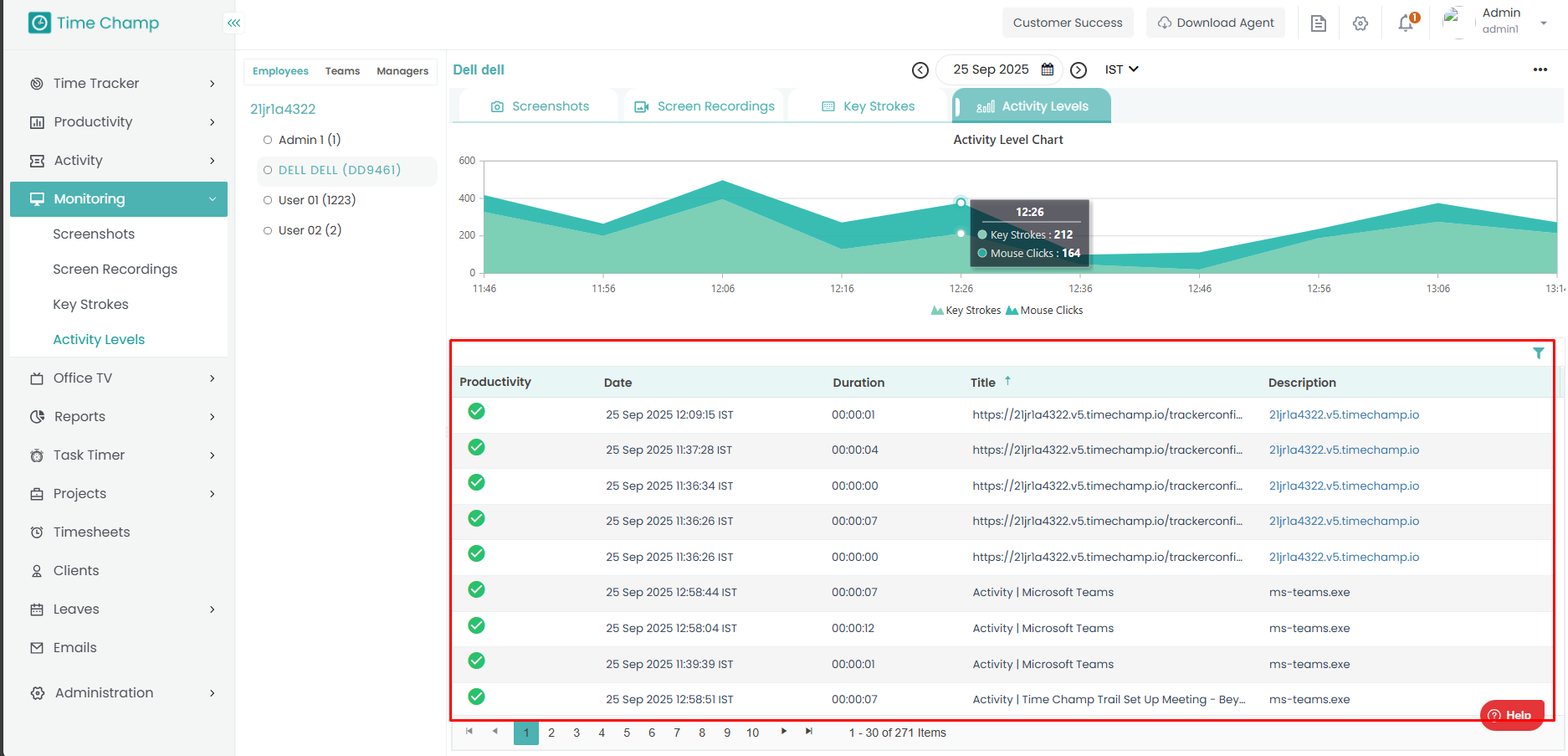
Below the chart, you can see the detailed activity timeline of the employee, along with the corresponding time of each activity.
Hover your mouse pointer over the chart to view the number of keystrokes and mouse clicks made by the employee at a specific time.
Step 4:
Below the chart, you can see the detailed activity timeline of the employee, along with the corresponding time of each activity.
Related Articles
How to View Activity based on Categories
Follow the steps below to navigate and view user activity categorized under the Activity module: Step 1: Log in to your Time Champ account. From the left-hand menu, click on the Activity module. Step 2: Click on By Categories. Step 3: Here, you can ...How to View Detailed Activity of the User
Follow the steps below to navigate and view detailed user activity under the Activity module: Step 1: Log in to your Time Champ account. From the left-hand menu, click on the Activity module. Step 2: Click on Detailed Activity. Step 3: Here, you can ...How to view the Attendance in V3
Follow the steps below to navigate and understand the Attendance section in the Time Tracker module of Time Champ.: Step 1: Log in to your Time Champ account. Under the Time Tracker section, click on Attendance. The Attendance Dashboard will appear, ...How to View Websites Visited by the User
Follow the steps below to navigate and view the list of websites visited by users under the Activity module: Step 1: Log in to your Time Champ account. From the left-hand menu, click on the Activity module. Step 2: Click on Websites Visited. Step 3: ...How to View Applications Used by the User
Follow the steps below to navigate and view the list of applications used by users under the Activity module: Step 1: Log in to your Time Champ account. From the left-hand menu, click on the Activity module. Step 2: Click on Applications Used. Step ...