How to View Screen Recordings

How to View Screen Recordings

Follow the steps below to navigate Screen Recordings under the Monitoring section:
Step 1:
Log in to your Time Champ account.
From the left-hand menu, click on Monitoring.


Step 2:
Under Monitoring, click on Screen Recording.


Here, you can view the desktop video recordings of users.
The Time Tracker automatically records users’ screens during Scheduled Recording hours.
These recordings are available for the last 7 days of activity under the Screen Recording section.


Step 3:
You can view:
The full-length screen recording of an employee starting from their work start time.
Or, two-minute short clips of the employee’s screen recordings.
To switch to two-minute videos, disable the “Full Recording” option.


Step 4:
Select the desired two-minute recording.
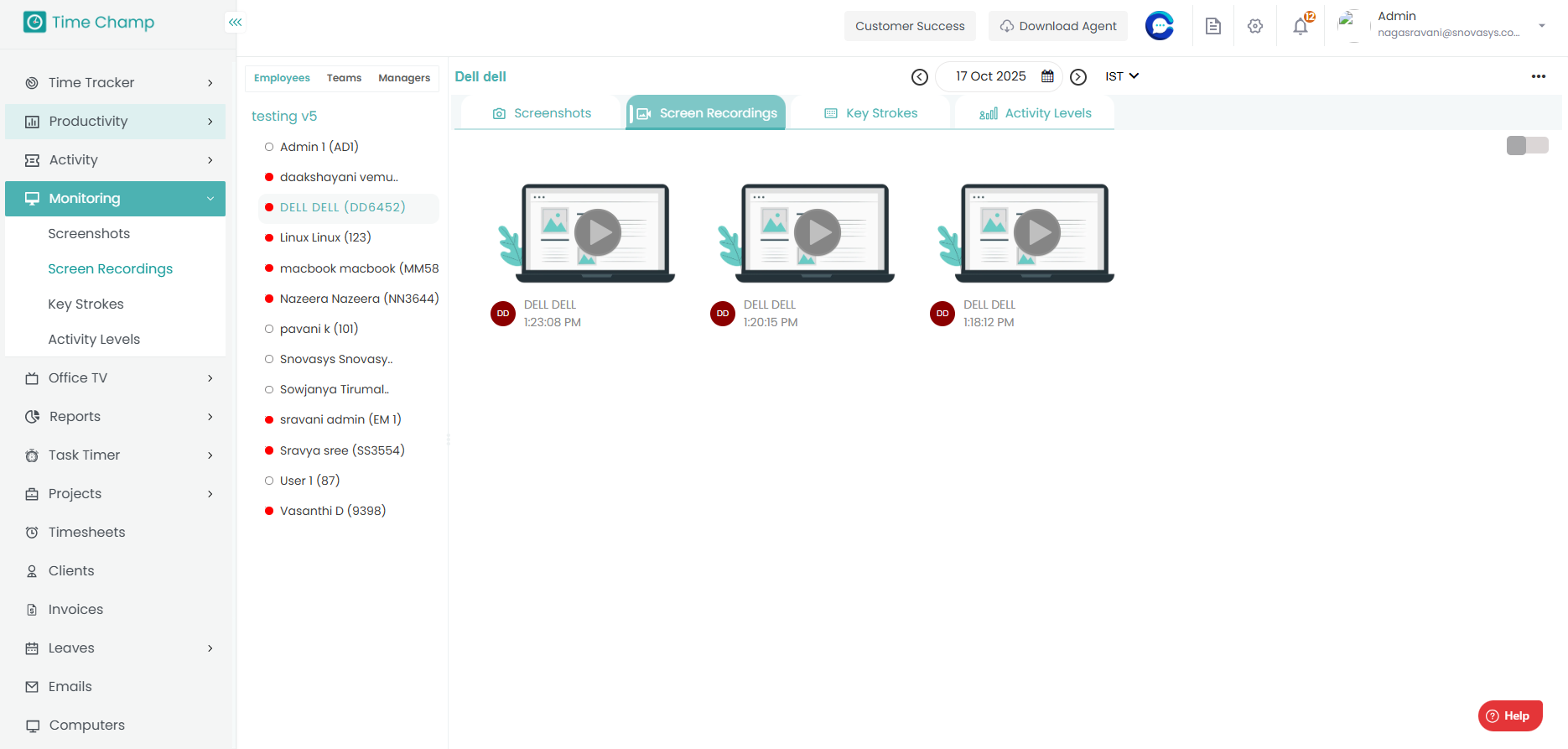


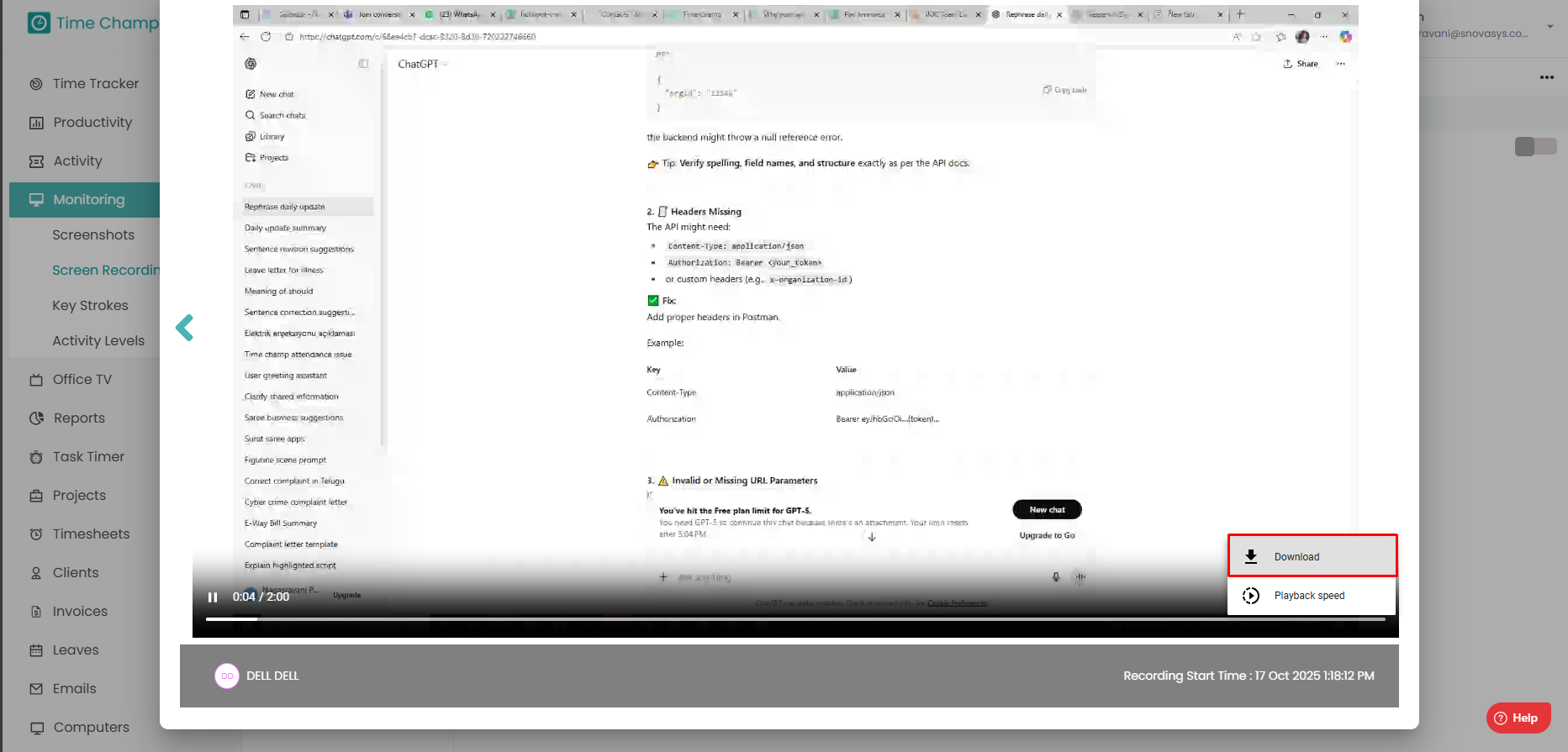
Click on the video to open it.
Click on the Download option to save the recording.


    • Related Articles

    • How to Configure the Screen Recordings

      Follow the steps below to configure and schedule screen recordings: Step 1: Open the Time Champ site and log in using your Username and Password. Once logged in, go to the bottom-left corner of the dashboard Click on Administration. Under ...
    • How to View Screen Shots

      To navigate the Screenshots in Monitoring: Step 1: Log in to your Time Champ account. From the left-hand menu, click on Monitoring. Step 2: Under the Monitoring section, click on Screenshots. Here, you can view desktop images captured from users’ ...
    • How to View Live Screens

      Follow the steps below to view employee live screens under the Office TV module in Time Champ: Step 1: Before viewing live screens, ensure that Live Streaming is enabled under Configurations in the Administration module. Step 2: From the left-hand ...
    • How to View Key Strokes

      Follow the steps below to navigate and view Keystrokes under the Monitoring section: Step 1: Log in to your Time Champ account. From the left-hand menu, click on Monitoring. Step 2: Under Monitoring, click on Keystrokes. In this section, you can view ...
    • How to View Activity Levels

      Follow the steps below to navigate and view Activity Levels under the Monitoring section: Step 1: Log in to your Time Champ account. From the left-hand menu, click on Monitoring. Step 2: Under Monitoring, click on Activity Levels. In this section, ...