How to Install Silent Agent in Linux
Steps to Install Time Champ V3 Silent Version in Linux System.
Step 1: Log in to your Time Champ account using your credentials.
Step 2: To install the application, click on “Download Agent.”
Step 3: Select the operating system of your computer.
Step 4: Choose the installation type:
To install yourself – Select this option if you want to install the application on your own system.
To install for employees – Select this option if you want to install the application on your employees’ systems.
 The installation file for employees can be shared to the user's system after downloading it from your system.
Step 5 (Linux> To Install for Employees):
In the silent version, employees cannot see the tracker running on their systems directly.
Please ensure that the User system profile names are unique.
Step 6: Accept the condition to Install.
Check the box “I understand all the above” after reading the important note carefully and click on “Download.”
Do not change the filename otherwise the installation will encounter issues and ensure the required paths are excluded from antivirus.
Step 7: Unzip the svcvtt file
You will see a ZIP file in your Downloads folder.
 Note: Do not change the filename and keep the file in the Downloads folder only and ensure there are no duplicate files with similar names.
Unzip the Svcvtt.zip file.
Open the Svcvtt folder. Inside, you will find two files:
License.txt
timechamp-linux_64bit-setup.bash
Step 8: Open the terminal
Open a Terminal window from the same Svcvtt folder path.
Step 9: Run the installation command
Run the following commands to install the application:
chmod 777 timechamp-linux_64bit-setup.bash
./timechamp-linux_64bit-setup.bash
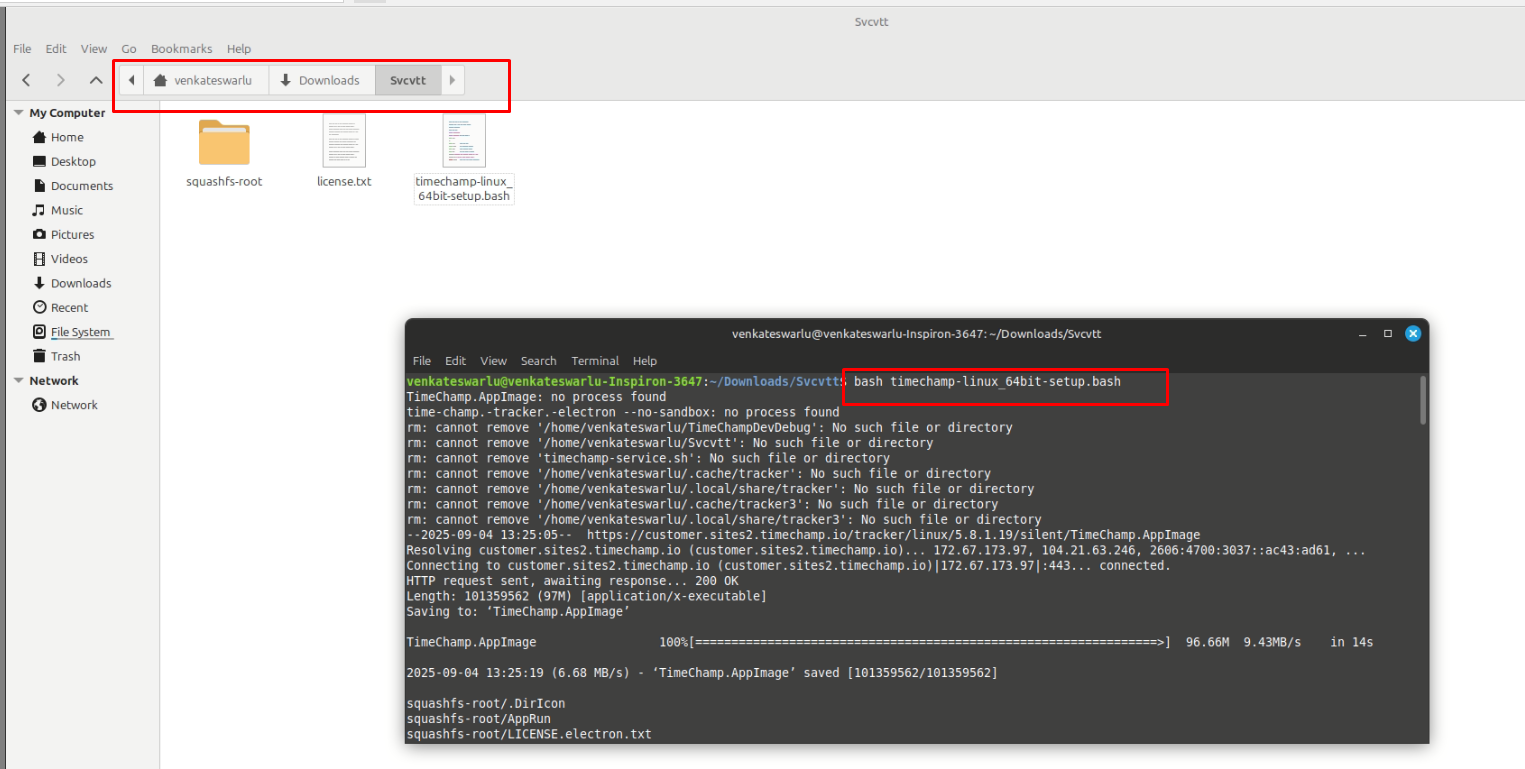
Step 10: Verify installation
To ensure that the tracker is running successfully:
Open System Monitor and confirm that the tracker process is active.
Log in to your Time Champ Admin Dashboard and verify that the user (based on the system username) appears as Online.
Related Articles
How to Install Silent Agent in Windows
Step 1: Log in to your Time Champ account Step 2: Click on “Download Agent” to install the application. Step 3: Select the operating system of your computer. Step 4: Choose the installation type: To install yourself: Select this option if you want to ...How to Install Silent Agent In MAC
Steps to Install Time Champ V3 Silent Version in MAC System. Step 1: Log in to your Time Champ account using your credentials. Step 2: To install the application, click on “Download Agent.” Step 3: Select the operating system of your computer. Step ...How to Install Interactive Agent in Linux
Steps to Install Time Champ V3 Interactive Version in Linux System. Step 1: Log in to your Time Champ account using your credentials. Step 2: To install the application, click on “Download Agent.” Step 3: Select the operating system of your computer. ...How to Install Interactive Agent in Windows
Step 1: Log in to your Time Champ account Step 2: Click on “Download Agent” to begin the installation process. Step 3: Choose the operating system of your computer (Windows). Step 4: Install Yourself – Select this option to install Time Champ on your ...How to Install Interactive Agent in MAC
Steps to Install Time Champ V3 Interactive Version in MAC System. Step 1: Log in to your Time Champ account using your credentials. Step 2: To install the application, click on “Download Agent.” Step 3: Select the operating system of your computer. ...