How to Install Silent Agent in Windows
Step 1:
Log in to your Time Champ account
Step 2:
Click on “Download Agent” to install the application.
Step 3:
Select the operating system of your computer.
Step 4:
Choose the installation type:
To install yourself: Select this option if you want to install the application on your own system.
To install for employees: Select this option if you want to install the application on your employees’ systems.
Step 5:
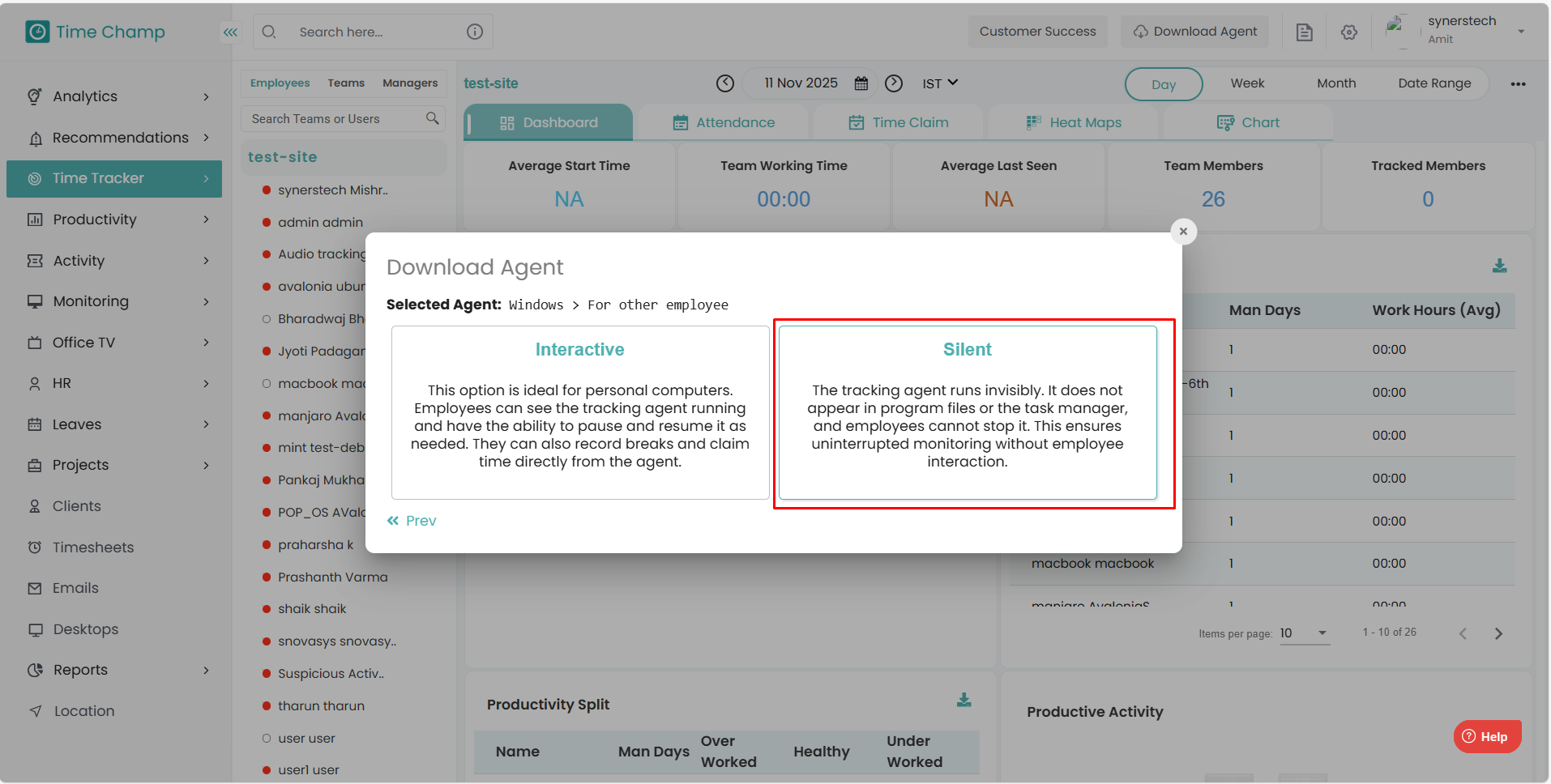
Select the type of installation — Silent.
In the Silent version, employees cannot see the tracker running on their systems directly.
Step 6:
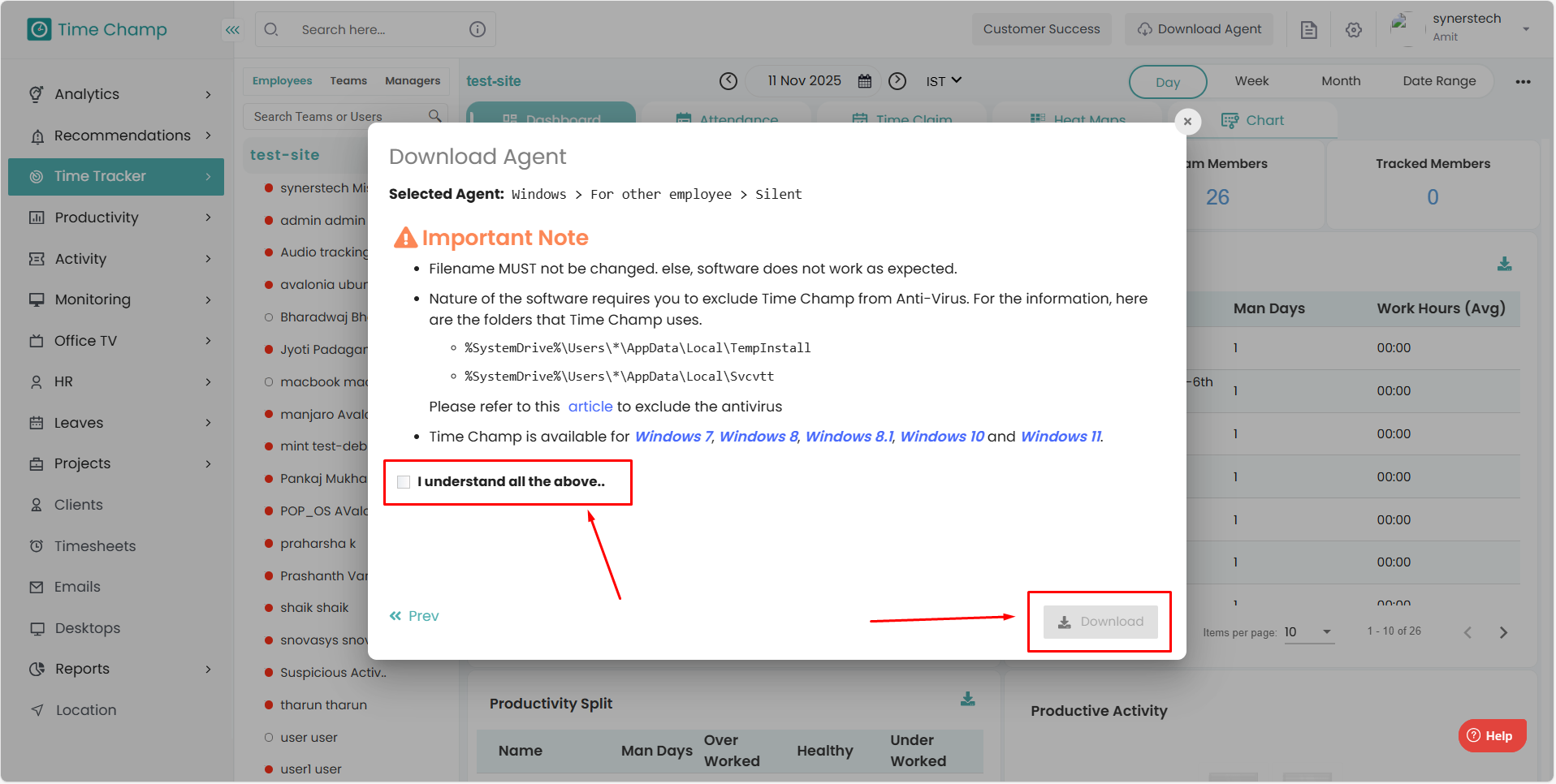
Check the box “I understand all the above” after reading the important note carefully and click on “Download.”
Note:
Do not change the filename; otherwise, the installation will encounter issues.
Please ensure that the user system profile names are unique.
Step 7:
Double-click the downloaded file to install the application.
Select the type of installation — Silent.
In the Silent version, employees cannot see the tracker running on their systems directly.
Step 6:
Check the box “I understand all the above” after reading the important note carefully and click on “Download.”
Note:
Do not change the filename; otherwise, the installation will encounter issues.
Please ensure that the user system profile names are unique.
Step 7:
Double-click the downloaded file to install the application.
Step 8:
After executing the file:
You should see the tracker running on the system in Task Manager by the names svcvtt and aos.svcvtt.
Verify the installation by checking the User tab in the Dashboard.
After executing the file:
You should see the tracker running on the system in Task Manager by the names svcvtt and aos.svcvtt.
Verify the installation by checking the User tab in the Dashboard.
Related Articles
How to Install Silent Agent in Linux
Steps to Install Time Champ V3 Silent Version in Linux System. Step 1: Log in to your Time Champ account using your credentials. Step 2: To install the application, click on “Download Agent.” Step 3: Select the operating system of your computer. Step ...How to Install Silent Agent In MAC
Steps to Install Time Champ V3 Silent Version in MAC System. Step 1: Log in to your Time Champ account using your credentials. Step 2: To install the application, click on “Download Agent.” Step 3: Select the operating system of your computer. Step ...How to Install Interactive Agent in Windows
Step 1: Log in to your Time Champ account Step 2: Click on “Download Agent” to begin the installation process. Step 3: Choose the operating system of your computer (Windows). Step 4: Install Yourself – Select this option to install Time Champ on your ...How to Install Interactive Agent in MAC
Steps to Install Time Champ V3 Interactive Version in MAC System. Step 1: Log in to your Time Champ account using your credentials. Step 2: To install the application, click on “Download Agent.” Step 3: Select the operating system of your computer. ...How to Install Interactive Agent in Linux
Steps to Install Time Champ V3 Interactive Version in Linux System. Step 1: Log in to your Time Champ account using your credentials. Step 2: To install the application, click on “Download Agent.” Step 3: Select the operating system of your computer. ...