How to Install Interactive Agent in MAC
Steps to Install Time Champ V3 Interactive Version in MAC System.
Step 1: Log in to your Time Champ account using your credentials.
Step 2: To install the application, click on “Download Agent.”
Step 3: Select the operating system of your computer.
Step 4: Choose the installation type:
To install yourself – Select this option if you want to install the application on your own system.
To install for employees – Select this option if you want to install the application on your employees’ systems.
 The installation file for employees can be shared to the user's system after downloading it from your system.
Step 5 (MAC> To Install for Employees):
In the Interactive version, employees can see the tracker running on their systems and have the ability to pause and resume it if needed.
Step 6: Choose the mode of installation:
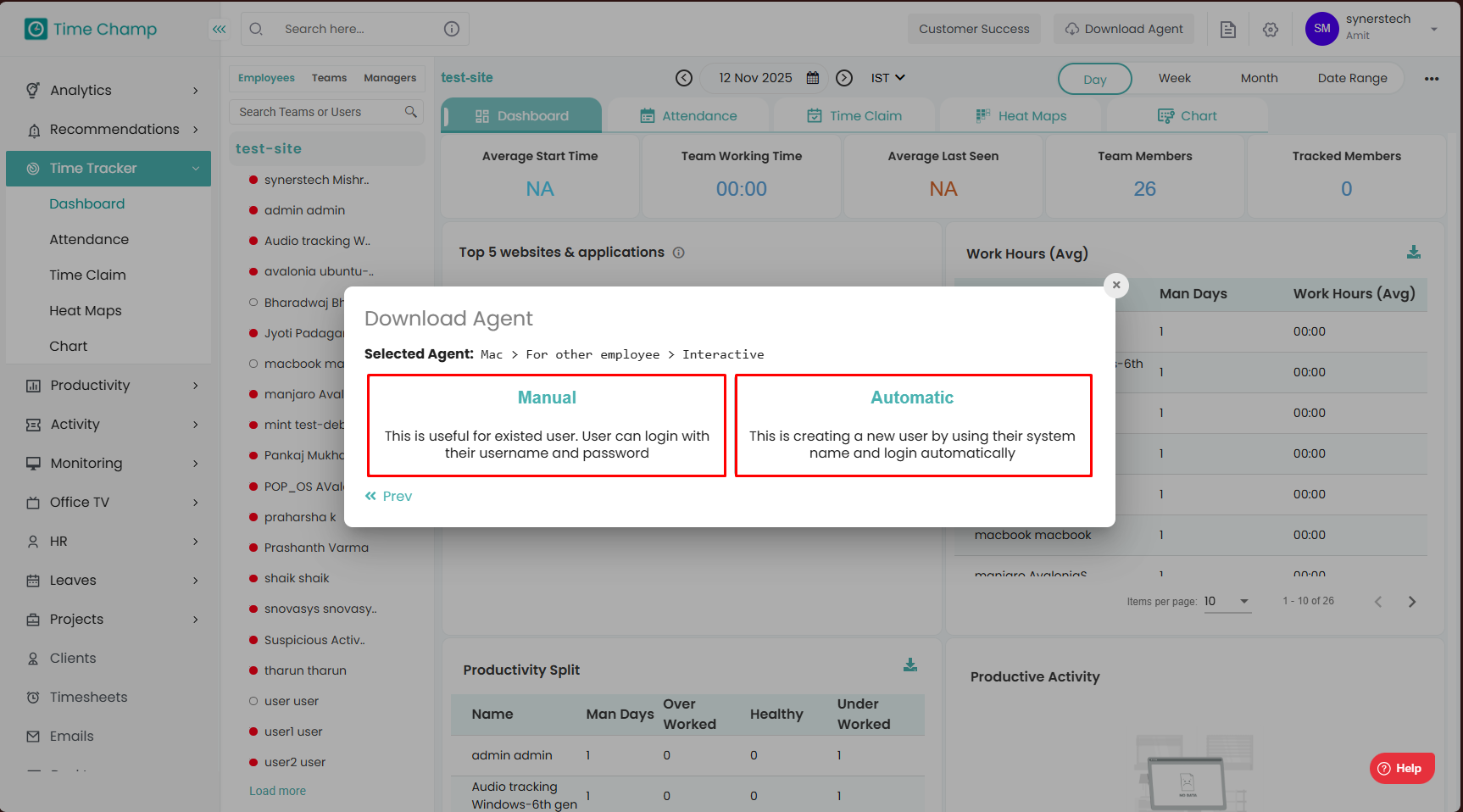
Manual – You need to share the username and password with employees to log in to the application.
Automatic – No credentials are required. The user account will be created automatically based on the system’s logged-in username.
 Please ensure that the User system profile names are unique.
Step 7: Accept the condition to Install.
Check the box “I understand all the above” after reading the important note carefully and click on “Download.”
Do not change the filename otherwise the installation will encounter issues and ensure the required paths are excluded from antivirus.
Step 8: Install the Application (macOS)
Unzip the Time Champ folder.
Double-click the
.pkgfile to start the installation.

8.1. If you encounter a security error, follow these steps:

8.2. Go to System Preferences → Security & Privacy.
Under the General tab, click “Open Anyway.”

8.3. Follow the on-screen prompts and click “Next.” and click on "Install".

8.4. When a pop-up window appears, click “Allow.

Step 9: Grant Permissions to Time Champ
Open System Preferences → Security & Privacy.
Under the Privacy tab, add the Time Champ app (from the Applications folder) to the following sections:
Accessibility
Input Monitoring
Screen Recording
Full Disk Access

Step 10: Add Time Champ to Login Items
Search for “Login Items” in Settings.
Add the Time Champ app so it starts automatically when you log in.
Or Alternatively
Run the following command in the terminal of the system.
Command line: launchctl load ~/Library/LaunchAgents/com.snovasys.timechamp.plist

Step 11: Launch the Application
- Open the Applications folder.
Double-click Time Champ to launch.
The app will log you in automatically.
Related Articles
How to Install Silent Agent In MAC
Steps to Install Time Champ V3 Silent Version in MAC System. Step 1: Log in to your Time Champ account using your credentials. Step 2: To install the application, click on “Download Agent.” Step 3: Select the operating system of your computer. Step ...How to Install Interactive Agent in Windows
Step 1: Log in to your Time Champ account Step 2: Click on “Download Agent” to begin the installation process. Step 3: Choose the operating system of your computer (Windows). Step 4: Install Yourself – Select this option to install Time Champ on your ...How to Install Interactive Agent in Linux
Steps to Install Time Champ V3 Interactive Version in Linux System. Step 1: Log in to your Time Champ account using your credentials. Step 2: To install the application, click on “Download Agent.” Step 3: Select the operating system of your computer. ...How to Uninstall Agent from MAC
Uninstallation of Time Champ from Mac System. Step 1: Unload the Time Champ service Open the Terminal and run the following command to unload the Time Champ service: launchctl unload ~/Library/LaunchAgents/com.snovasys.timechamp.plist Step 2: Remove ...How to Install Silent Agent in Linux
Steps to Install Time Champ V3 Silent Version in Linux System. Step 1: Log in to your Time Champ account using your credentials. Step 2: To install the application, click on “Download Agent.” Step 3: Select the operating system of your computer. Step ...