How to Fix Duplicate Desktop Assigns to user
Step 1: Log in to your site with credentials in the browser
Step 2: Go to the User tab and verify whether multiple desktops are assigned to the same
user.
If multiple users have the same desktop name, the application will assign the desktop to only
one user, and all associated data will be reflected for that user only. To avoid this issue, create
a new user account in user tab and assign the desktop to the correct user.
Description:
The issue happens because desktop names must be unique for proper mapping.
When two or more users have the same desktop name, the system treats it as a single
entity, causing incorrect user-to-desktop associations.
The solution is to ensure unique desktop names per user or explicitly assign desktops
to specific user accounts.
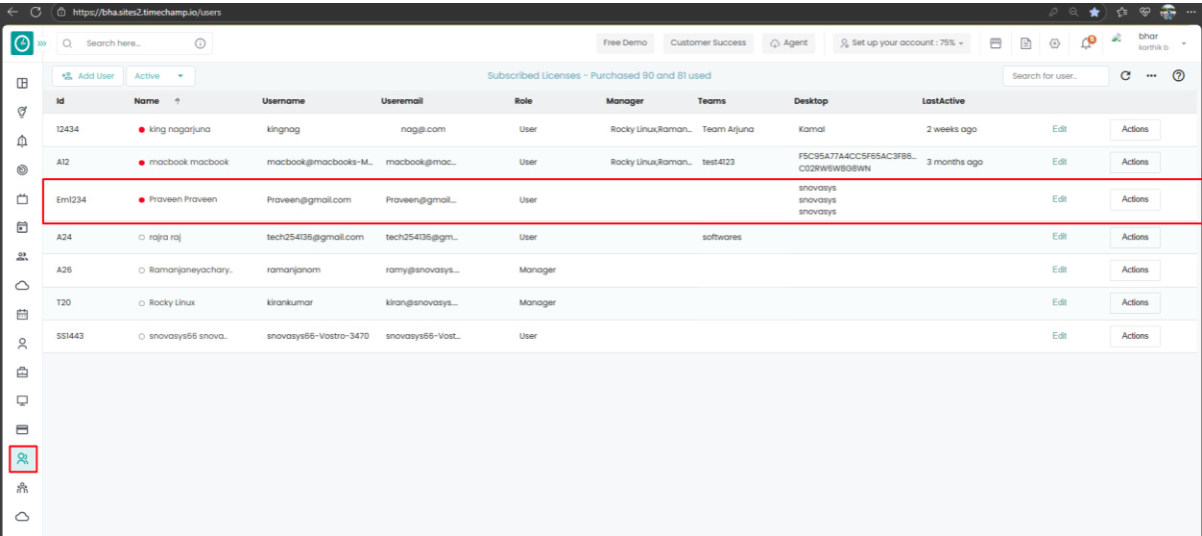
Step 3: Goto Desktops Tab.
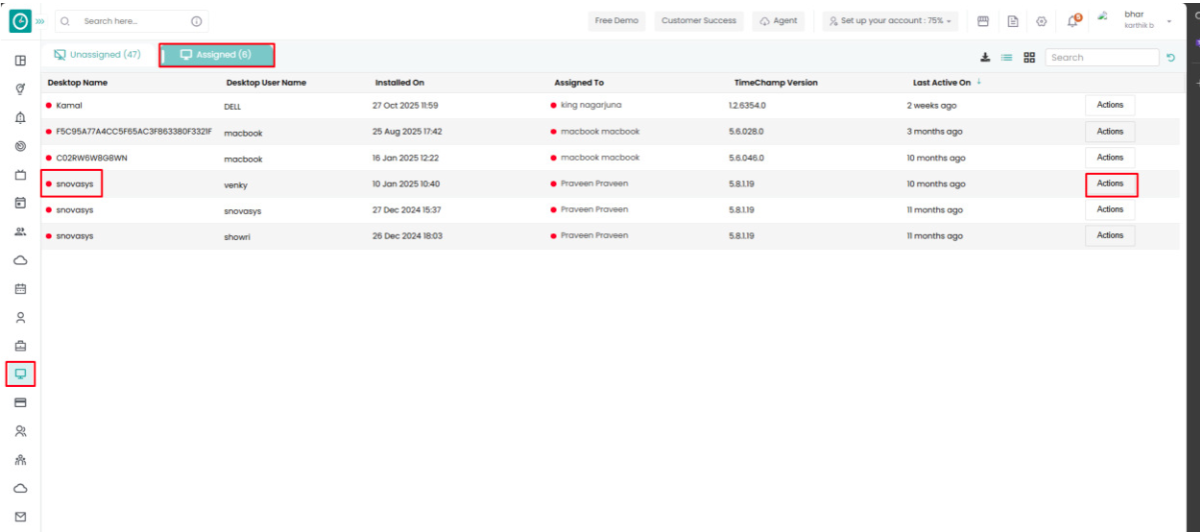
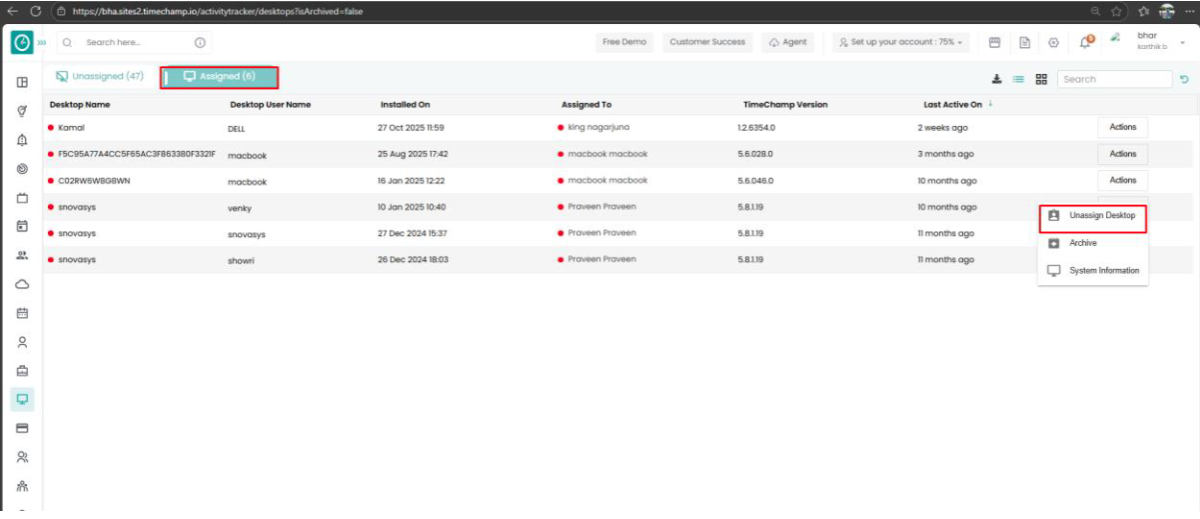
Step 4 : After that, go to Assigned Desktops and click on actions on the desktop you want to
remove, and click on unassign.
Step 5: Now, add the respective users to the dashboard for whom the unassigned desktops belong, using this guide. -> Click here to add users
Step 5: Now, add the respective users to the dashboard for whom the unassigned desktops belong, using this guide. -> Click here to add users
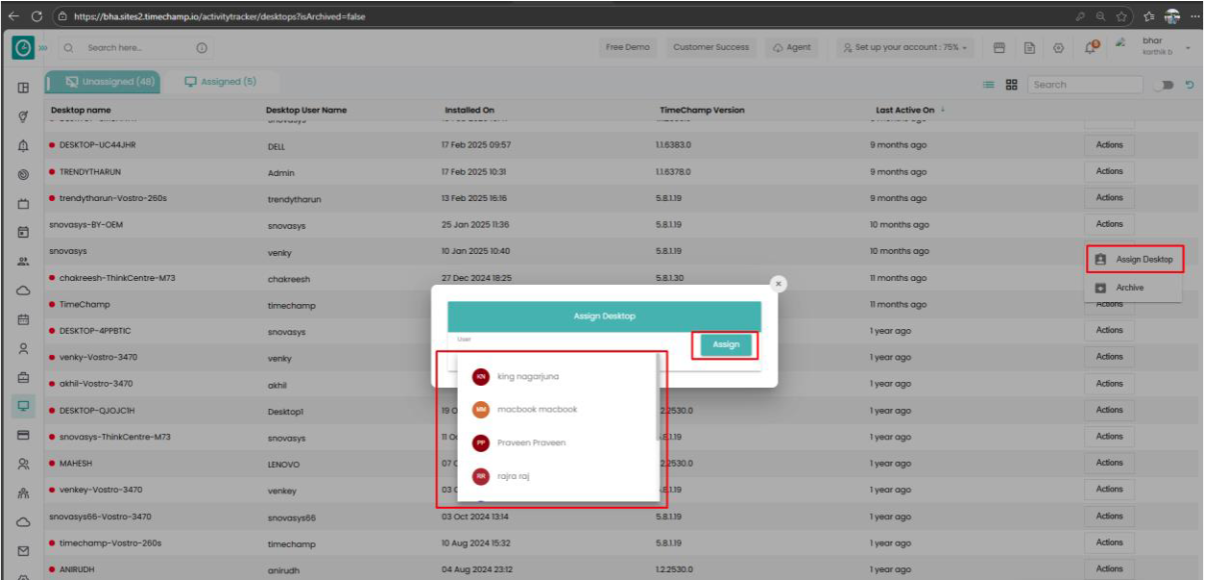
Step 6: Now, click on Unassigned Desktops section, search for the desktop you want to
assign. Click on the Actions button, then search for the user account to which you'd like to
assign the desktop. After selecting the appropriate user, click on the Assign button to
complete the process.
Note : If you assign the desktop from one user account to other user account the data will
track from now onwards, past data will not sync
Related Articles
Pushing an Win app from Intune to a User's System - IT
Pushing an MSI to User Systems via Intune To deploy an MSI application to user systems using Microsoft Intune, follow the steps below: 1. Set Up Intune Admin System: Ensure Intune is properly configured and accessible from the administrator’s system. ...Install Time Champ (MSI) Through Group Policy (GPO)
Creating a Shared Folder: 1) Create a shared network folder (this folder will contain the MSI package) For Example we are creating a folder named software in the C directory Right click and go to Properties of the shared folder. 2)Set permissions on ...Linux Silent New Version Installation (Avalonia)
Time Champ Installation Guide for Linux Follow the steps below to ensure a clean and successful installation of the Time Champ application: Step 1: Check for Existing Installation Verify if a previous version of the Time Champ application is already ...Intune Setup on macOS and PKG Deployment
Intune user login on macOS Step 1: Launch the Company Portal app on your macOS device. Step 2: Enter your Intune account email and password, then click Sign In to complete authentication. PKG Deployment Step 3: In Microsoft Intune Admin Center, go to ...