How to delete a mapped application/URL?
Follow the steps to delete a mapped application/URL.
Step 1:
Log into the site utilizing your credentials.
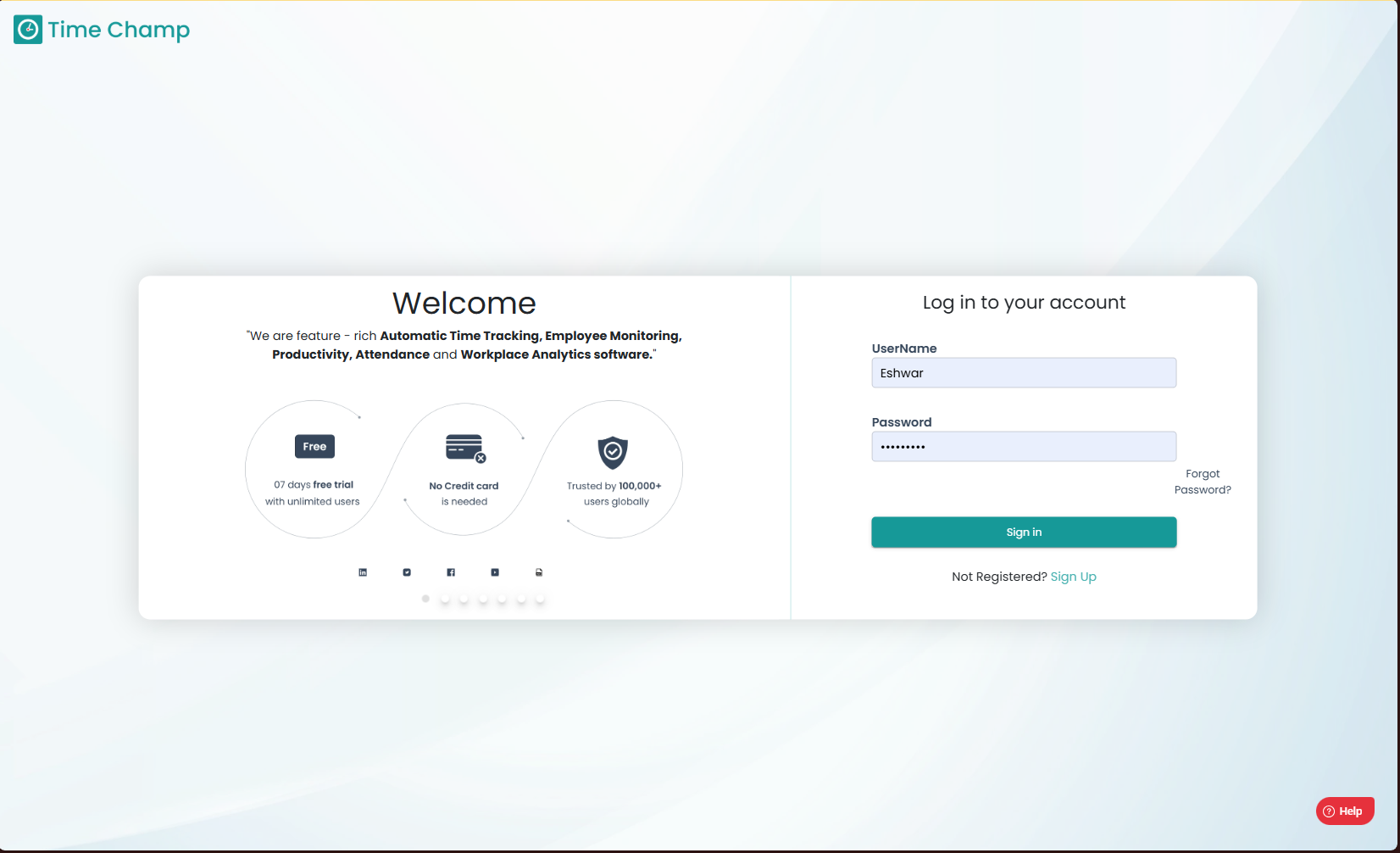
Log into the site utilizing your credentials.
Step 2:
Navigate to the Productivity Module and then to the Configure Apps section.
Navigate to the Productivity Module and then to the Configure Apps section.
Step 3:
Navigate to the Mapping Sub Section as show in the highlighted area in the image below.
Navigate to the Mapping Sub Section as show in the highlighted area in the image below.
Step 4:
Now click in actions as shown in the highlighted area in the below image for the Application/URL that is to be deleted.
Now click in actions as shown in the highlighted area in the below image for the Application/URL that is to be deleted.
Step 5:
Now Click on delete as shown in the highlighted area in the below image to proceed with the process.
Now Click on delete as shown in the highlighted area in the below image to proceed with the process.
Step 6:
Now Click on delete as shown in the highlighted area in the below image to confirm the deletion.
Now Click on delete as shown in the highlighted area in the below image to confirm the deletion.
Related Articles
How to change the application group of an Application/URL?
Follow the steps to change the application group of a mapped application/URL. Step 1: Log into the site utilizing your credentials. Step 2: Navigate to the Productivity Module and then to the Configure Apps section. Step 3: Navigate to the Mapping ...How to manually add an application/URL and set an application group to the new application/URL?
Follow the steps to manually add an application/URL and set an application group to the new application/URL. Step 1: Log into the site utilizing your credentials. Step 2: Navigate to the Productivity Module and then to the Configure Apps section. ...How to assign application group to a new/existing app/URL and set the productivity status?
Follow the steps to assign an app or URL to an application group and assign the productivity status of that application group. An application cannot be directly marked as productive, non-productive, or neutral. It must first be assigned to an ...How to delete Users?
Follow the steps to delete a user. Step 1: Log into the site utilizing your credentials. Step 2: Navigate to the Administration Module and then to the Users section. Step 3: Now you can click Edit as shown in the highlighted area in the below image. ...How to delete a Schedule?
Follow the steps to delete a Schedule. Step 1: Log into the site utilizing your credentials. Step 2: Navigate to the Reports Module and then to the Schedules section. Step 3: Click on delete as shown in the highlighted area in the below image. Step ...