How to delete a Schedule?
Follow the steps to delete a Schedule.
Step 1:
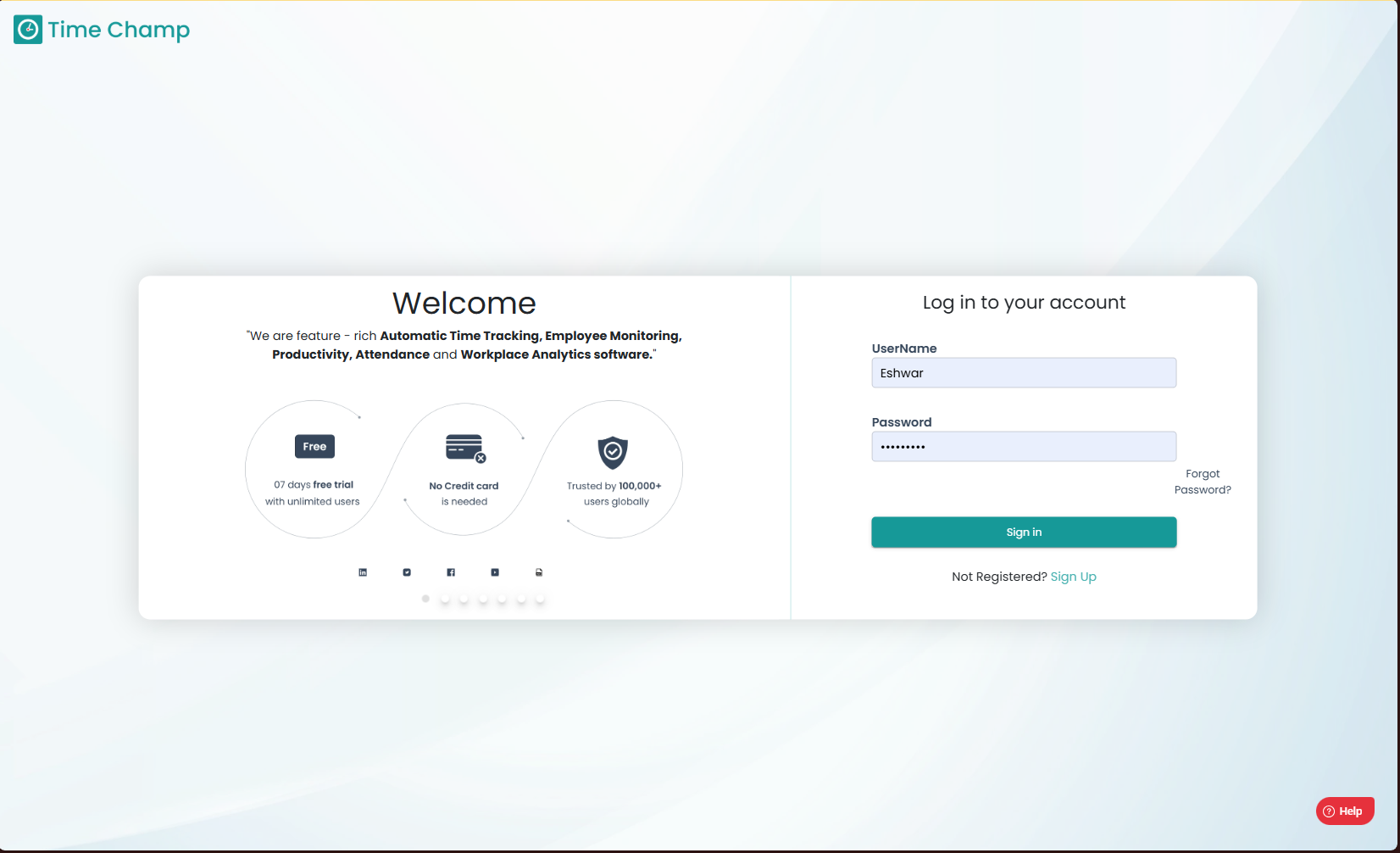
Log into the site utilizing your credentials.
Step 1:
Log into the site utilizing your credentials.
Step 2:
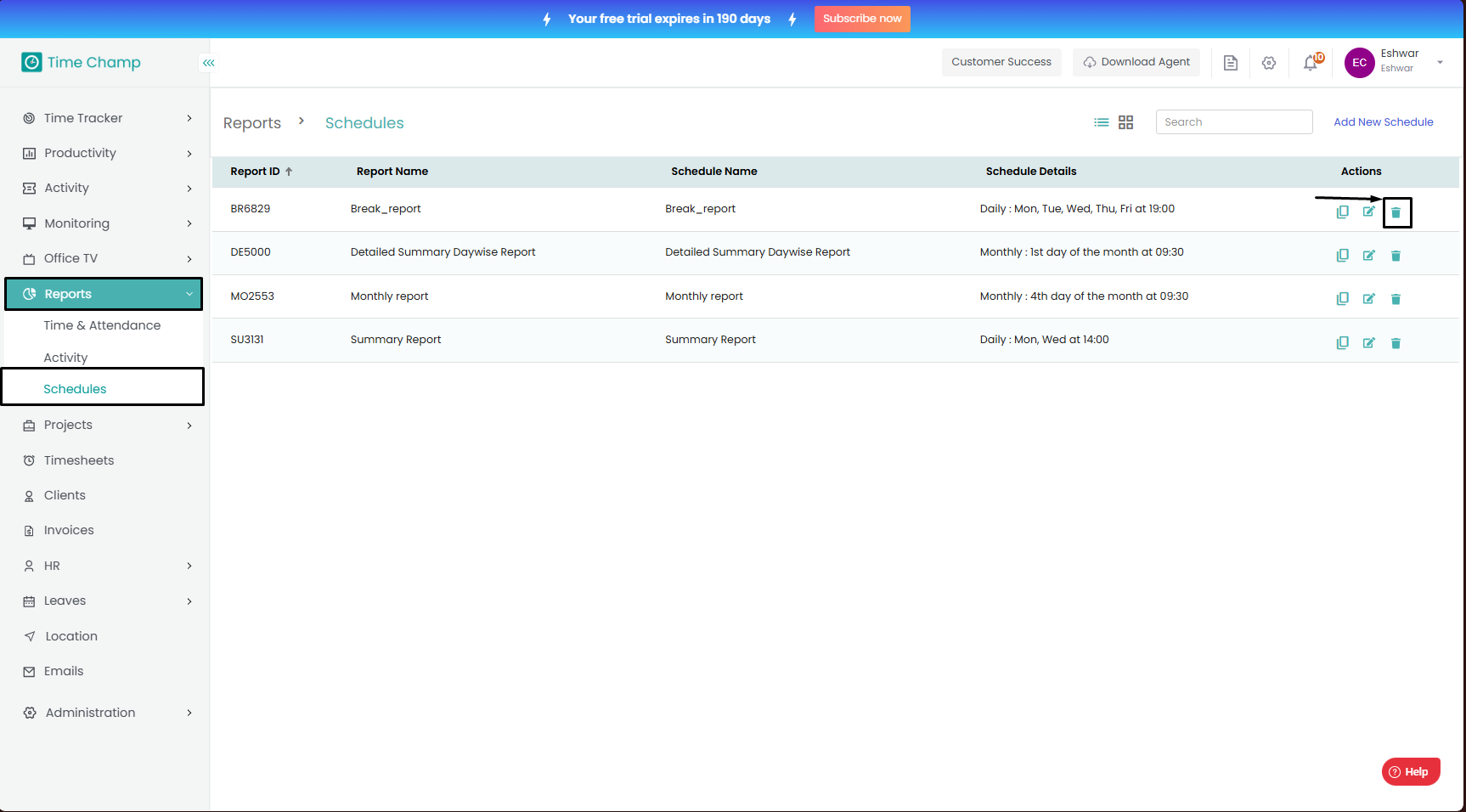
Navigate to the Reports Module and then to the Schedules section.
Navigate to the Reports Module and then to the Schedules section.
Step 3:
Click on delete as shown in the highlighted area in the below image.
Step 4:
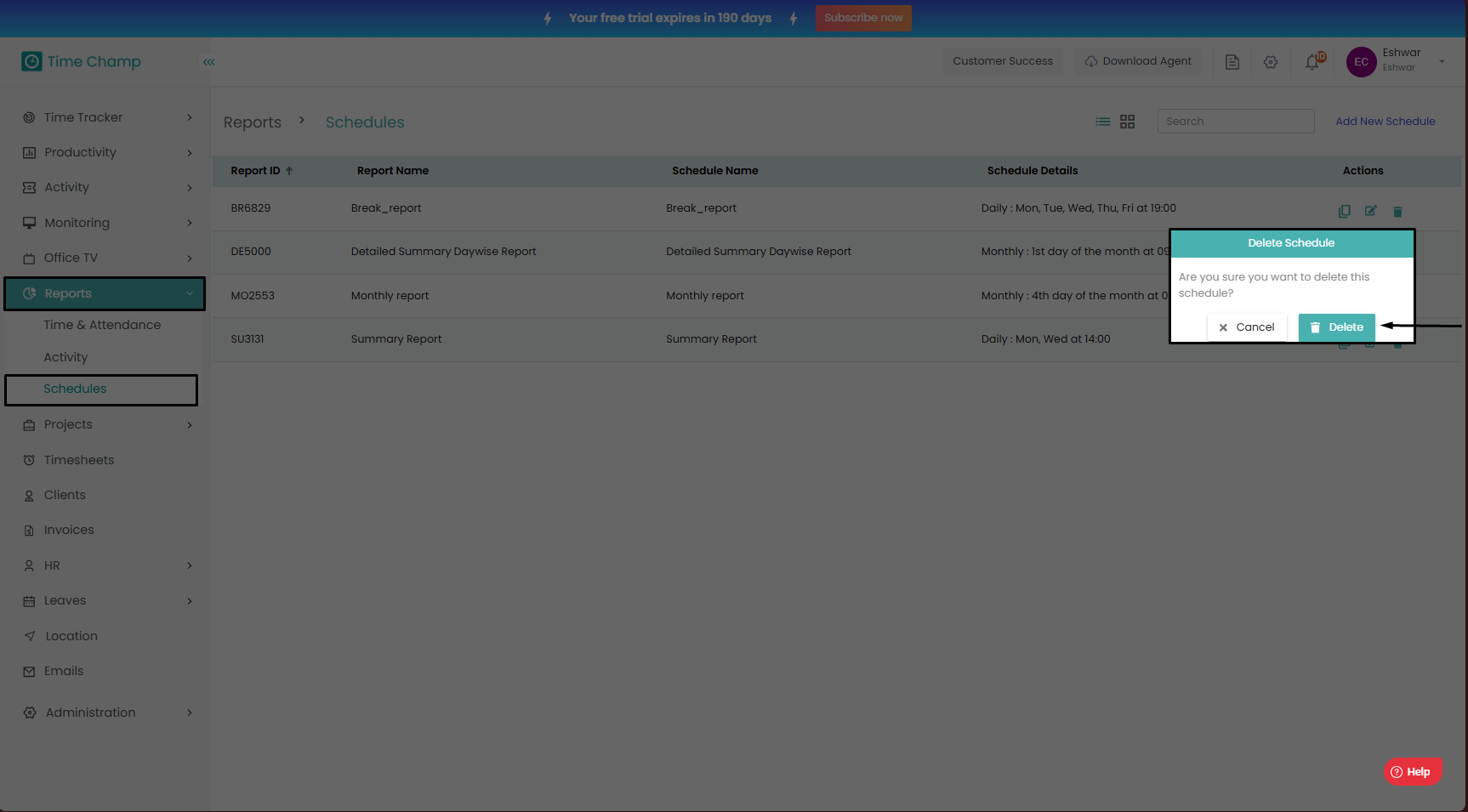
click on Delete as shown in the highlighted area in the below image to permanently delete this Schedule.
Click on delete as shown in the highlighted area in the below image.
Step 4:
click on Delete as shown in the highlighted area in the below image to permanently delete this Schedule.
Related Articles
How to add a Schedule?
Follow the steps to add a Schedule. Step 1: Log into the site utilizing your credentials. Step 2: Navigate to the Reports Module and then to the Schedules section. Step 3: Click on add new Schedule as shown in the highlighted area in the below image. ...How to clone a Schedule?
Follow the steps to clone a Schedule. Step 1: Log into the site utilizing your credentials. Step 2: Navigate to the Reports Module and then to the Schedules section. Step 3: Click on clone as shown in the highlighted area in the below image. Step 4: ...How to edit a Schedule?
Follow the steps to edit a Schedule. Step 1: Log into the site utilizing your credentials. Step 2: Navigate to the Reports Module and then to the Schedules section. Step 3: Click on edit as shown in the highlighted area in the below image to make ...How to enable Screen and Audio Recordings and Add Scheduling for Screen Recordings?
Follow the steps to configure Screen and Audio Recording. This article includes the procedure to enable screen recording (step 4a) and add screen recording Schedule (step 4b), enable audio recording (step 4e), editing (step 4c) and deleting (step 4d) ...How to delete Users?
Follow the steps to delete a user. Step 1: Log into the site utilizing your credentials. Step 2: Navigate to the Administration Module and then to the Users section. Step 3: Now you can click Edit as shown in the highlighted area in the below image. ...