How to enable Live Screens?
Follow the steps to Configure Live Screens.
Step 1:
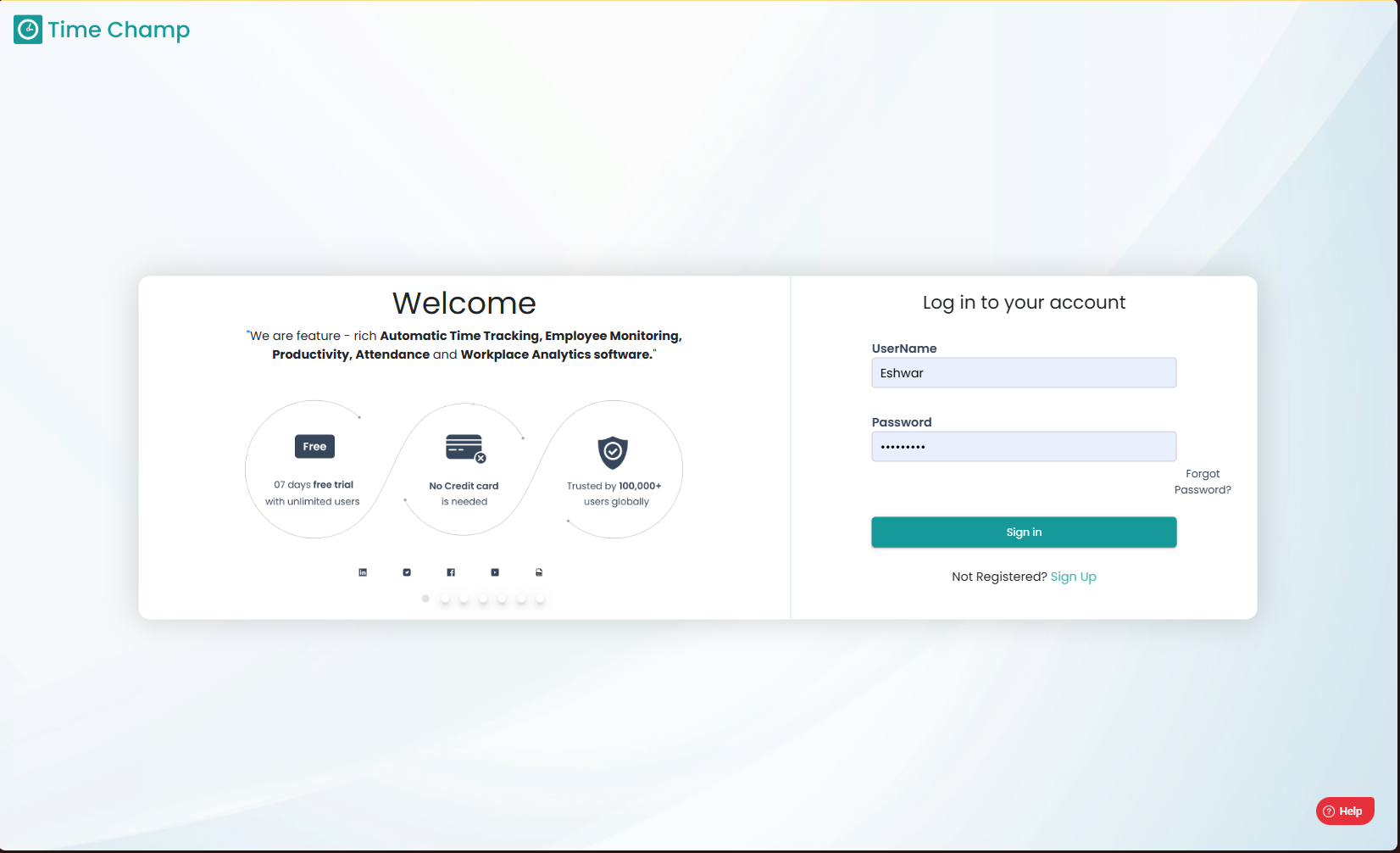
Log into the site utilizing your credentials.
Step 1:
Log into the site utilizing your credentials.
Step 2:
Navigate to the Administration module and then to the Configuration section.
Navigate to the Administration module and then to the Configuration section.
Step 3:
The highlighted area in the below image is the option for Live Screens.
Enabling this option would allow the application to capture live screens of the users.

Ensure that all modifications are saved upon completion; unsaved changes will not take effect.
Related Articles
How to View Live Screens?
Follow the steps to view Live Screens in Office TV Module. Step 1: Log into the site utilizing your credentials. Step 2: Navigate to the Office TV Module and then to the Live Screens section. Step 3: Here you can view the Live Screens of the users as ...How to Enable/Disable Keystrokes and Mouse Clicks Tracking?
Follow the steps to enable/disable keystrokes and mouse clicks tracking. Step 1: Log into the site utilizing your credentials. Step 2: Navigate to the Administration Module and then to the Configuration section. Step 3: Now you can toggle the ...How to enable Screen and Audio Recordings and Add Scheduling for Screen Recordings?
Follow the steps to configure Screen and Audio Recording. This article includes the procedure to enable screen recording (step 4a) and add screen recording Schedule (step 4b), enable audio recording (step 4e), editing (step 4c) and deleting (step 4d) ...How to enable Notifications and Allow/Block Mails?
Follow the steps to navigate and configure notifications and mails Step 1: Log into the site by utilizing your username and password. Step 2: Navigate to the Administration Module and then to the Configurations section. Step 3: Now you can view the ...How to reactivate/re-enable a Behavior alert?
Follow the steps to reactivate a behavior alert. Step 1: Log into the site utilizing your credentials. Step 2: Navigate to the Administration Module and then to the Behavior alerts section. Step 3: Click on the active button to select the inactive ...