How to View Live Screens?
Follow the steps to view Live Screens in Office TV Module.
Step 1:
Log into the site utilizing your credentials.
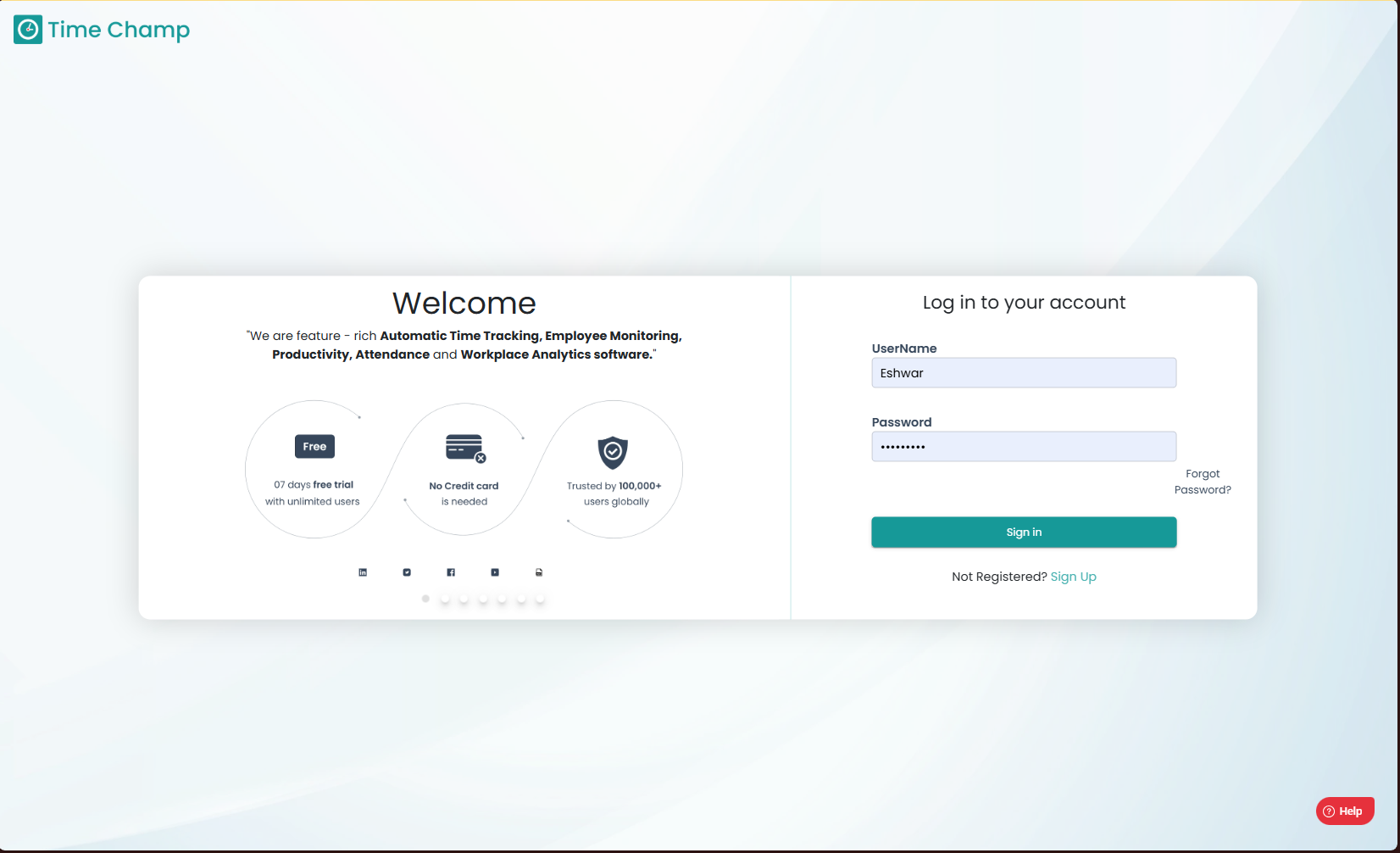
Log into the site utilizing your credentials.
Step 2:
Navigate to the Office TV Module and then to the Live Screens section.
Navigate to the Office TV Module and then to the Live Screens section.
Step 3:
Here you can view the Live Screens of the users as shown in the highlighted area of the below image.
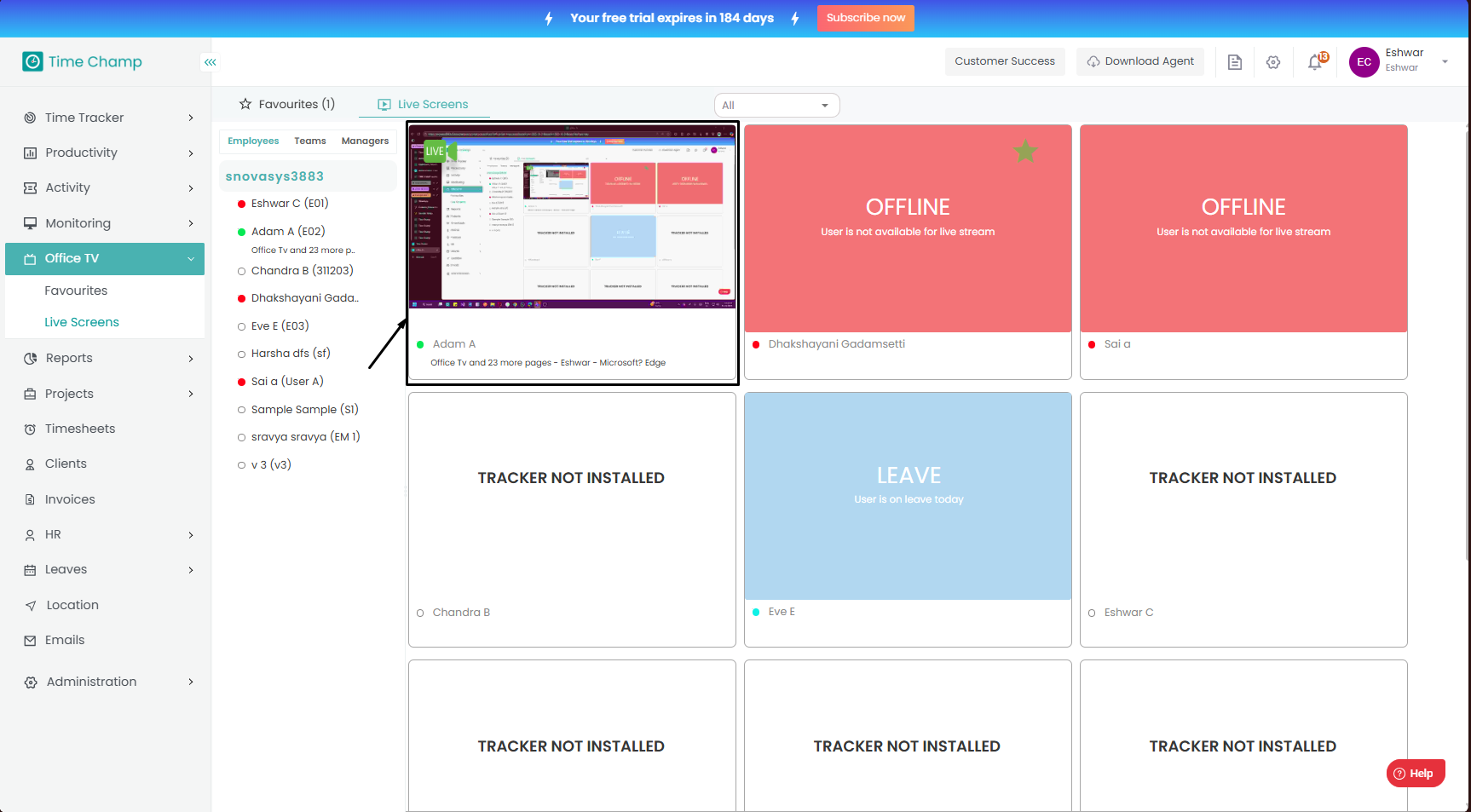
Here you can view the Live Screens of the users as shown in the highlighted area of the below image.
Step 4:
Now you can click on the displayed Live screen of a user to move it into a full screen format as shown in the highlighted area in the below image.
Now you can click on the displayed Live screen of a user to move it into a full screen format as shown in the highlighted area in the below image.
Step 5:
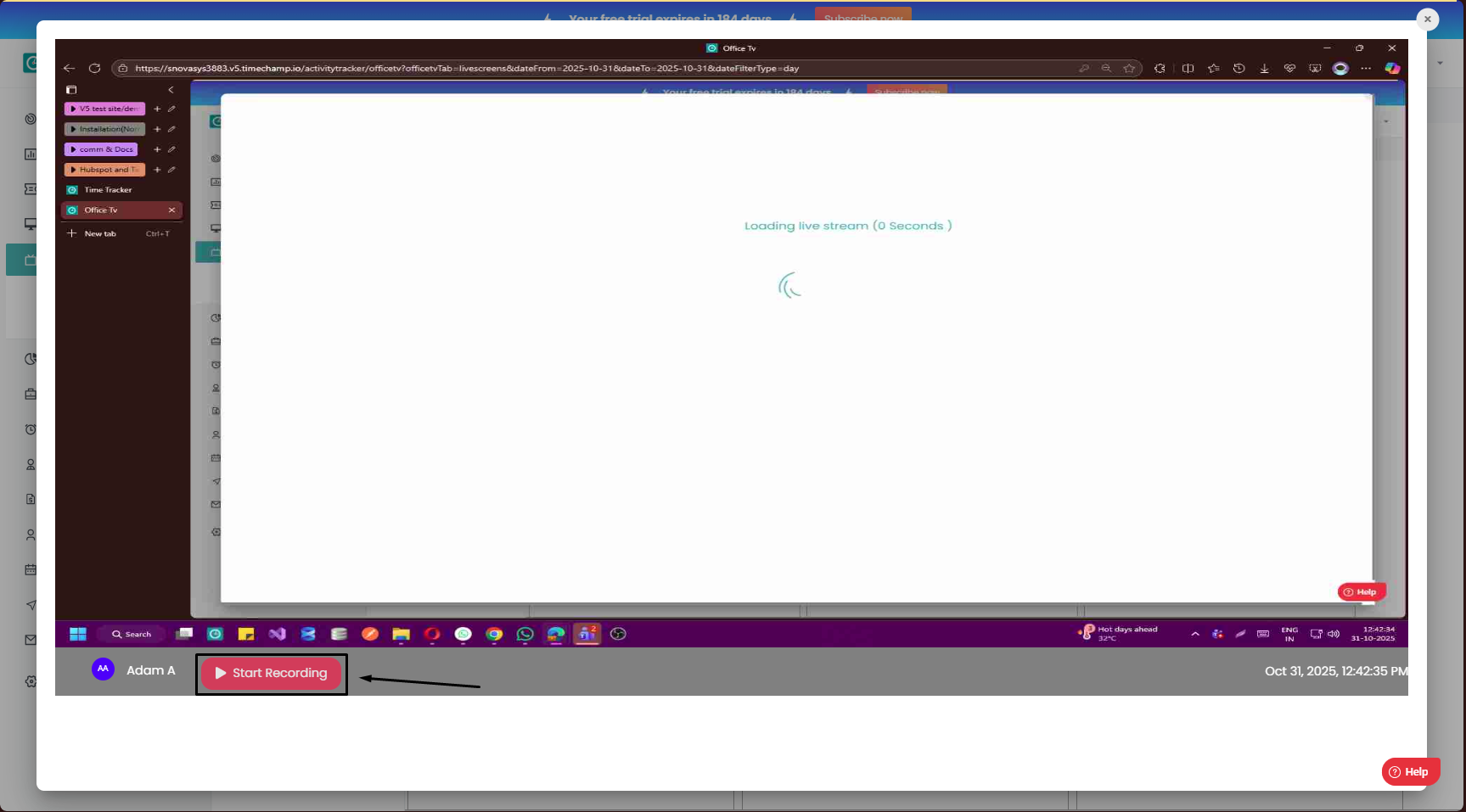
We can click on start recording to manually start the screen recordings as shown in the highlighted area in the below image.
Step 6:
We can click on start recording to manually start the screen recordings as shown in the highlighted area in the below image.
Step 6:
We can click on stop recording to manually stop the screen recordings as shown in the highlighted area in the below image.