User Level Configuration
Follow the steps below to access and modify user-level configurations under the Administration module:
Step 1:
Log in to your Time Champ account.
From the left-hand menu, click on the Users module.
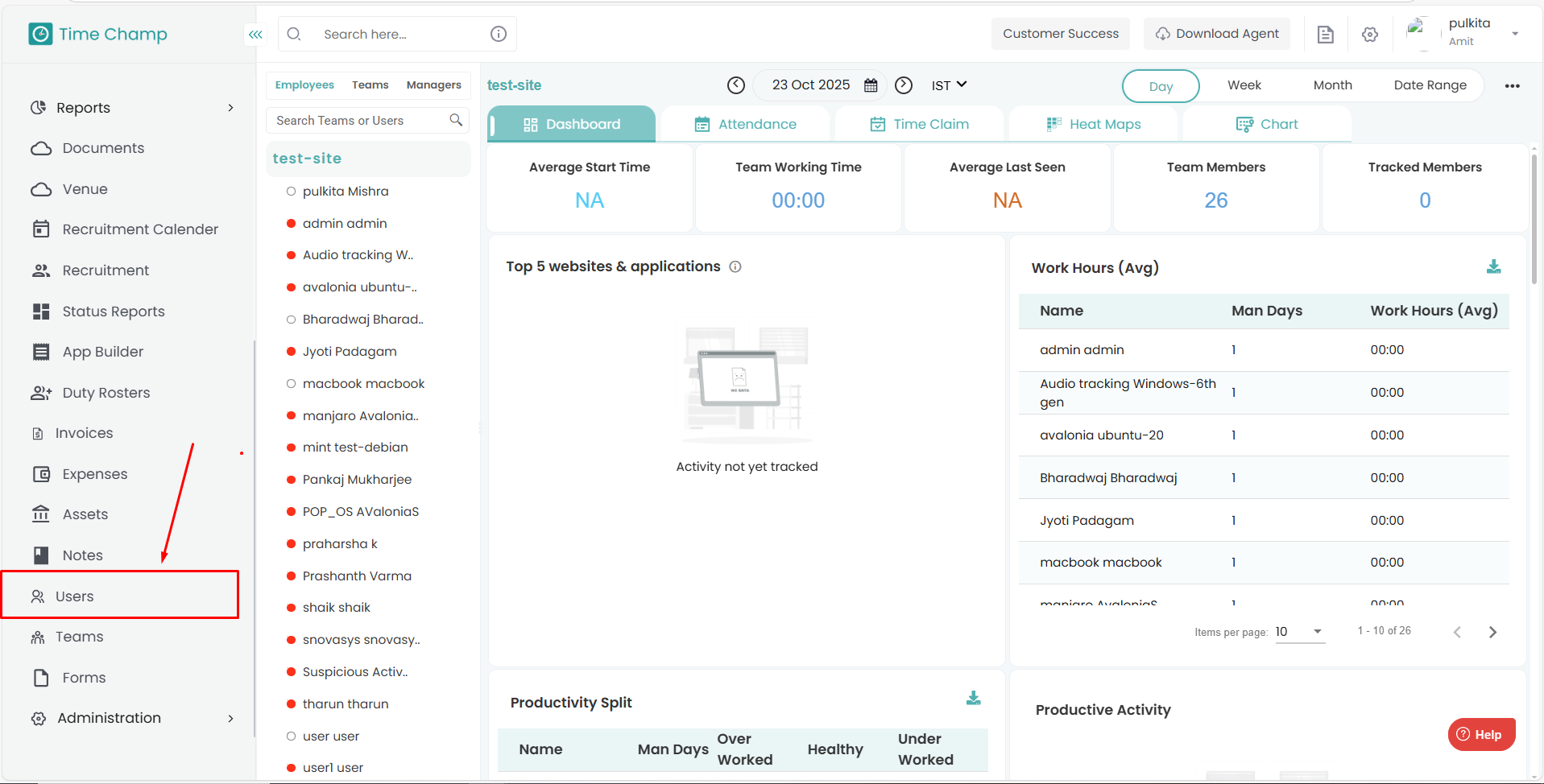
Step 2:
Click on the Edit option beside the name of the user for whom you want to configure settings.
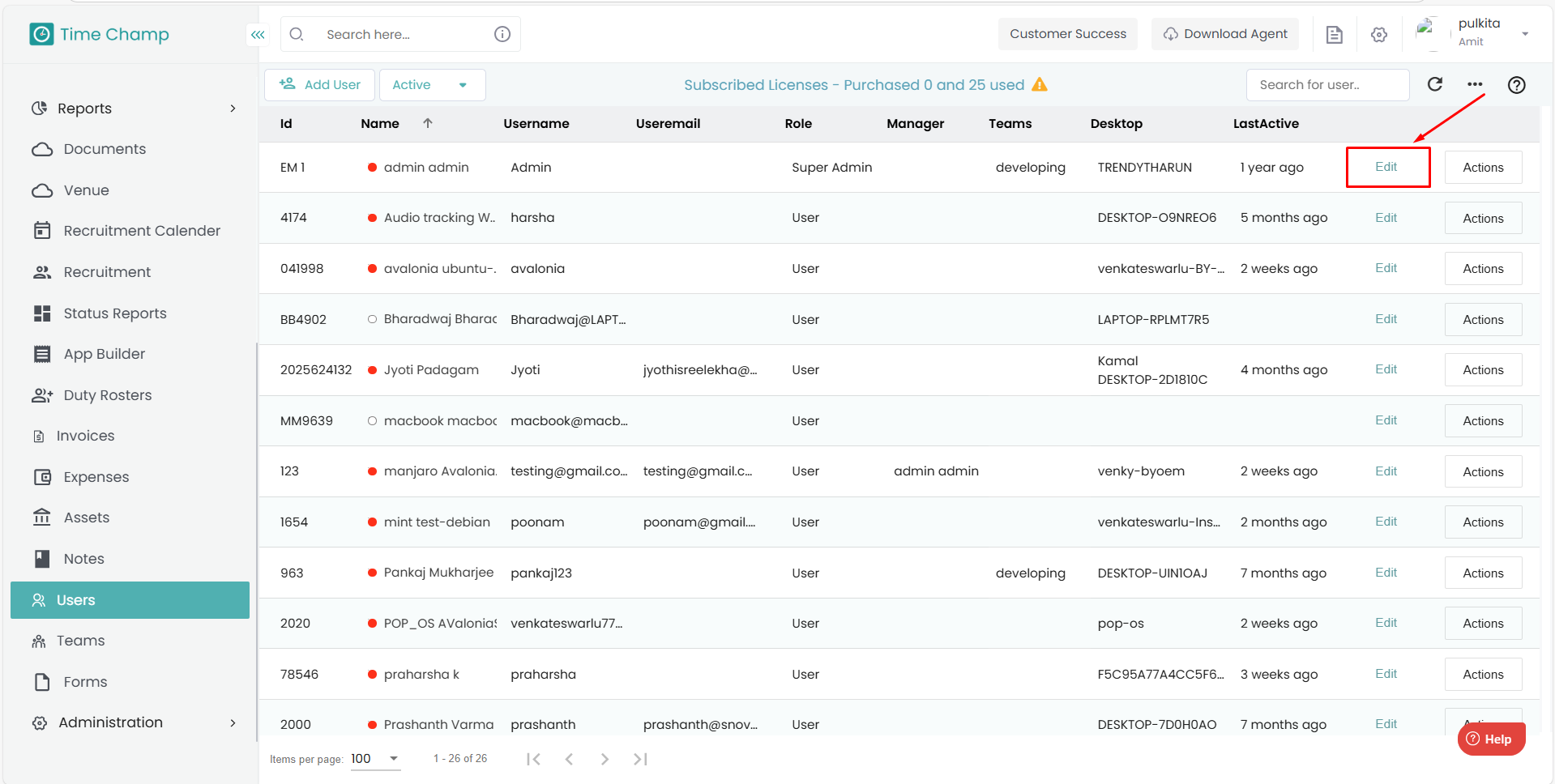
Step 3:
Within the user’s profile, navigate to the User Configuration tab.
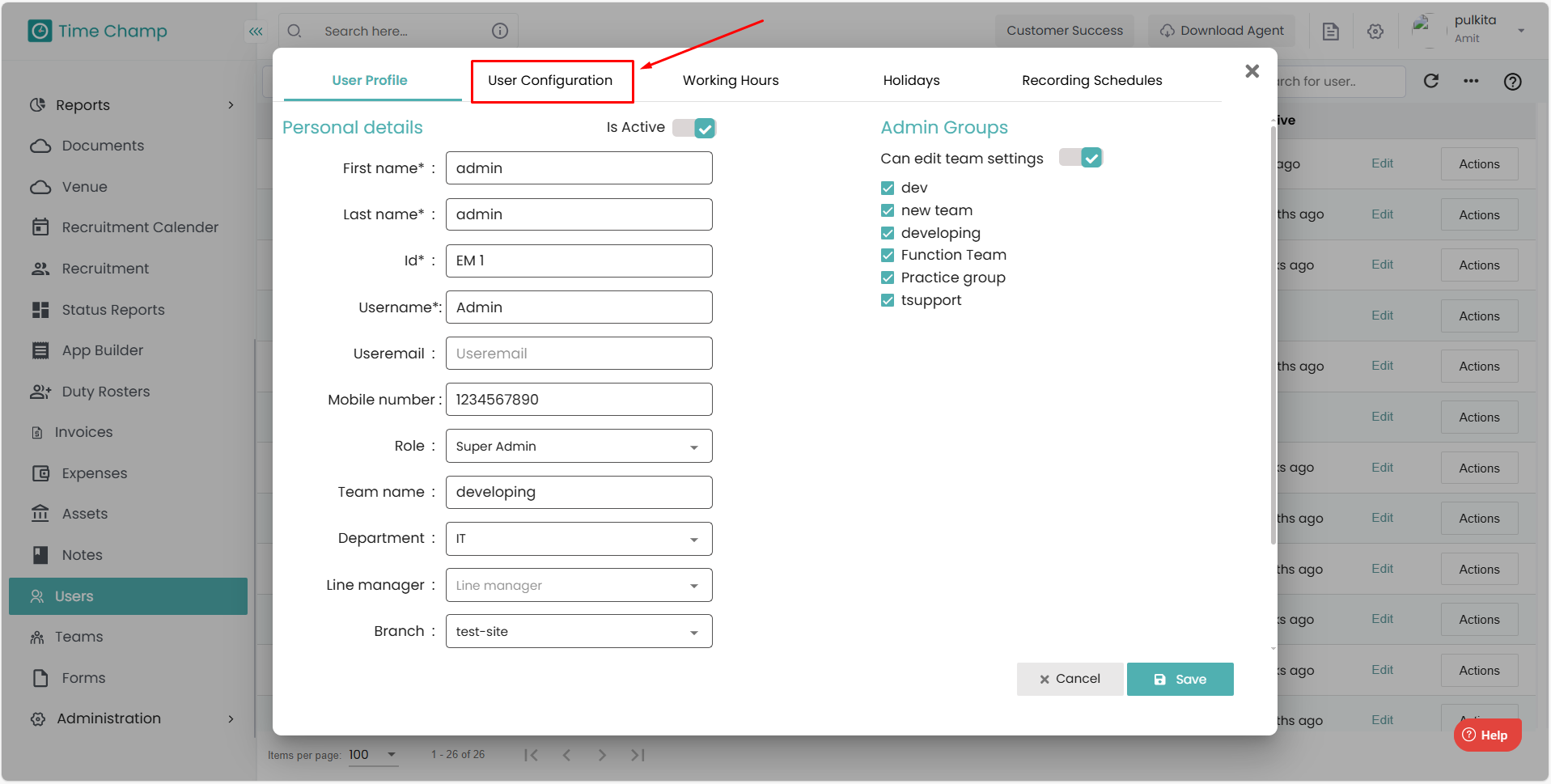
Here, you can customize user-specific settings based on your organization’s preferences and policies.
User Configuration
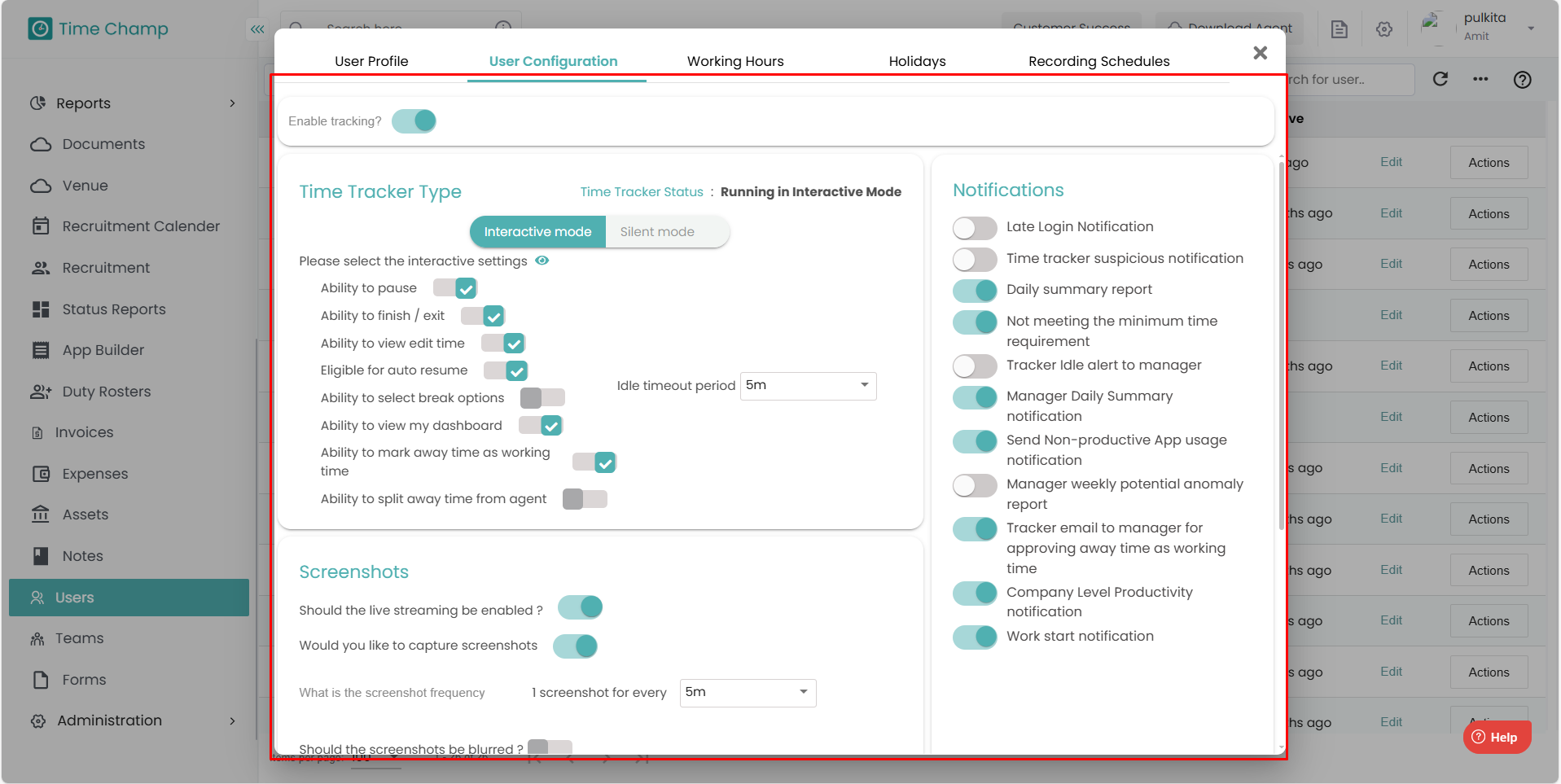
Step 1:
Log in to your Time Champ account.
From the left-hand menu, click on the Users module.
Step 2:
Click on the Edit option beside the name of the user for whom you want to configure settings.
Step 3:
Within the user’s profile, navigate to the User Configuration tab.
Here, you can customize user-specific settings based on your organization’s preferences and policies.
User Configuration
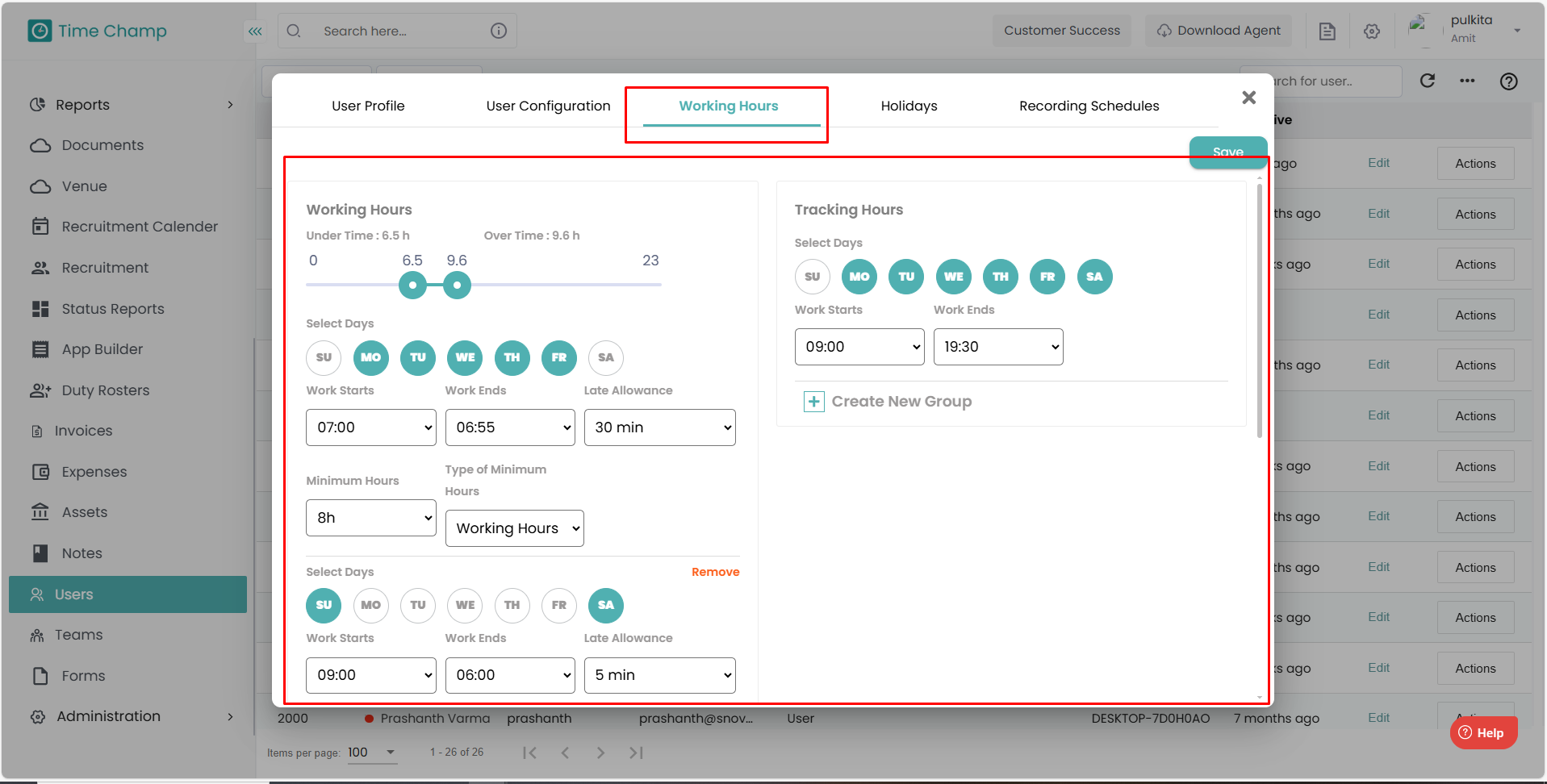
Working Hours
Related Articles
Team Level Configuration
Follow the steps below to access and manage team-level configurations under the Administration module: Step 1: Log in to your Time Champ account. From the left-hand menu, click on the Administration module. Step 2: Under the Administration module, ...Interactive Configuration Settings
Follow the steps below to navigate and configure Interactive tracking options under the Administration module: Step 1: Log in to your Time Champ account. From the left-hand menu, click on Administration. Step 2: Under the Administration module, ...How to Configure Time Zone for a User
Follow the steps below to configure the Time Zone for an employee under the Administration module: Step 1: Log in to your Time Champ account. From the left-hand menu, click on the Administration module. Step 2: Under Administration, click on Users. ...How to deactivate and delete a user
Follow the steps below to deactivate and delete a user under the Administration module: Step 1: Log in to your Time Champ account. From the left-hand menu, click on the Administration module. Step 2: Under the Administration module, click on Users. ...How to View Detailed Activity of the User
Follow the steps below to navigate and view detailed user activity under the Activity module: Step 1: Log in to your Time Champ account. From the left-hand menu, click on the Activity module. Step 2: Click on Detailed Activity. Step 3: Here, you can ...