How to deactivate and delete a user
Follow the steps below to deactivate and delete a user under the Administration module:
Step 1:
Log in to your Time Champ account.
Step 1:
Log in to your Time Champ account.
From the left-hand menu, click on the Administration module.
Step 2:
Under the Administration module, click on Users.
Under the Administration module, click on Users.
Step 3:
Click on the Edit option beside the name of the user you want to remove.
Click on the Edit option beside the name of the user you want to remove.
Step 4:
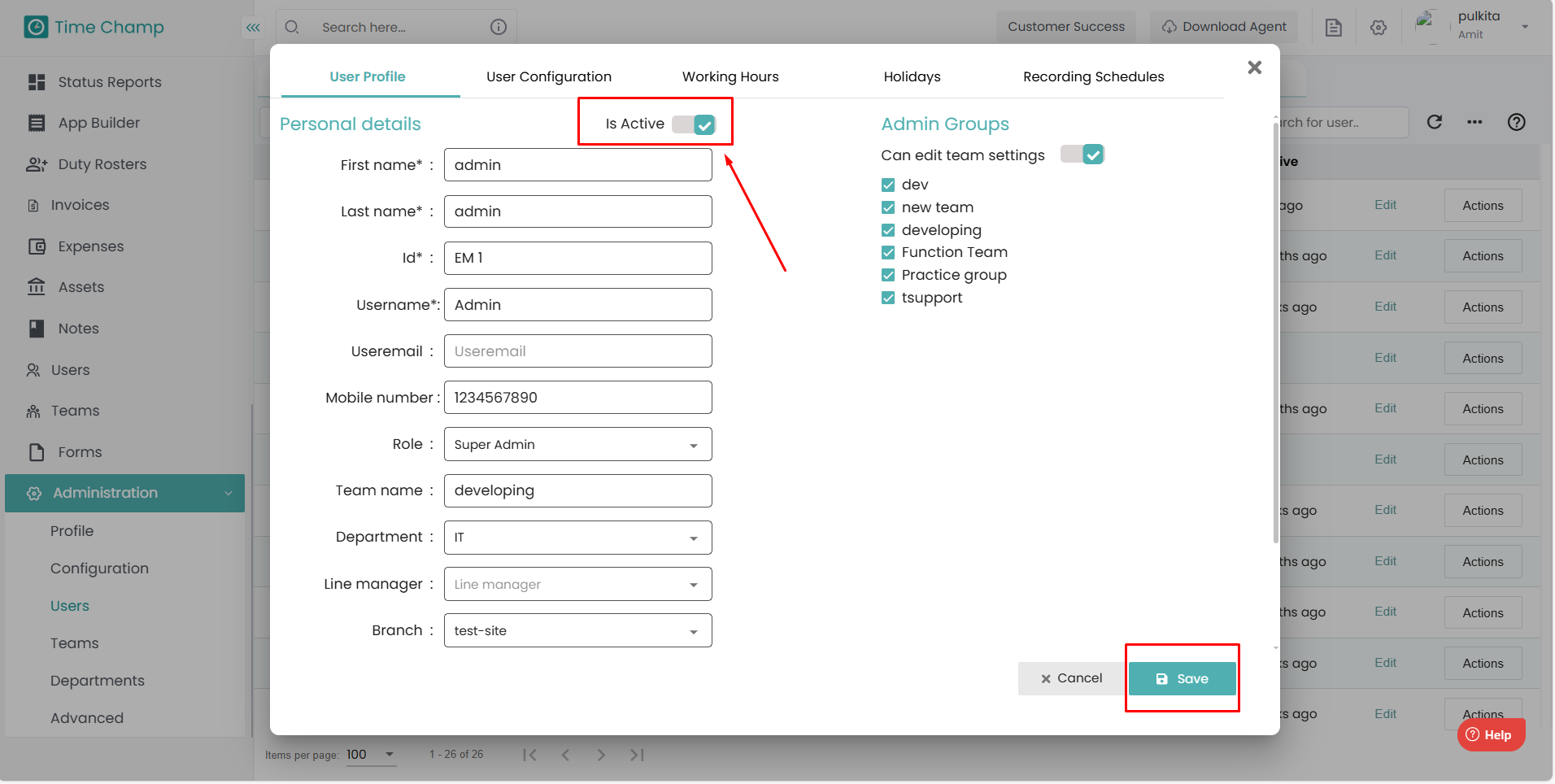
Disable the “Is Active” option.
Click on Save to mark the user as inactive.
Step 5:
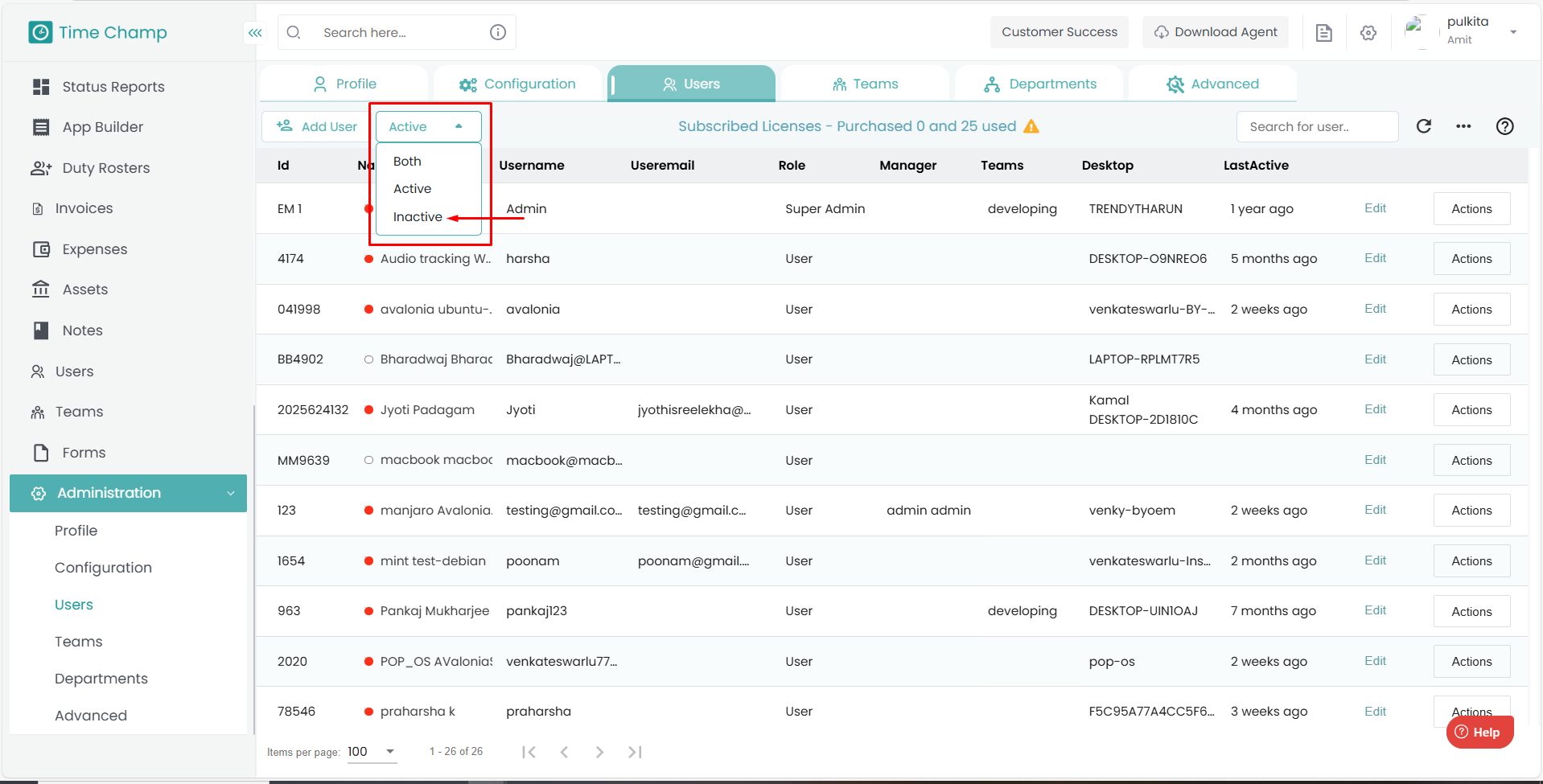
Select Inactive from the user status filter to view deactivated users.
Disable the “Is Active” option.
Click on Save to mark the user as inactive.
Step 5:
Select Inactive from the user status filter to view deactivated users.
Step 6:
Click on the Actions tab for the inactive user.
Step 7:
Select Delete to permanently remove the user from the system.
Related Articles
User Level Configuration
Follow the steps below to access and modify user-level configurations under the Administration module: Step 1: Log in to your Time Champ account. From the left-hand menu, click on the Users module. Step 2: Click on the Edit option beside the name of ...How to Add, Edit, or Delete Holidays
Follow the steps below to manage holidays under the Administration module: Step 1: Log in to your Time Champ account. From the left-hand menu, click on the Administration module. Step 2: Under Administration, click on Advanced. Step 3: Choose ...How to Configure Time Zone for a User
Follow the steps below to configure the Time Zone for an employee under the Administration module: Step 1: Log in to your Time Champ account. From the left-hand menu, click on the Administration module. Step 2: Under Administration, click on Users. ...How to View Detailed Activity of the User
Follow the steps below to navigate and view detailed user activity under the Activity module: Step 1: Log in to your Time Champ account. From the left-hand menu, click on the Activity module. Step 2: Click on Detailed Activity. Step 3: Here, you can ...How to View Applications Used by the User
Follow the steps below to navigate and view the list of applications used by users under the Activity module: Step 1: Log in to your Time Champ account. From the left-hand menu, click on the Activity module. Step 2: Click on Applications Used. Step ...