Installation of Timechamp V4 Silent Version in Mac
Step 1: Log in to your Timechamp account with credentials.
Step 2: After logging in with the credentials, click on 'Navigate to Dashboard.'

Step 3: To install the application, click on download agent.
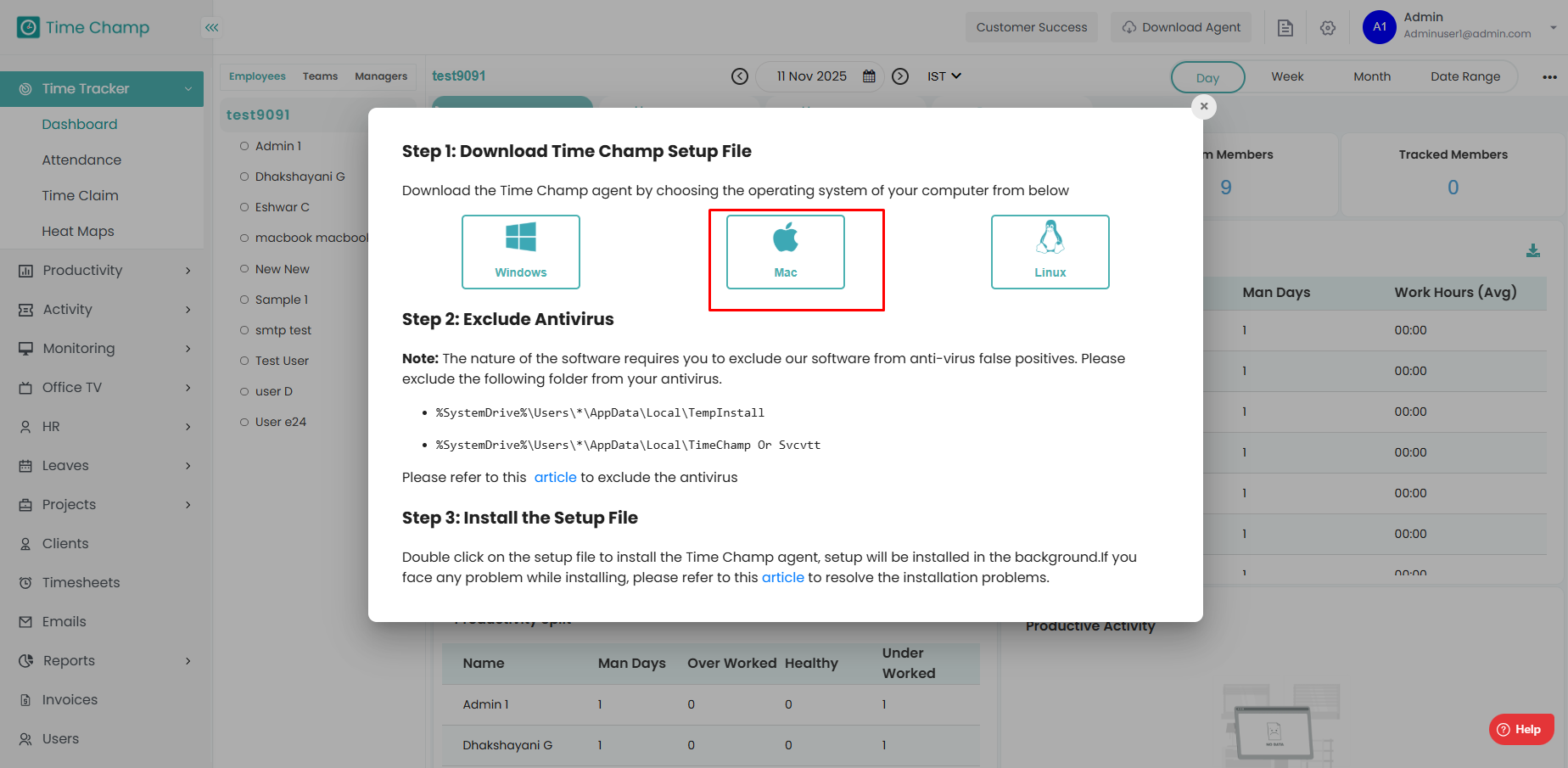
Step 4: Select the operating system of your computer.
Step 5: If you want to install an application on your system, then select to install yourself.
If you want to install the application on your employee's system, then select To install for employees.
Step 6: Select the type of installation (Silent).
In Silent, Employees can't see the tracker running in their system and it runs in the background.
Step 7: Click on the Checkbox I understand all the above and click on download.
Note: Do not change the filename.
The folder must remain in the "Downloads" directory.
Step 8:Unzip the Time champ folder and double-click on the svcvtt.pkg file
Step 9: If you did get an error, then go to System Preferences and Security & Privacy.
Click on Open Anyway to proceed with installation.

Step 10: Follow the on screen instructions to proceed with installation.

After installation, a pop-up window will appear. Click "Allow".

Click on Keep.

Step 11: Give permissions to svcvtt
1. Open System Preferences and go to Security& Privacy.
2. In the Privacy tab, add the svcvtt from the Applications folder to the following sections:
- Accessibility
- Input Monitoring
- Screen Recording
-Full disk access

Step 12: Search for login items and add svcvtt application.

Step 13: Navigate to applications and double click on the svcvtt application to launch it.
Step 14: To know that the tracker is running, go to Activity Monitor and search svcvtt.

Related Articles
Installation of Timechamp V4 Silent Version in Linux
Step 1: Login into your Time Champ account. Step 2: To install the application, click on download agent. Step 3: Select the operating system of your computer. Step4: If you would like to install the application on your admin account system, please ...Installation of Timechamp V4 Silent Version in Windows
Step 1: Log in to your Timechamp account with credentials. Step 2: After logging in with the credentials, click on 'Navigate to Dashboard.' Step 3: To install the application, click on download agent. Step 4: Select the operating system of your ...Installation of Timechamp V4 Interactive Version in Mac
Step 1: Log in to your Timechamp account with credentials. Step 2: After logging in with the credentials, click on 'Navigate to Dashboard.' Step 3: To install the application, click on download agent. Step 4: Select the operating system of your ...Installation of Timechamp V4 Interactive Version in Windows
Step 1: Log in to your Timechamp account with credentials. Step 2: After logging in with the credentials, click on 'Navigate to Dashboard.' Step 3: To install the application, click on download agent. Step 4: Select the operating system of your ...Installation of Timechamp V4 Interactive Version in Linux
Step 1: Login into your Time Champ account Step 2: To install the application, click on download agent. Step 3: Select the operating system of your computer Linux. Step 4: If you would like to install the application on your admin account system, ...