How to modify the productivity status of an application group in a productivity profile?
Follow the steps to change the productivity status of an application group in a productivity profile.
Step 1:
Log into the site utilizing your credentials.
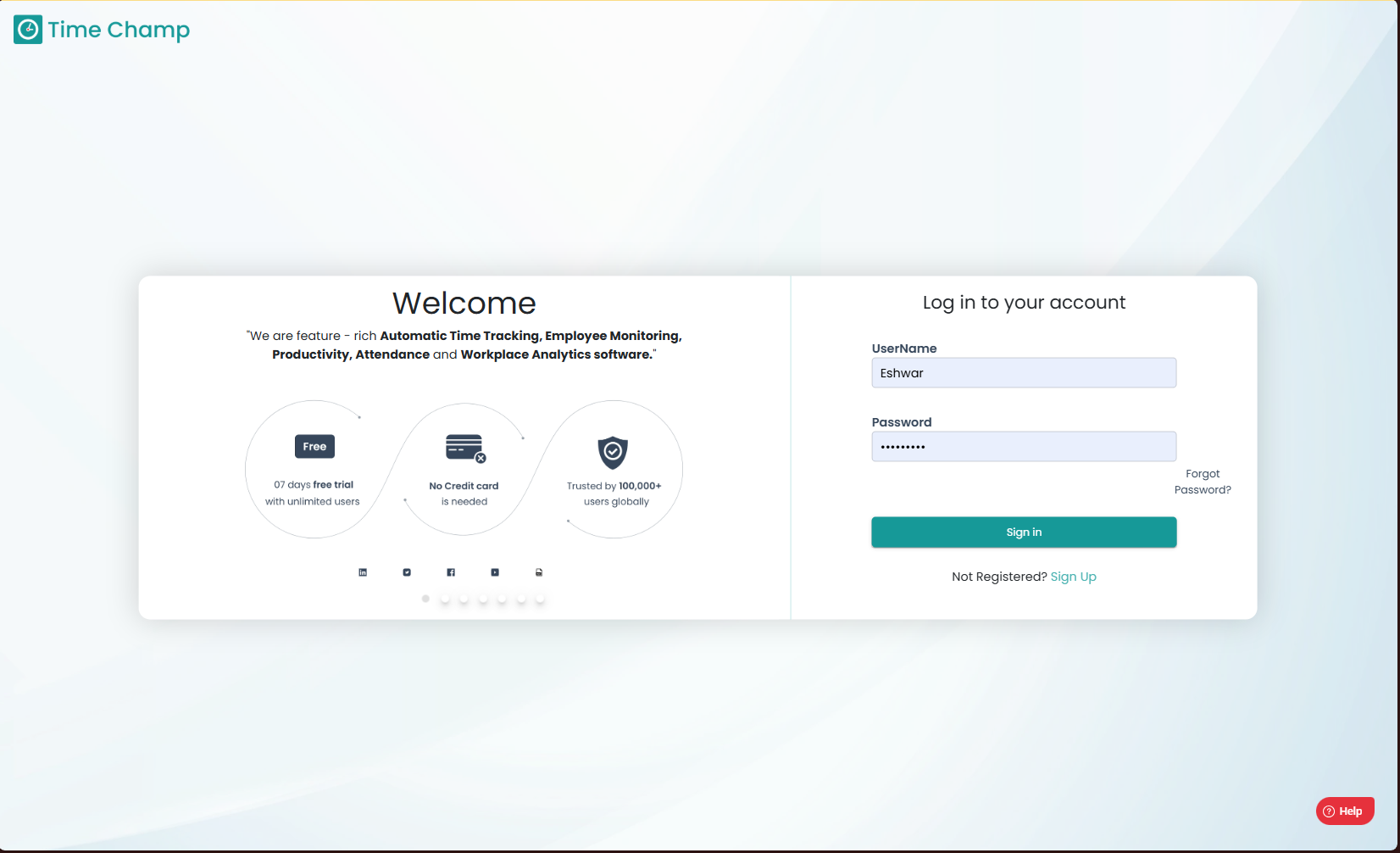
Log into the site utilizing your credentials.
Step 2:
Navigate to the Productivity Module and then to the Configure Apps section.
Navigate to the Productivity Module and then to the Configure Apps section.
Step 3:
Navigate to the Productivity Profile Sub Section.
Navigate to the Productivity Profile Sub Section.
Step 4:
Productivity Status Color Codes
Green – Productive
Yellow – Non-productive
Gray (white) – Neutral
To Change the Productivity Status
When both “Productive” and “Non-Productive” are deselected:
- Clicking on “Productive” changes the status from Neutral (white) → Productive (green).
- Clicking on “Non-Productive” changes the status from Neutral (white) → Non-Productive (yellow).
When one status is already active:
- Clicking on the other status switches between Productive (green) and Non-Productive (yellow).
When a highlighted status is clicked again:
- The status reverts back to Neutral (white) from either Productive (green) or Non-Productive (yellow).
Related Articles
How to assign application group to a new/existing app/URL and set the productivity status?
Follow the steps to assign an app or URL to an application group and assign the productivity status of that application group. An application cannot be directly marked as productive, non-productive, or neutral. It must first be assigned to an ...How to change the idle time for applications or sites present within an application group in a productive profile?
Follow the steps to add new productivity profile. Step 1: Log into the site utilizing your credentials. Step 2: Navigate to the Productivity Module and then to the Configure Apps section. Step 3: Navigate to the Productivity Profile Sub Section. Step ...How to archive an Application Group?
Follow the steps to archive an application group. Step 1: Log into the site utilizing your credentials. Step 2: Navigate to the Productivity Module and then to the Configure Apps section. Step 3: Navigate to the Application Groups Sub Section as ...How to Unarchive an Application Group?
Follow the steps to unarchive an Application Group. Step 1: Log into the site utilizing your credentials. Step 2: Navigate to the Productivity Module and then to the Configure Apps section. Step 3: Navigate to the Application Groups Sub Section as ...How to add a new Application Group?
Follow the steps to add a new application group. Step 1: Log into the site utilizing your credentials. Step 2: Navigate to the Productivity Module and then to the Configure Apps section. Step 3: Navigate to the Application Groups Sub Section as shown ...