How to Change User Team?
Follow the steps to edit user team.
Step 1:
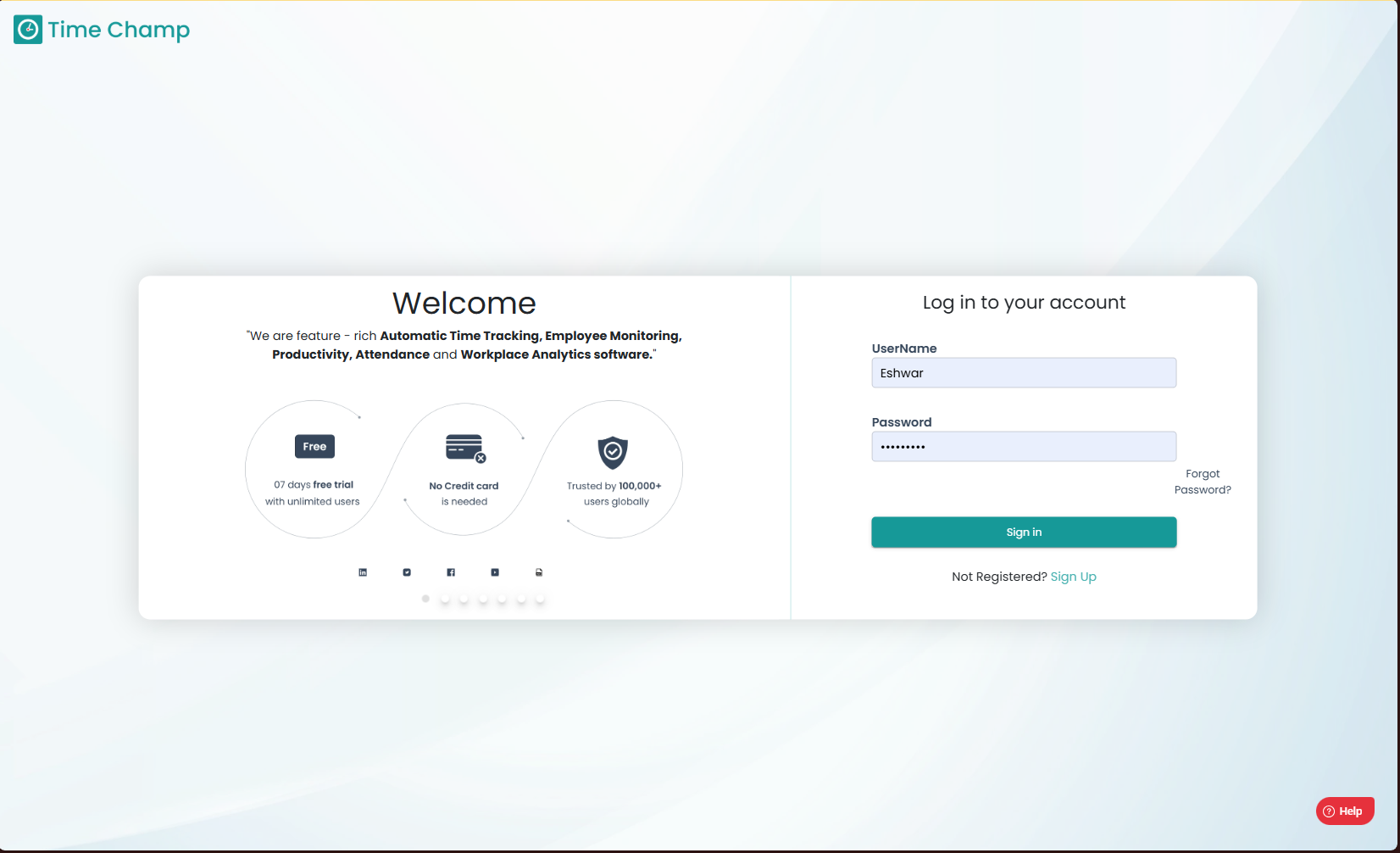
Log into the site utilizing your credentials.
Step 1:
Log into the site utilizing your credentials.
Step 2:
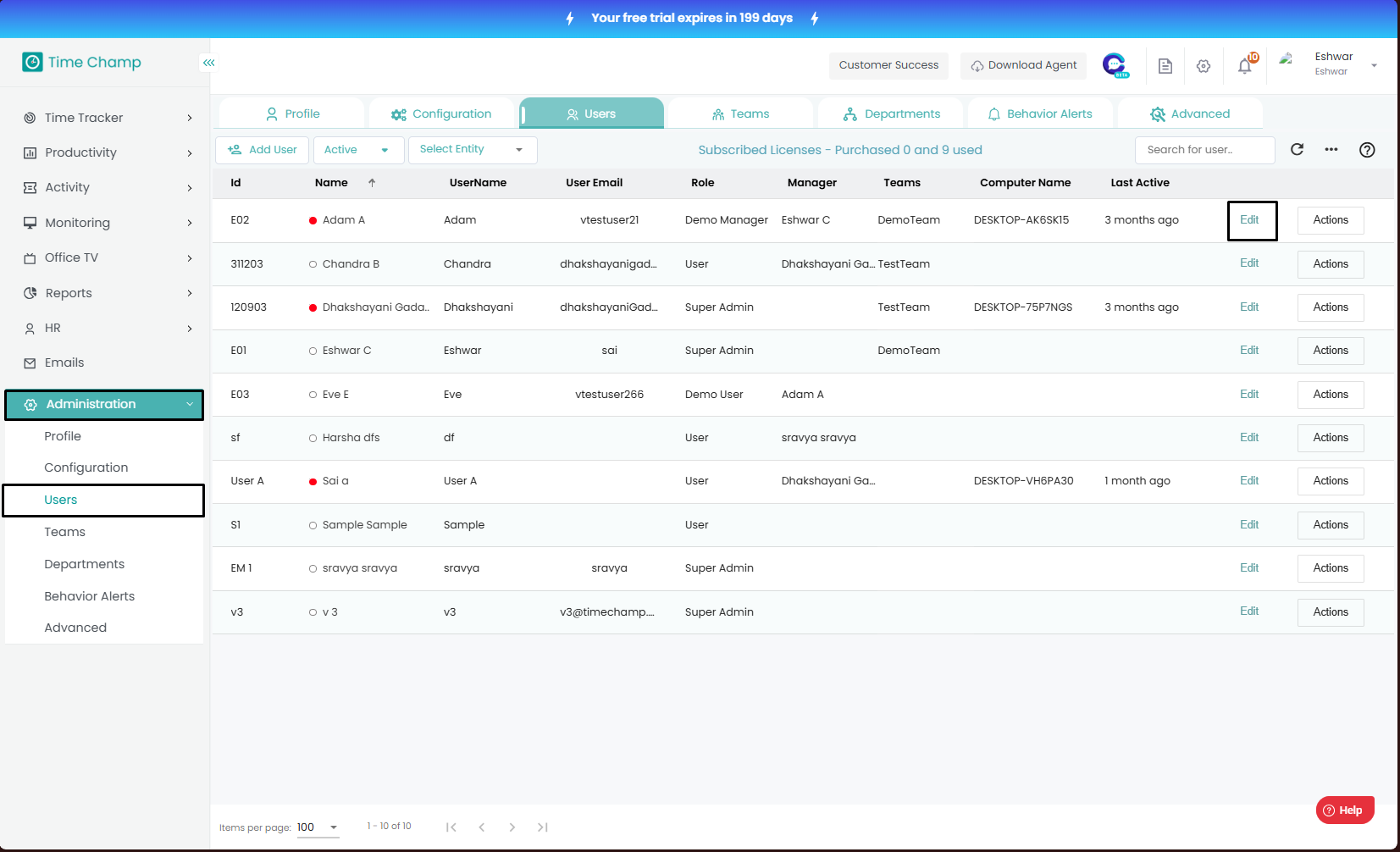
Navigate to the Administration Module and then to the Users section.
Navigate to the Administration Module and then to the Users section.
Step 3:
Now you can click Edit as shown in the highlighted area in the below image.
Step 4:
Now you can modify the user team.
Now you can click Edit as shown in the highlighted area in the below image.
Step 4:
Now you can modify the user team.

Ensure that all modifications are saved upon completion; unsaved changes will not take effect.
Related Articles
How to change productive profile at User Level?
Follow the steps to select productive profile at User level. Step 1: Log into the site utilizing your credentials. Step 2: Navigate to the Administration Module and then to the Users section. Step 3: Now you can view the edit option in the ...How to create a team and add members to the team and assign a user as team leader/Manager?
Follow the steps to create a team and assign members to the team and assign a person as team lead or manager. Step 1: Log into the site utilizing your credentials. Step 2: Navigate to the Administration Module and then to the Teams section. Step 3: ...How to View or Change the Productive Profile of a team with an Existing productivity Profile?
Follow the steps to change the productivity profile of a team with an existing productivity profile. To assign productivity profile for the first time at team level, please click on this link to be redirected to the respective guide. Step 1: Log into ...How to Change User Role?
Follow the steps to edit user role. Step 1: Log into the site utilizing your credentials. Step 2: Navigate to the Administration Module and then to the Users section. Step 3: Now you can click Edit as shown in the highlighted area in the below image. ...How to Change User Department?
Follow the steps to edit user department. Step 1: Log into the site utilizing your credentials. Step 2: Navigate to the Administration Module and then to the Users section. Step 3: Now you can click Edit as shown in the highlighted area in the below ...