How to Assign Line Manager to Users?
Follow the steps to add a line manager to a user.
Step 1:
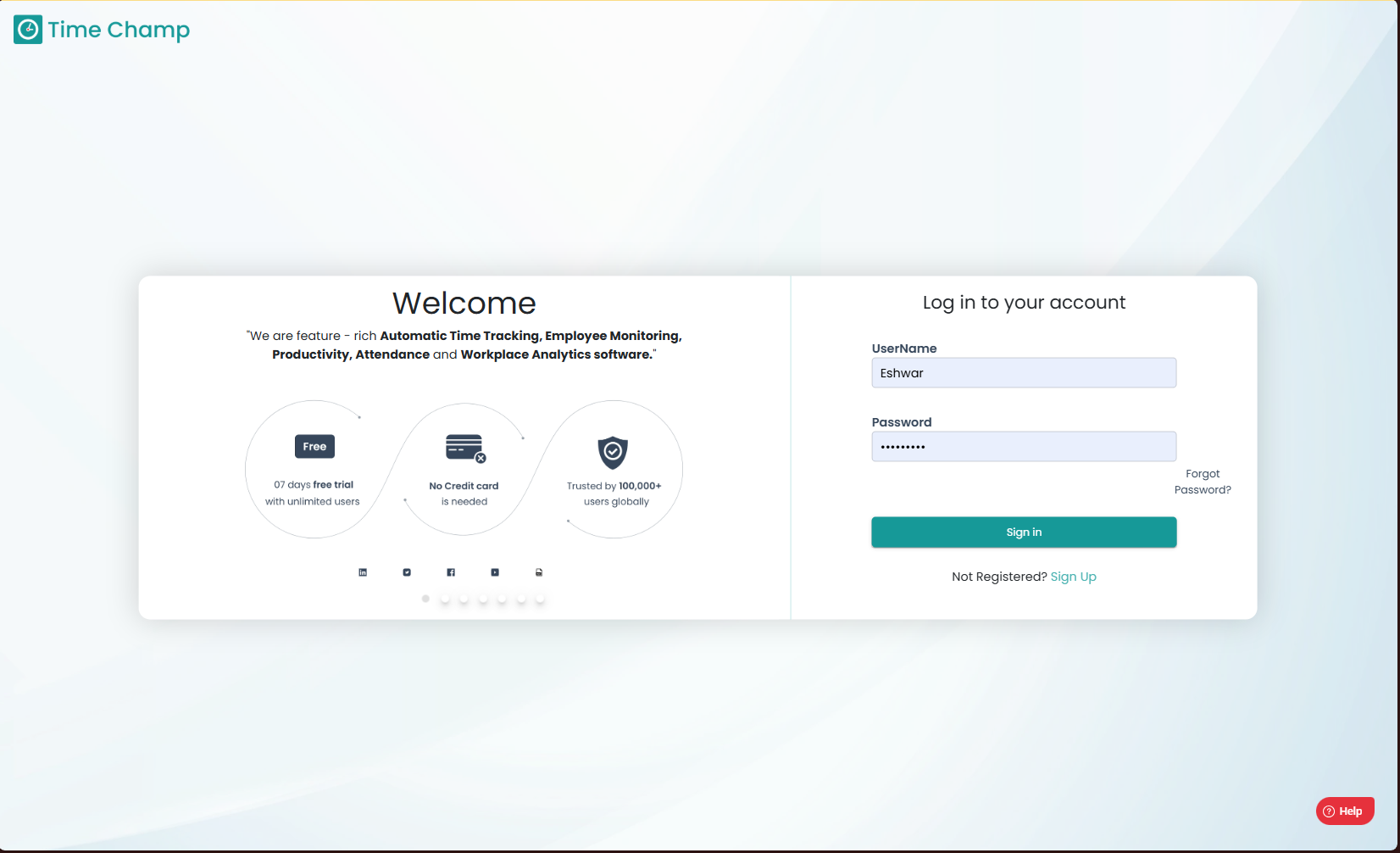
Log into the site utilizing your credentials.
Step 1:
Log into the site utilizing your credentials.
Step 2:
Navigate to the Administration Module and then to the Users section.
Navigate to the Administration Module and then to the Users section.
Step 3:
Now you can view the edit user option in the highlighted area as shown in the image.
Now you can view the edit user option in the highlighted area as shown in the image.
Step 4:
Now you can select the line manager for the user as shown in the highlighted area in the image.

Ensure that the line manager being assigned at least has the role of a manager.
Ensure that all modifications are saved upon completion; unsaved changes will not take effect.
Related Articles
How to create a team and add members to the team and assign a user as team leader/Manager?
Follow the steps to create a team and assign members to the team and assign a person as team lead or manager. Step 1: Log into the site utilizing your credentials. Step 2: Navigate to the Administration Module and then to the Teams section. Step 3: ...How to Edit User details (Name, User ID, Username, User Email, Mobile Number, Role, Team Name, Department, Line Manager, Location, Time Zone)?
Follow the steps to edit user details. Step 1: Log into the site utilizing your credentials. Step 2: Navigate to the Administration Module and then to the Users section. Step 3: Now you can click Edit as shown in the highlighted area in the below ...How to add Users?
Follow the steps to add a user. Step 1: Log into the site utilizing your credentials. Step 2: Navigate to the Administration Module and then to the Users section. Step 3: Now you can view the add user option in the highlighted area. Upon clicking you ...How to Inactivate Users?
Follow the steps to inactivate a user. Step 1: Log into the site utilizing your credentials. Step 2: Navigate to the Administration Module and then to the Users section. Step 3: Now you can click Edit as shown in the highlighted area in the below ...How to delete Users?
Follow the steps to delete a user. Step 1: Log into the site utilizing your credentials. Step 2: Navigate to the Administration Module and then to the Users section. Step 3: Now you can click Edit as shown in the highlighted area in the below image. ...