How to view, approve or reject and download Time Claims?
Follow the steps to view, approve or reject and download time claim of a user.
Step 1:
Log into the site utilizing your credentials.
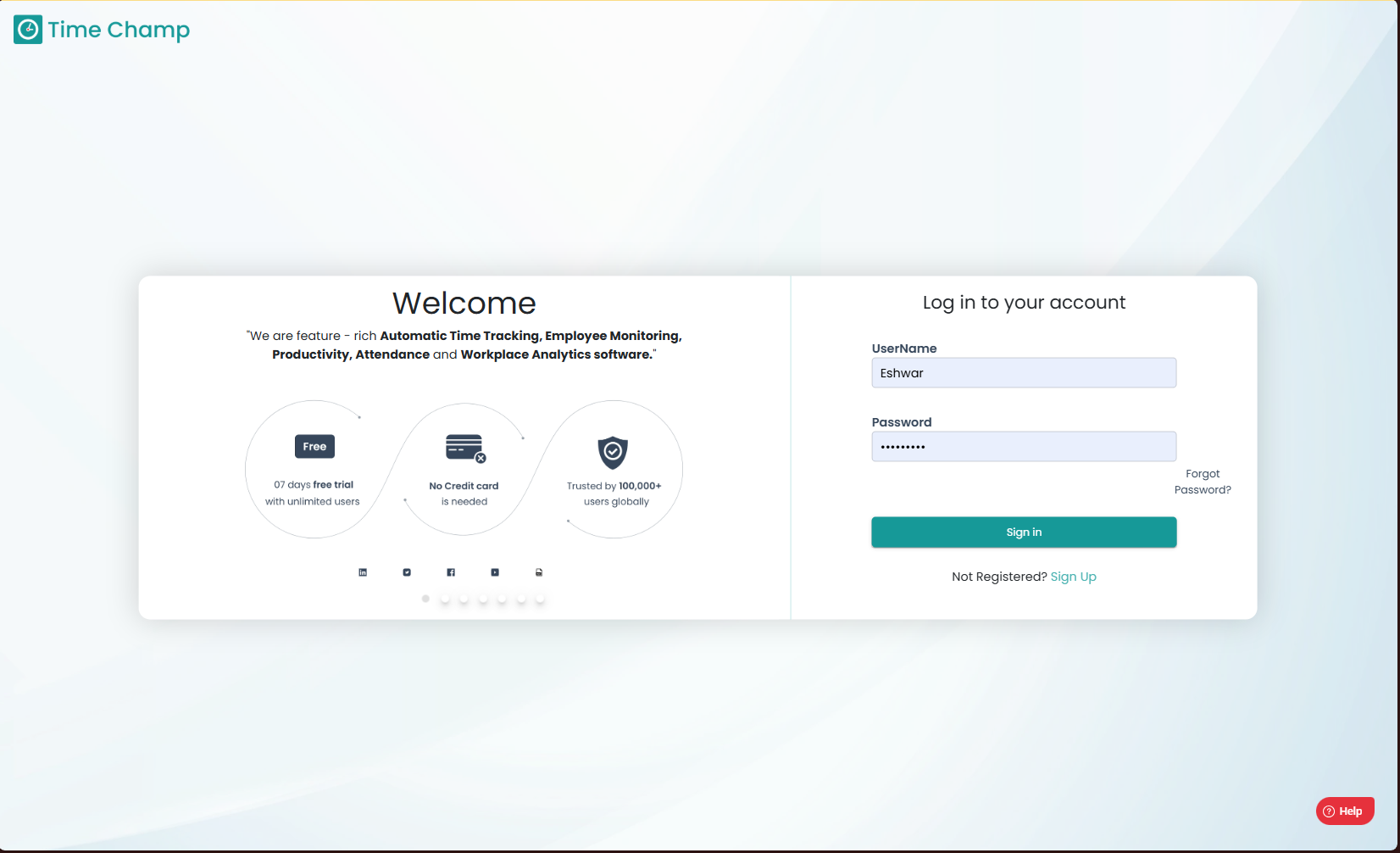
Log into the site utilizing your credentials.
Step 2:
Navigate to the Time Tracker Module and then to the Time Claim section.
Navigate to the Time Tracker Module and then to the Time Claim section.
Step 3:
Here, users can view the time claims they have submitted for approval along with their current status, while line managers can view the time claims sent by users who edited their attendance time status to “working", awaiting approval or rejection.
Here, users can view the time claims they have submitted for approval along with their current status, while line managers can view the time claims sent by users who edited their attendance time status to “working", awaiting approval or rejection.
Step 4:
In the Line Manager login site, once the manager approves a time claim, the approved time will be added in the working hours of the user’s attendance. Alternatively, the line manager can choose to reject the claim.
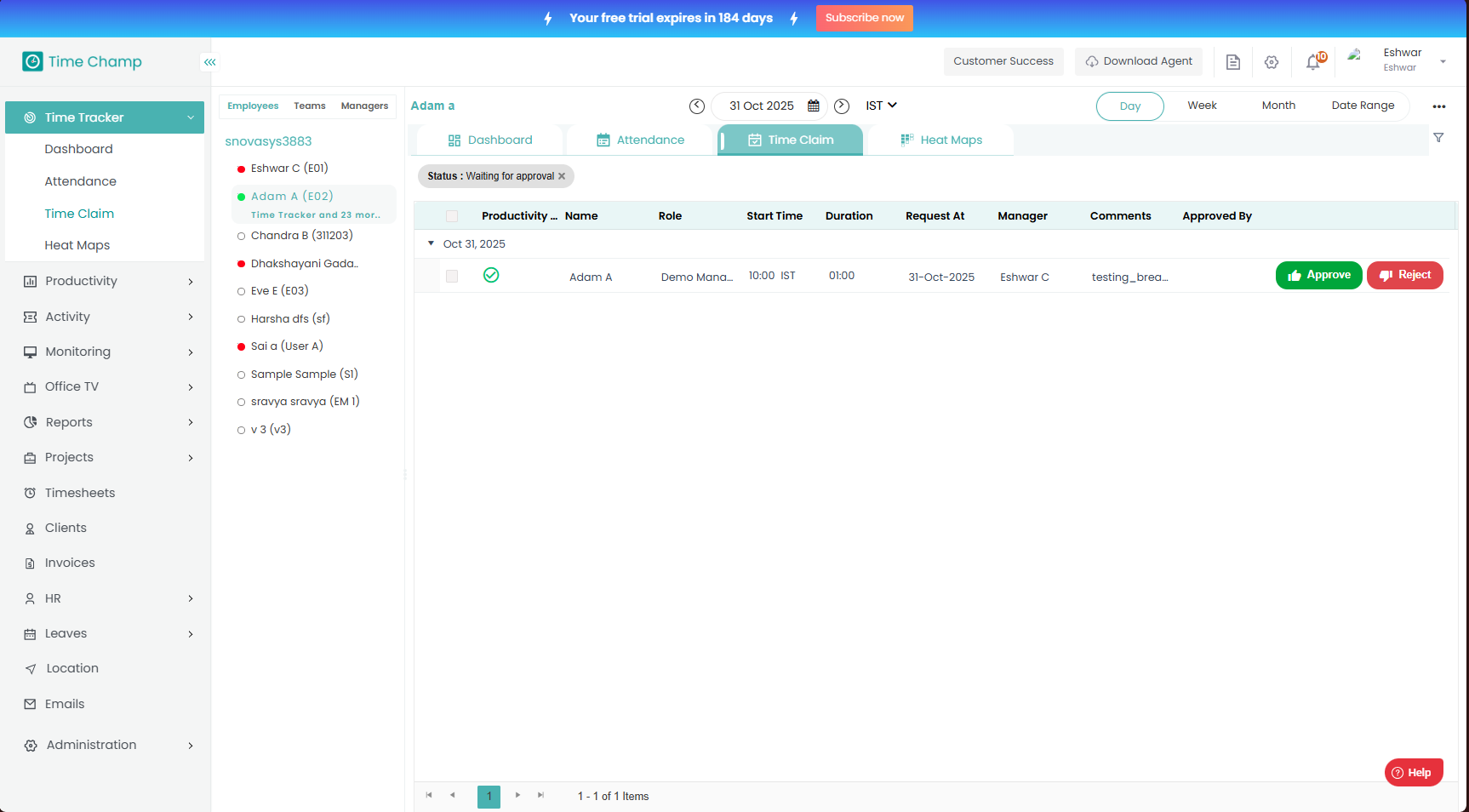
In the Line Manager login site, once the manager approves a time claim, the approved time will be added in the working hours of the user’s attendance. Alternatively, the line manager can choose to reject the claim.
Step 5:
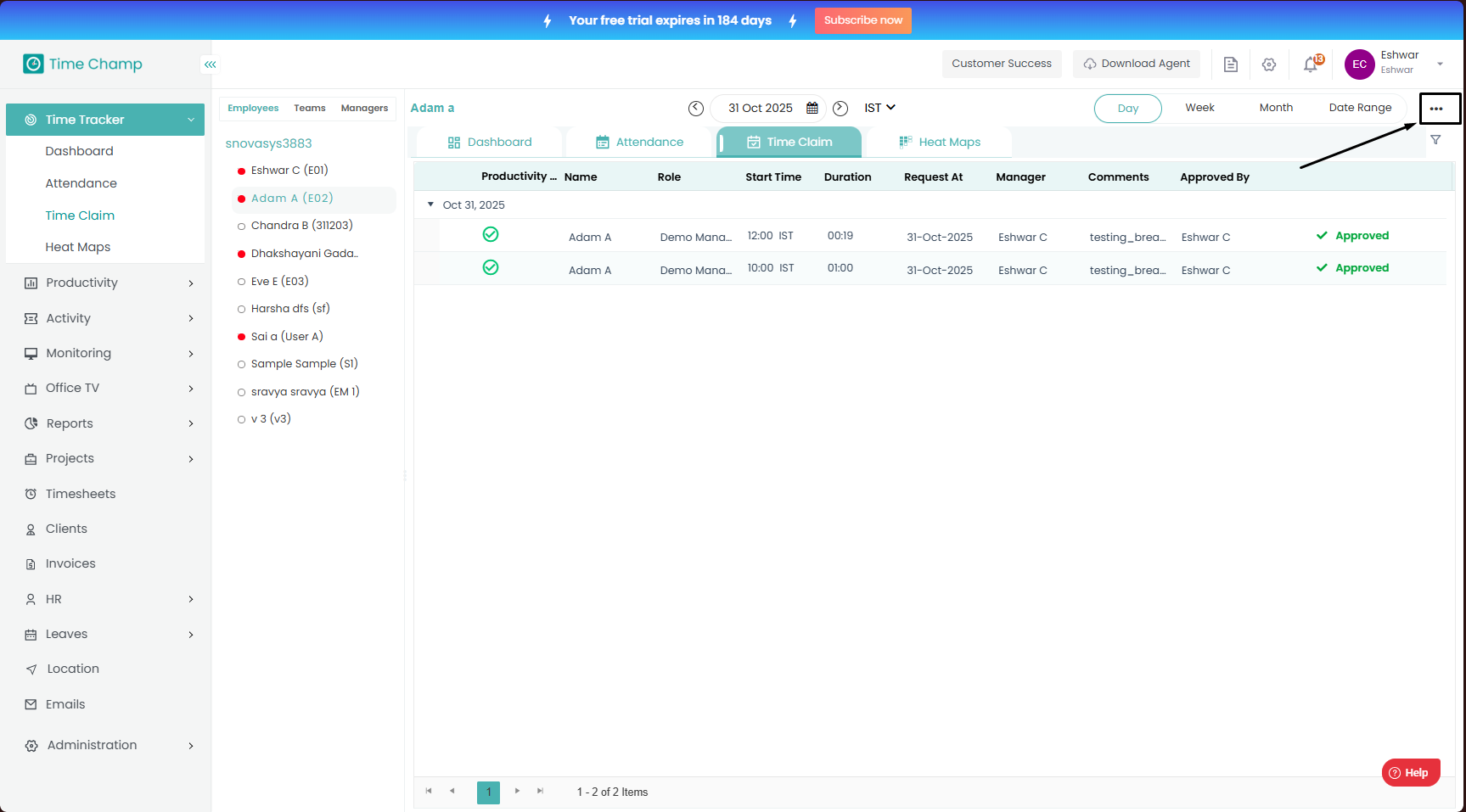
As shown below, the user’s time claim has been approved, and the status is displayed as “Approved” in the line manager’s view. This update will also be reflected on the user’s site.
Step 6:
As shown below, the user’s time claim has been approved and added to their working hours. The status is now displayed as “Approved” instead of "waiting for approval" in the time claim section of the user.
Step 7:
To download the time claim data click on the 3 dots as shown in the highlighted area in the below image.
Step 8:
Step 8:
Now click on download as shown in the highlighted area in the below image.
Related Articles
How to view and download the keystrokes data of a user in Monitoring?
Follow the steps to view and download Keystrokes of a user in Monitoring Module. Step 1: Log into the site utilizing your credentials. Step 2: Navigate to the Monitoring Module and then to the Keystrokes section. Step 3: Here you can view the ...How to Navigate, View and Download Application Used related data in Activity Module?
Follow the steps to view and download the Applications Used data in Activity module. Step 1: Log into the site utilizing your credentials. Step 2: Navigate to the Activity Module and then to the Application Used section. Step 3: Here you can view the ...How to Navigate, View and Download Websites Visited related data in Activity Module?
Follow the steps to view and download the Websites visited data in Activity module. Step 1: Log into the site utilizing your credentials. Step 2: Navigate to the Activity Module and then to the Websites Visited section. Step 3: Here you can view the ...How to Navigate, View and Download Detailed Activtiy related data in Activity Module?
Follow the steps to view and download the Detailed Activity data in Activity module. Step 1: Log into the site utilizing your credentials. Step 2: Navigate to the Activity Module and then to the Detailed Activity section. Step 3: Here in Detailed ...How to access and download Break Time Split Report?
Follow the steps to access and download the Break Time Split Report. Step 1: Log into the site utilizing your credentials. Step 2: Navigate to the Reports Module and then to the Time and Attendance section. Step 3: After clicking on the Report, you ...