How to Navigate, View and Download Detailed Activtiy related data in Activity Module?
Follow the steps to view and download the Detailed Activity data in Activity module.
Step 1:
Log into the site utilizing your credentials.
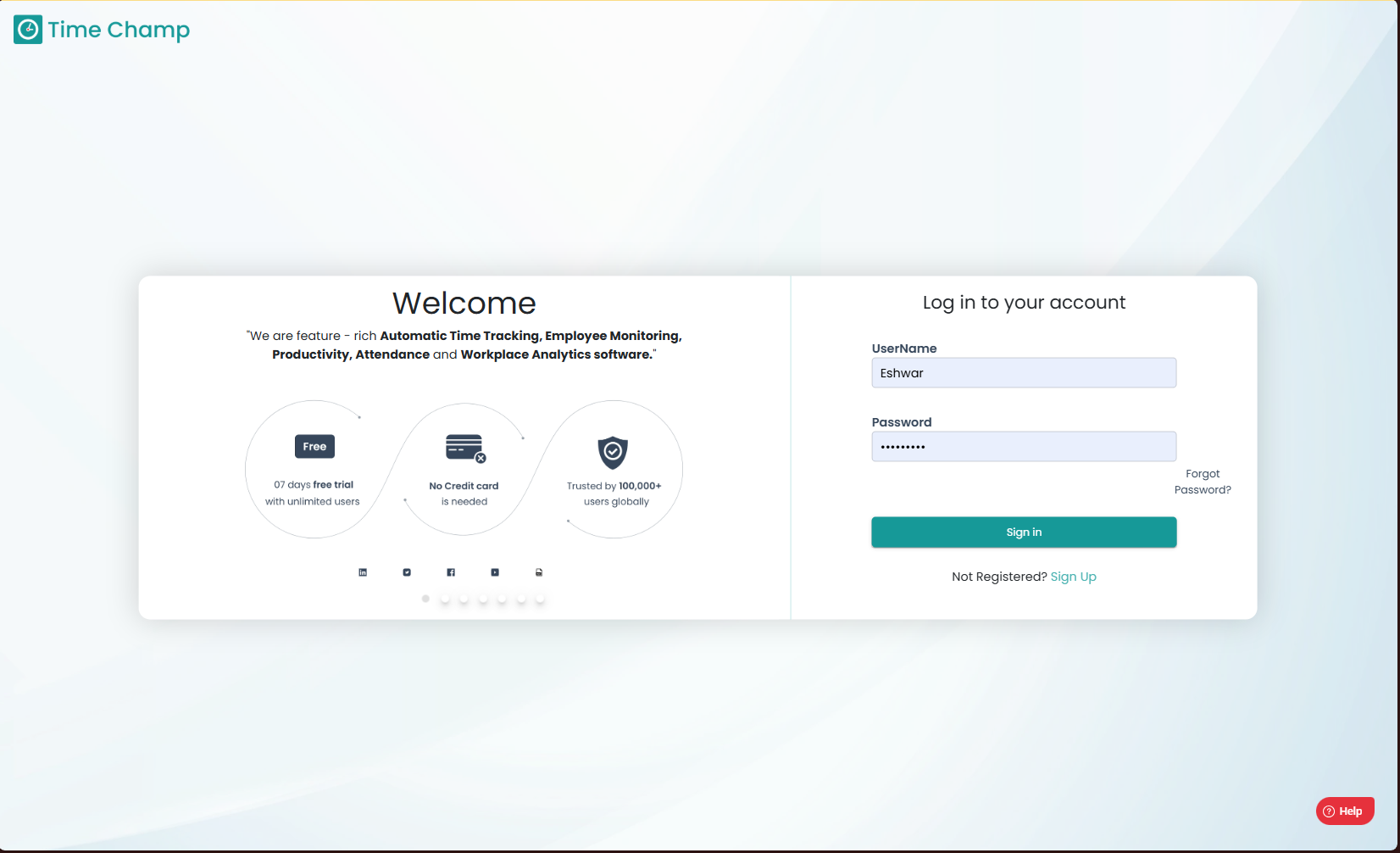
Log into the site utilizing your credentials.
Step 2:
Navigate to the Activity Module and then to the Detailed Activity section.
Navigate to the Activity Module and then to the Detailed Activity section.
Step 3:
Here in Detailed Activity, you can view the time at which an application/URL was used and the system name it was used in along with the duration it was opened for with a description and title of the application/URL and if the user went into idle while using this particular application/URL.
Step 4:
Click on the highlighted 3 dots and then click on the Download symbol in the drop-down menu as shown in the highlighted area of the image below to download the data of the user.
Click on the highlighted 3 dots and then click on the Download symbol in the drop-down menu as shown in the highlighted area of the image below to download the data of the user.
Related Articles
How to Navigate, View and Download Application Used related data in Activity Module?
Follow the steps to view and download the Applications Used data in Activity module. Step 1: Log into the site utilizing your credentials. Step 2: Navigate to the Activity Module and then to the Application Used section. Step 3: Here you can view the ...How to Navigate, View and Download Application groups related data in Activity Module?
Follow the steps to view and download the by Application Groups data in Activity module. Step 1: Log into the site utilizing your credentials. Step 2: Navigate to the Activity Module and then to the By Application Groups section. Step 3: Here you can ...How to Navigate, View and Download Websites Visited related data in Activity Module?
Follow the steps to view and download the Websites visited data in Activity module. Step 1: Log into the site utilizing your credentials. Step 2: Navigate to the Activity Module and then to the Websites Visited section. Step 3: Here you can view the ...How to Navigate, View and Download Categories related data in Activity Module?
Follow the steps to view and download the Categories data in Activity module. Step 1: Log into the site utilizing your credentials. Step 2: Navigate to the Activity Module and then to the By Categories section. Step 3: Here you can view the duration ...How to Navigate and View Current Activity in Activity Module?
Follow the steps to view Current Activity in Activity module. Step 1: Log into the site utilizing your credentials. Step 2: Navigate to the Activity Module and then to the Current Activity section. Step 3: Here in Current Activity, you can view the ...