How to view and download Screenshots of a user in Monitoring?
Follow the steps to view Screenshots of a user in Monitoring Module.
Step 1:
Log into the site utilizing your credentials.
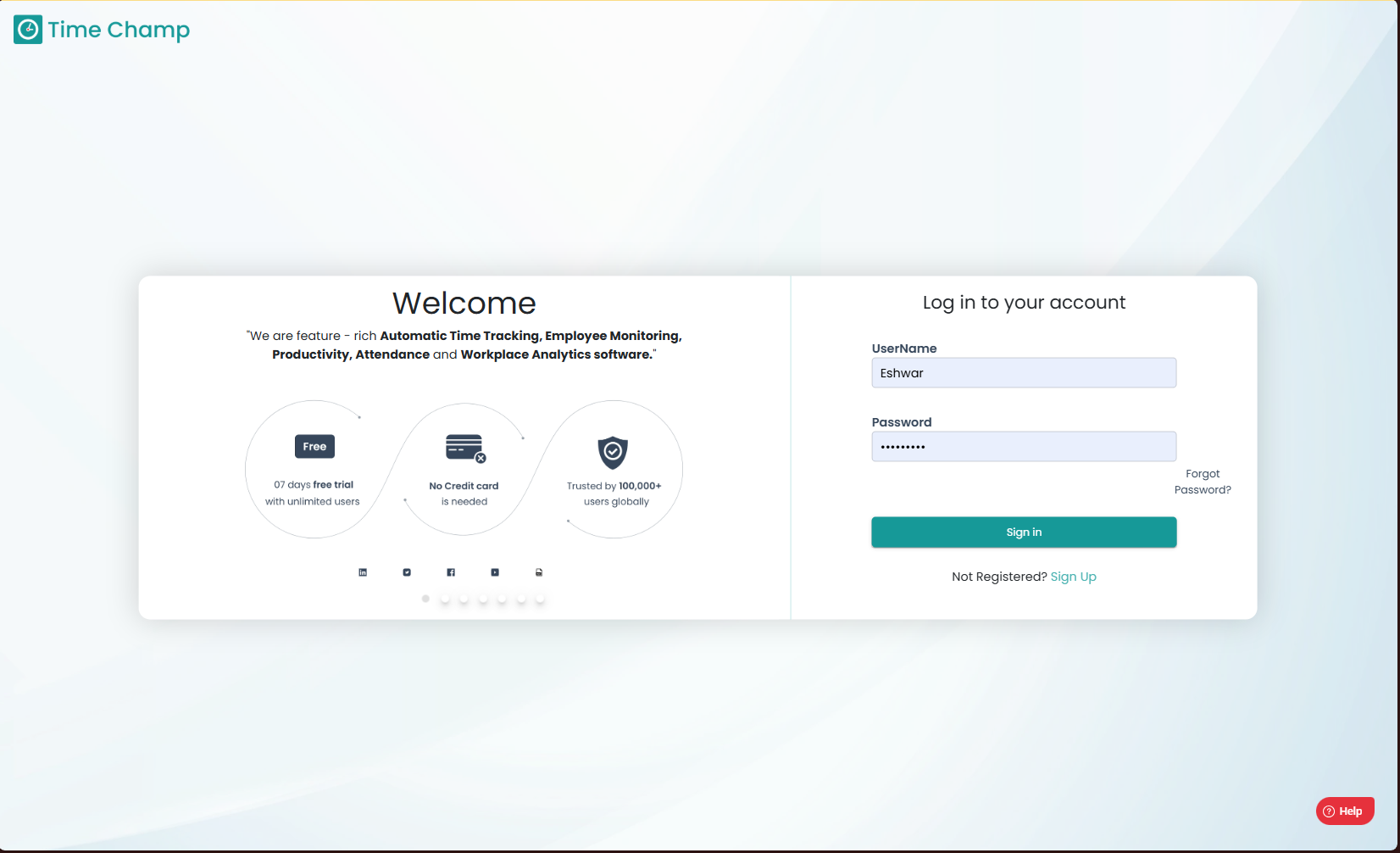
Log into the site utilizing your credentials.
Step 2:
Navigate to the Monitoring Module and then to the Screenshots section.
Navigate to the Monitoring Module and then to the Screenshots section.
Step 3:
Here you can view the screenshots and for download click on the 3 dots as shown in the highlighted area of the below image and select the download option.
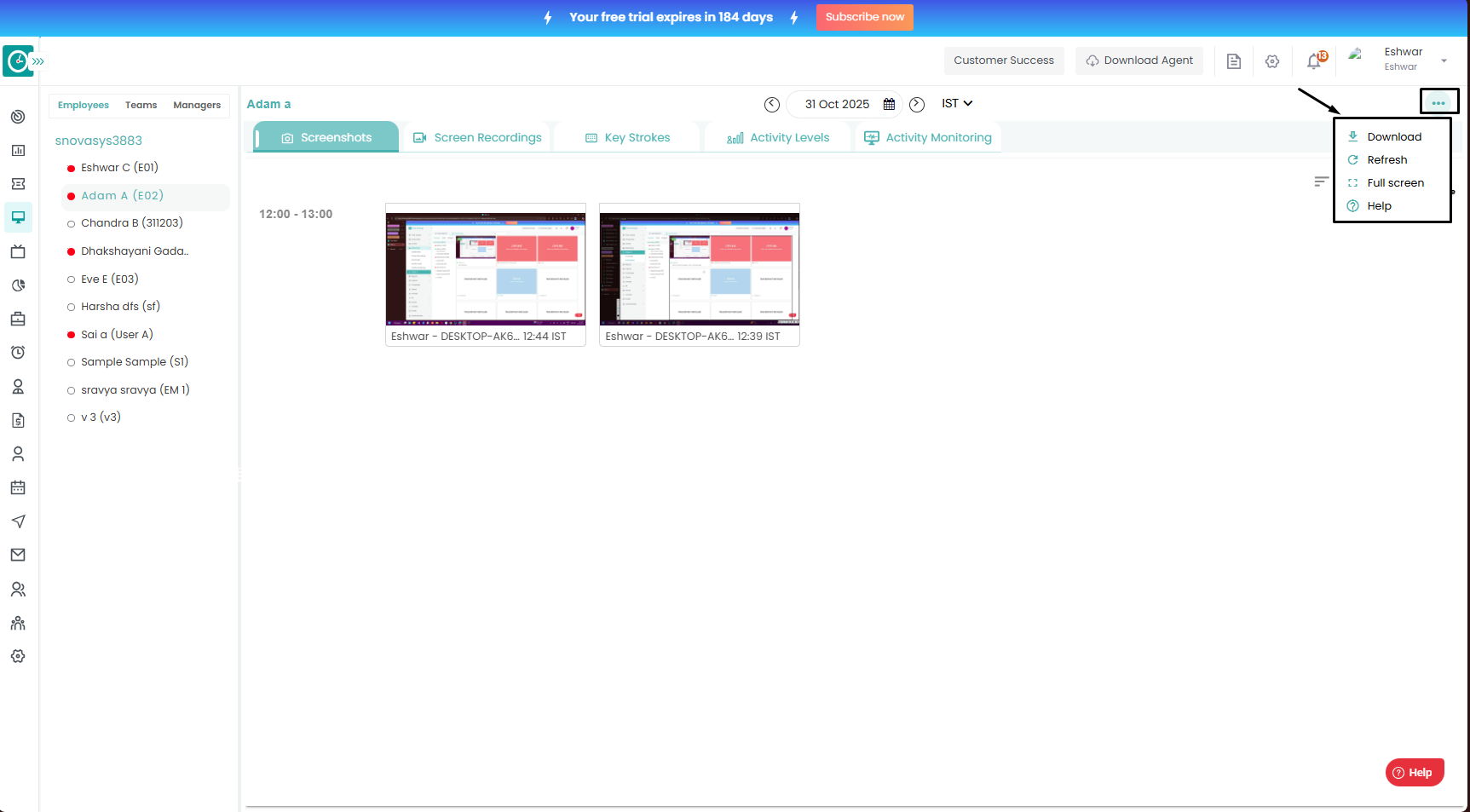
Here you can view the screenshots and for download click on the 3 dots as shown in the highlighted area of the below image and select the download option.
Step 4:
Select the date for which the screenshots are to be downloaded for and click on download as shown in the highlighted area in the below image.
Select the date for which the screenshots are to be downloaded for and click on download as shown in the highlighted area in the below image.
Related Articles
How to view and download the keystrokes data of a user in Monitoring?
Follow the steps to view and download Keystrokes of a user in Monitoring Module. Step 1: Log into the site utilizing your credentials. Step 2: Navigate to the Monitoring Module and then to the Keystrokes section. Step 3: Here you can view the ...How to view and download a scheduled screen recording of a user in Monitoring?
Follow the steps to view and download a scheduled screen recording of a user in Monitoring Module. Step 1: Log into the site utilizing your credentials. Step 2: Navigate to the Monitoring Module and then to the Screen Recordings section. Step 3: Here ...How to delete screenshots in Monitoring?
Follow the steps to delete Screenshots of a user in Monitoring Module. Step 1: Log into the site utilizing your credentials. Step 2: Navigate to the Monitoring Module and then to the Screenshots section. Step 3: Here you can select the screenshots ...How to view Activity Levels in Monitoring?
Follow the steps to view Activity Levels of a user in Monitoring Module. Step 1: Log into the site utilizing your credentials. Step 2: Navigate to the Monitoring Module and then to the Activity Levels section. Step 3: Here you can view the Detailed ...How to view and configure activity monitoring?
Follow the steps to view and configure Activity Monitoring. Step 1: Log into the site utilizing your credentials. Step 2: Navigate to the Monitoring Module and then to the Activity Monitoring section. Step 3: By clicking on the settings option as ...