How to edit or delete reasons at Behavior alerts?
Follow the steps to edit or delete reasons at behavior alerts.
Step 1:
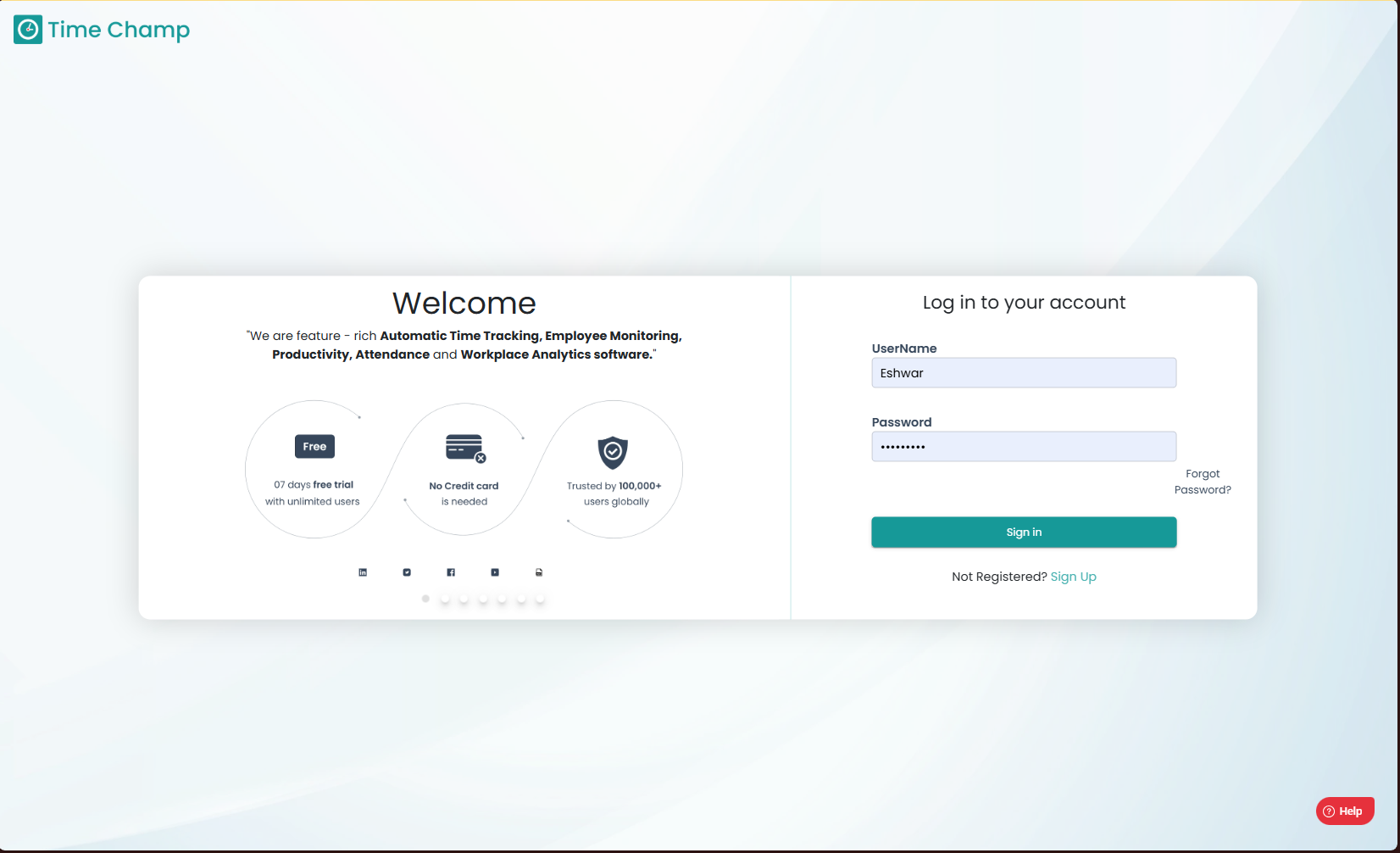
Log into the site utilizing your credentials.
Step 1:
Log into the site utilizing your credentials.
Step 2:
Navigate to the Administration Module and then to the Behavior alerts section.
Navigate to the Administration Module and then to the Behavior alerts section.
Step 3:
Click on Reason Options as shown in the highlighted area in the below image.
Step 4:
Click on edit or delete per need as shown in the highlighted area in the below image.
Related Articles
How to edit Behavior alerts?
Follow the steps to edit a behavior alert. Step 1: Log into the site utilizing your credentials. Step 2: Navigate to the Administration Module and then to the Behavior alerts section. Step 3: Click on edit as show in the highlighted area in the below ...How to add reasons at Behavior alerts?
Follow the steps to add reasons at behavior alerts. Step 1: Log into the site utilizing your credentials. Step 2: Navigate to the Administration Module and then to the Behavior alerts section. Step 3: Click on Reason Options as shown in the ...How to delete/Inactivate a Behavior alert?
Follow the steps to inactivate a behavior alert. Step 1: Log into the site utilizing your credentials. Step 2: Navigate to the Administration Module and then to the Behavior alerts section. Step 3: Click on edit as show in the highlighted area in the ...How to add Behavior Alerts?
Follow the steps to add a behavior alert. Step 1: Log into the site utilizing your credentials. Step 2: Navigate to the Administration Module and then to the Behavior alerts section. Step 3: Now you can view the add alert option in the highlighted ...How to reactivate/re-enable a Behavior alert?
Follow the steps to reactivate a behavior alert. Step 1: Log into the site utilizing your credentials. Step 2: Navigate to the Administration Module and then to the Behavior alerts section. Step 3: Click on the active button to select the inactive ...