How to add reasons at Behavior alerts?
Follow the steps to add reasons at behavior alerts.
Step 1:
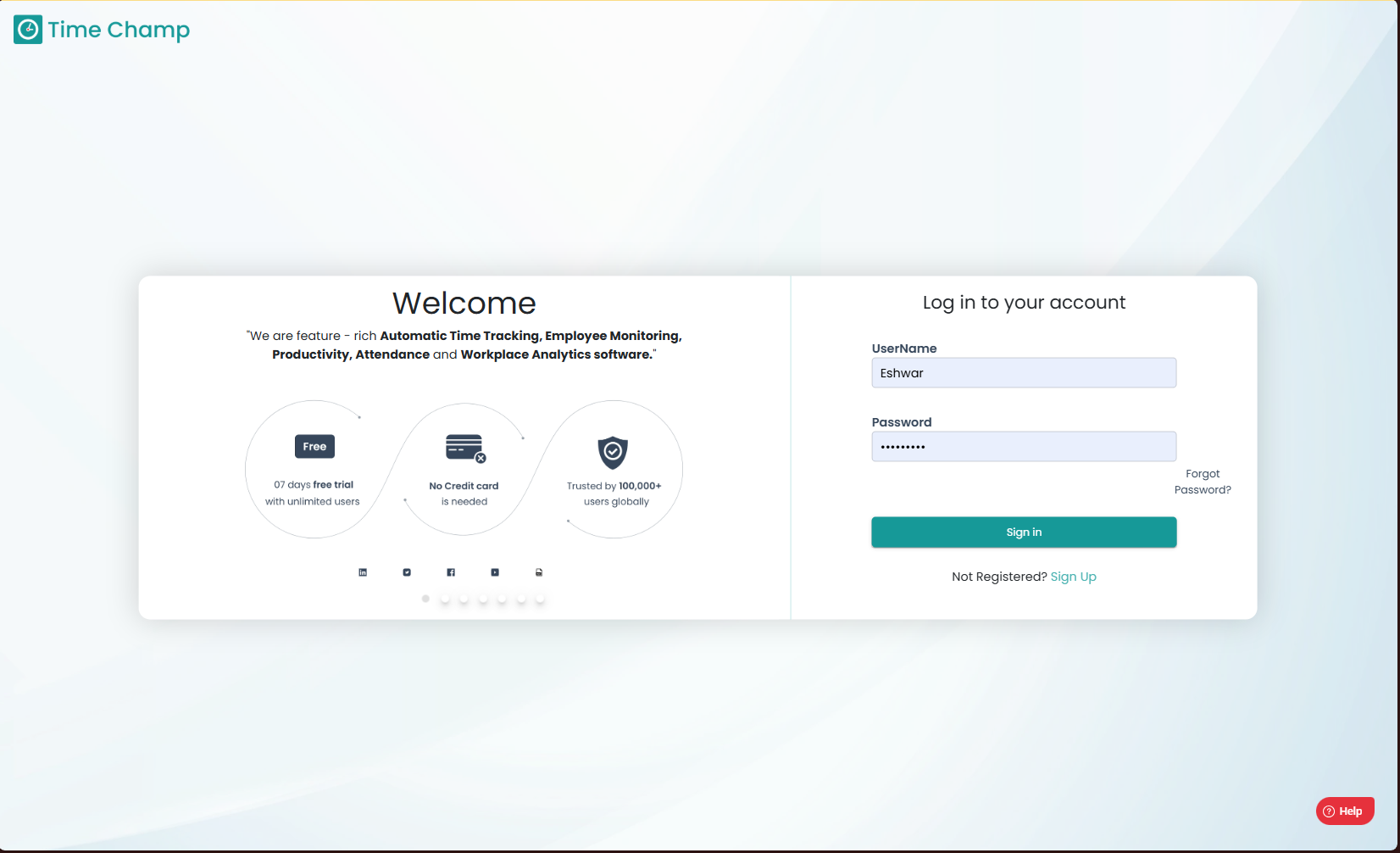
Log into the site utilizing your credentials.
Step 1:
Log into the site utilizing your credentials.
Step 2:
Navigate to the Administration Module and then to the Behavior alerts section.
Navigate to the Administration Module and then to the Behavior alerts section.
Step 3:
Click on Reason Options as shown in the highlighted area in the below image.
Click on Reason Options as shown in the highlighted area in the below image.
Step 4:
Click on Add Reason as shown in the highlighted area in the below image.
Click on Add Reason as shown in the highlighted area in the below image.
Step 5:
Click on Save once the required details are filled in as shown in the highlighted area in the below image.
Click on Save once the required details are filled in as shown in the highlighted area in the below image.
Related Articles
How to add Behavior Alerts?
Follow the steps to add a behavior alert. Step 1: Log into the site utilizing your credentials. Step 2: Navigate to the Administration Module and then to the Behavior alerts section. Step 3: Now you can view the add alert option in the highlighted ...How to edit or delete reasons at Behavior alerts?
Follow the steps to edit or delete reasons at behavior alerts. Step 1: Log into the site utilizing your credentials. Step 2: Navigate to the Administration Module and then to the Behavior alerts section. Step 3: Click on Reason Options as shown in ...How to edit Behavior alerts?
Follow the steps to edit a behavior alert. Step 1: Log into the site utilizing your credentials. Step 2: Navigate to the Administration Module and then to the Behavior alerts section. Step 3: Click on edit as show in the highlighted area in the below ...How to delete/Inactivate a Behavior alert?
Follow the steps to inactivate a behavior alert. Step 1: Log into the site utilizing your credentials. Step 2: Navigate to the Administration Module and then to the Behavior alerts section. Step 3: Click on edit as show in the highlighted area in the ...How to reactivate/re-enable a Behavior alert?
Follow the steps to reactivate a behavior alert. Step 1: Log into the site utilizing your credentials. Step 2: Navigate to the Administration Module and then to the Behavior alerts section. Step 3: Click on the active button to select the inactive ...