How to change the tracker from Interactive to Silent Mode?
Follow the steps to modify Tracker Configuration from Interactive to Silent
Step 1:
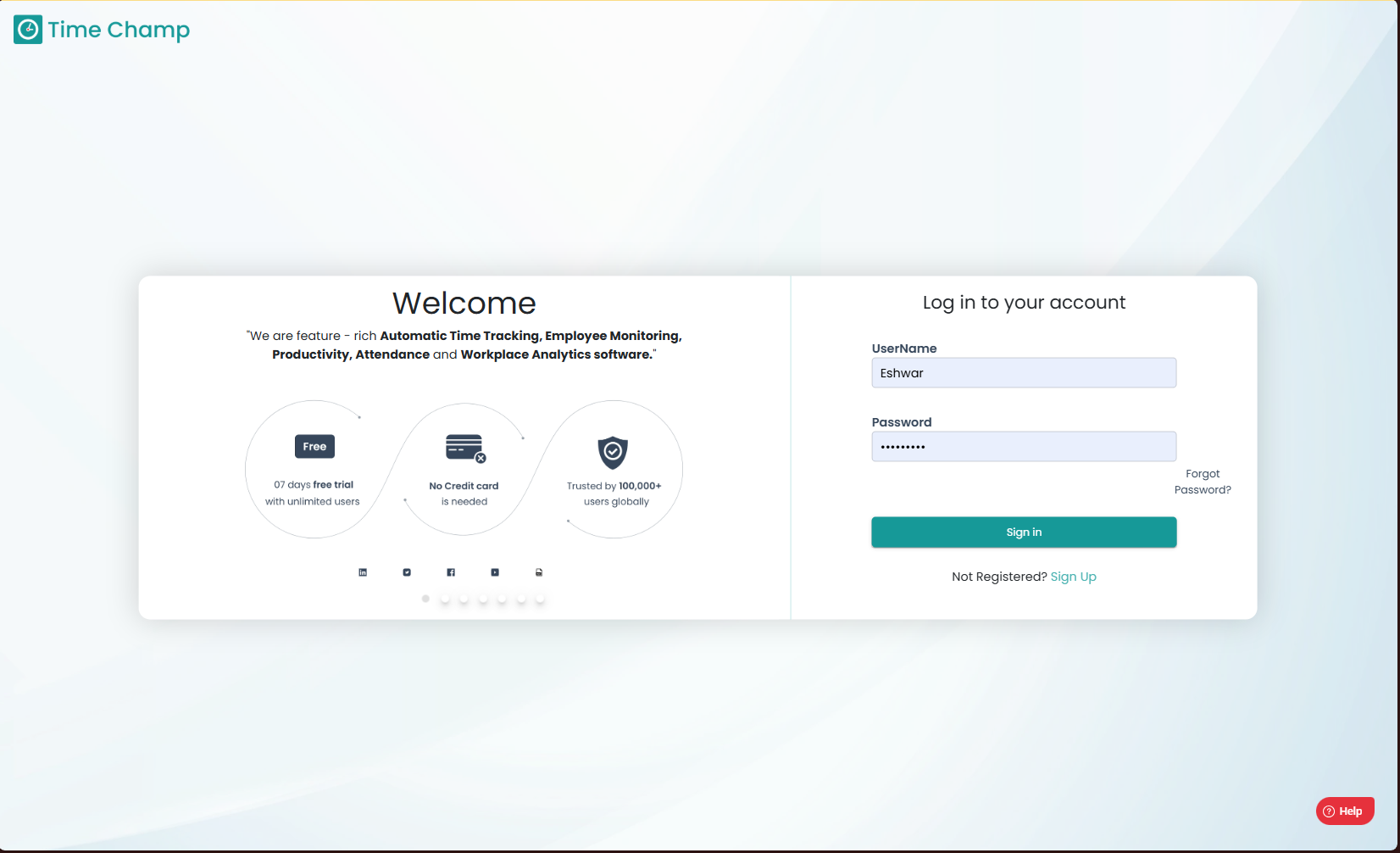
Log into the site utilizing your credentials.
Step 1:
Log into the site utilizing your credentials.
Step 2:
Navigate to the Administration Module and then to the Configuration section.
Navigate to the Administration Module and then to the Configuration section.
Step 3:
Now you can view the Tracker type in the highlighted area in the below image. Clicking on Silent Mode will switch the tracker from Interactive to Silent.
Now you can view the Tracker type in the highlighted area in the below image. Clicking on Silent Mode will switch the tracker from Interactive to Silent.

The Interactive and Silent modes of the tracker can be switched freely. However, please note that this functionality is only available if the tracker was initially installed in Interactive Mode. If the tracker was initially installed in Silent Mode, switching to Interactive Mode will not change the tracker to interactive mode.

Ensure that all modifications are saved upon completion; unsaved changes will not take effect.
Related Articles
Descriptions of the options for Interactive Tracker Configurations
Follow the steps to modify tracker configurations. Step 1: Log into the site by utilizing your username and password. Step 2: Navigate to the Administration Module and then to the Configuration Section Step 3: Now you can view the Tracker ...Installation of Time Champ V5 Interactive Version in Windows
Steps to Install Time Champ V5 Interactive Version in Windows. Step 1: Log in to your Time Champ account using your credentials. Step 2: To install the application, click on “Download Agent.” Step 3: Select the operating system of your computer. Step ...Installation of Time Champ V5 Interactive Version in Linux System
Steps to Install Time Champ V5 Interactive Version in Linux System. Step 1: Log in to your Time Champ account using your credentials. Step 2: To install the application, click on “Download Agent.” Step 3: Select the operating system of your computer. ...Installation of Time Champ V5 Interactive Version in Mac System
Steps to Install Time Champ V5 Interactive Version in MAC System. Step 1: Log in to your Time Champ account using your credentials. Step 2: To install the application, click on “Download Agent.” Step 3: Select the operating system of your computer. ...Installation of Time Champ V5 Silent Version in Windows
Steps to Install Time Champ V5 Silent Version in Windows. Step 1: Log in to your Time Champ account using your credentials. Step 2: To install the application, click on “Download Agent.” Step 3: Select the operating system of your computer. Step 4: ...