Activity Report
Step 1: Navigate to Reports Module.
Step 2: Navigate to Activity
Here you can get two types of reports.
Apps & URLs Usage Report:
Monitor app and website usage with details like name, type, and usage percentage.
Here you can download user level report only.
Select the participants and time zone to download the report.
Here you can download report in three formats.
The downloaded report will be like this.
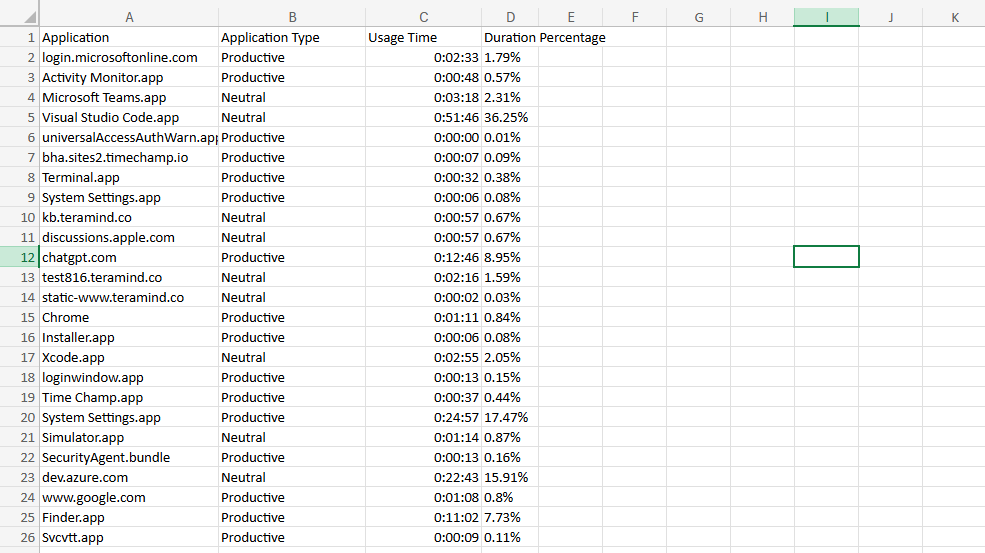
The downloaded report will be like this.
Suspicious Activity:
Suspicious activity refers to instances such as pressing the same key continuously for a long duration or placing any object on
the keyboard or mouse pad to simulate activity
Identify and evaluate suspicious activities with insights on their duration and frequency.
You can download organization level suspicious activity.
Select the participants and time zone to download the report.
Here you can download report in three formats.
The downloaded file will be like this.
Related Articles
Detailed Activity
In this module, you can get detailed information of employee's activities, including information on the applications and websites they use and the amount of time they dedicate to each. Step 1: Navigate to Activity Module Step 2: Navigate to Detailed ...Activity Levels
Step 1: Navigate to Monitoring. Step 2: Navigate to Activity Levels. Step 3: You can see an activity level chart and detailed information in this tab. Step 4: By hovering the mouse pointer over the chart, you can view the number of keystrokes and ...Time & Attendance Report
Step 1: Navigate to Reports Module. Step 2: Navigate to Time & Attendance Here you can see 7 types of Reports. 1. Monthly Attendance Report: Track employee presence efficiently with a comprehensive summary that includes the total number of days ...How to manage Notifications
Step 1: Navigate to Administration module. Step 2: Navigate to Configurations. Step 3: Here you can enable or disable Notifications. Send Non-productive App Usage Notification → Sends alerts when an employee uses non-productive apps (e.g., social ...Dashboard
Step 1: Login to your Time champ account with credentials. Step 2: Navigate to Time tracker. Under Time tracker, you have four tabs. Navigate to dashboard. The Dashboard provides a comprehensive overview of data from all Time Tracker modules. Next to ...