How to Archive a Category?
Follow the steps to archive an existing category.
Step 1:
Log into the site utilizing your credentials.
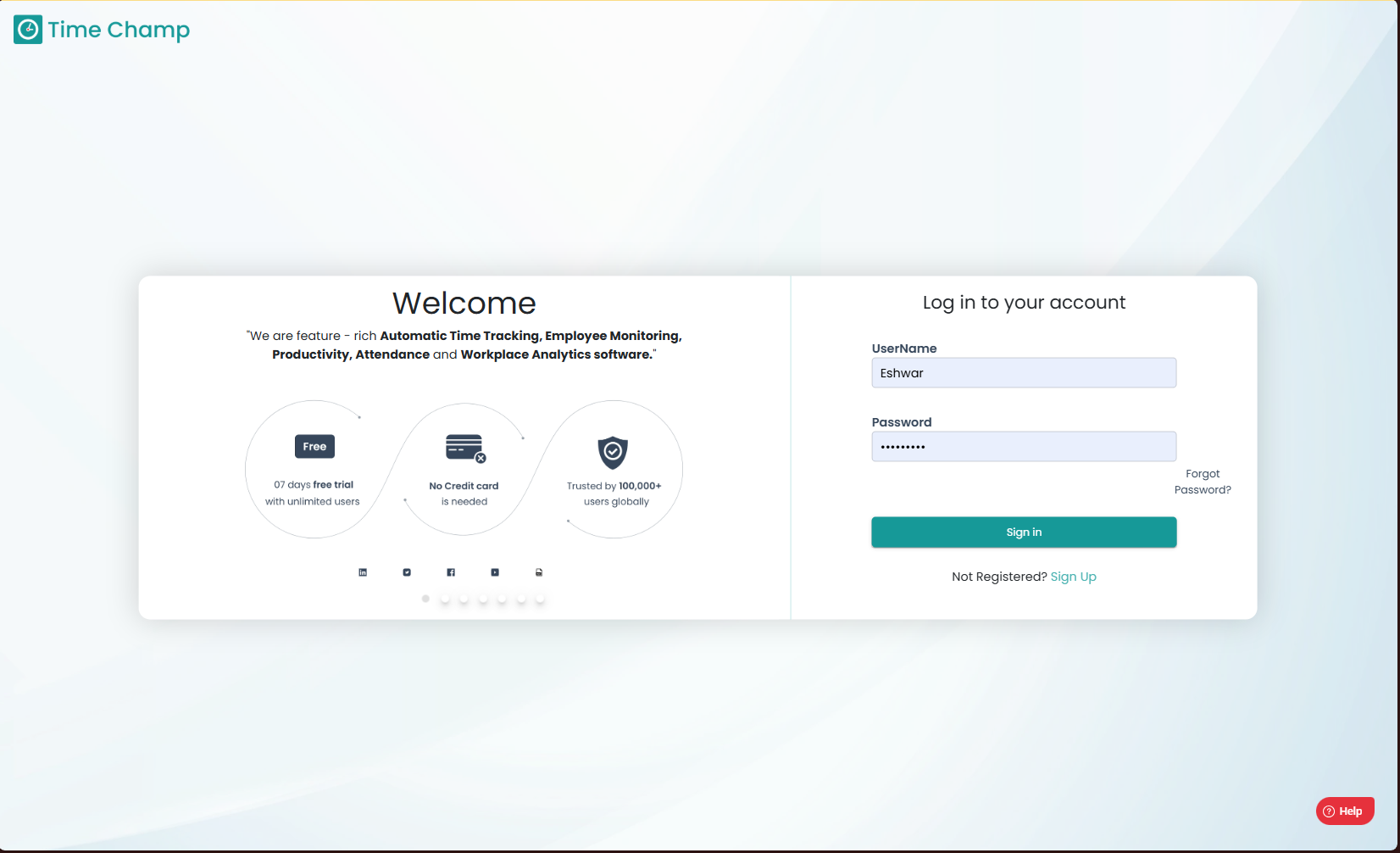
Log into the site utilizing your credentials.
Step 2:
Navigate to the Productivity Module and then to the Configure Apps section.
Navigate to the Productivity Module and then to the Configure Apps section.
Step 3:
Navigate to the Application Groups Sub Section as shown in the image below.
Navigate to the Application Groups Sub Section as shown in the image below.
Step 4:
Click on the Edit symbol which is visible when the mouse cursor is hovered over the category name of that application group as shown in the highlighted area of the image below.
Click on the Edit symbol which is visible when the mouse cursor is hovered over the category name of that application group as shown in the highlighted area of the image below.
Step 5:
Once the Edit symbol is clicked, it will switch to a drop-down menu option as show in the highlighted area in the below image.
Once the Edit symbol is clicked, it will switch to a drop-down menu option as show in the highlighted area in the below image.
Step 6:
Select the add category option as show in the highlighted area in the image below.
Select the add category option as show in the highlighted area in the image below.
Step 7:
Click on the archive symbol and then click on the archive option in the pop up to archive the category.
Click on the archive symbol and then click on the archive option in the pop up to archive the category.
Step 8:
Please Ensure the category is unmapped i.e. not assigned to any application group otherwise the category cannot be archived.
Please Ensure the category is unmapped i.e. not assigned to any application group otherwise the category cannot be archived.
Related Articles
How to Unarchive an archived Category?
Follow the steps to unarchive an archived category. Step 1: Log into the site utilizing your credentials. Step 2: Navigate to the Productivity Module and then to the Configure Apps section. Step 3: Navigate to the Application Groups Sub Section as ...How to Archive a department?
Follow the steps to archive a department. Step 1: Log into the site utilizing your credentials. Step 2: Navigate to the Administration Module and then to the Departments section. Step 3: Now you can view the archive department option in the ...How to archive/delete a team?
Follow the steps to archive a team. Step 1: Log into the site utilizing your credentials. Step 2: Navigate to the Administration Module and then to the Teams section. Step 3: Now you can view the archive option in the highlighted area in the below ...How to add a new Category?
Follow the steps to add a new category. Step 1: Log into the site utilizing your credentials. Step 2: Navigate to the Productivity Module and then to the Configure Apps section. Step 3: Navigate to the Application Groups Sub Section as shown in the ...How to archive an Application Group?
Follow the steps to archive an application group. Step 1: Log into the site utilizing your credentials. Step 2: Navigate to the Productivity Module and then to the Configure Apps section. Step 3: Navigate to the Application Groups Sub Section as ...